Learn dsResto in 20 minutes
dsResto is a restaurant billing app that works fully offline. Your bills, menu and customers stay on your phone. Nothing needs the internet.
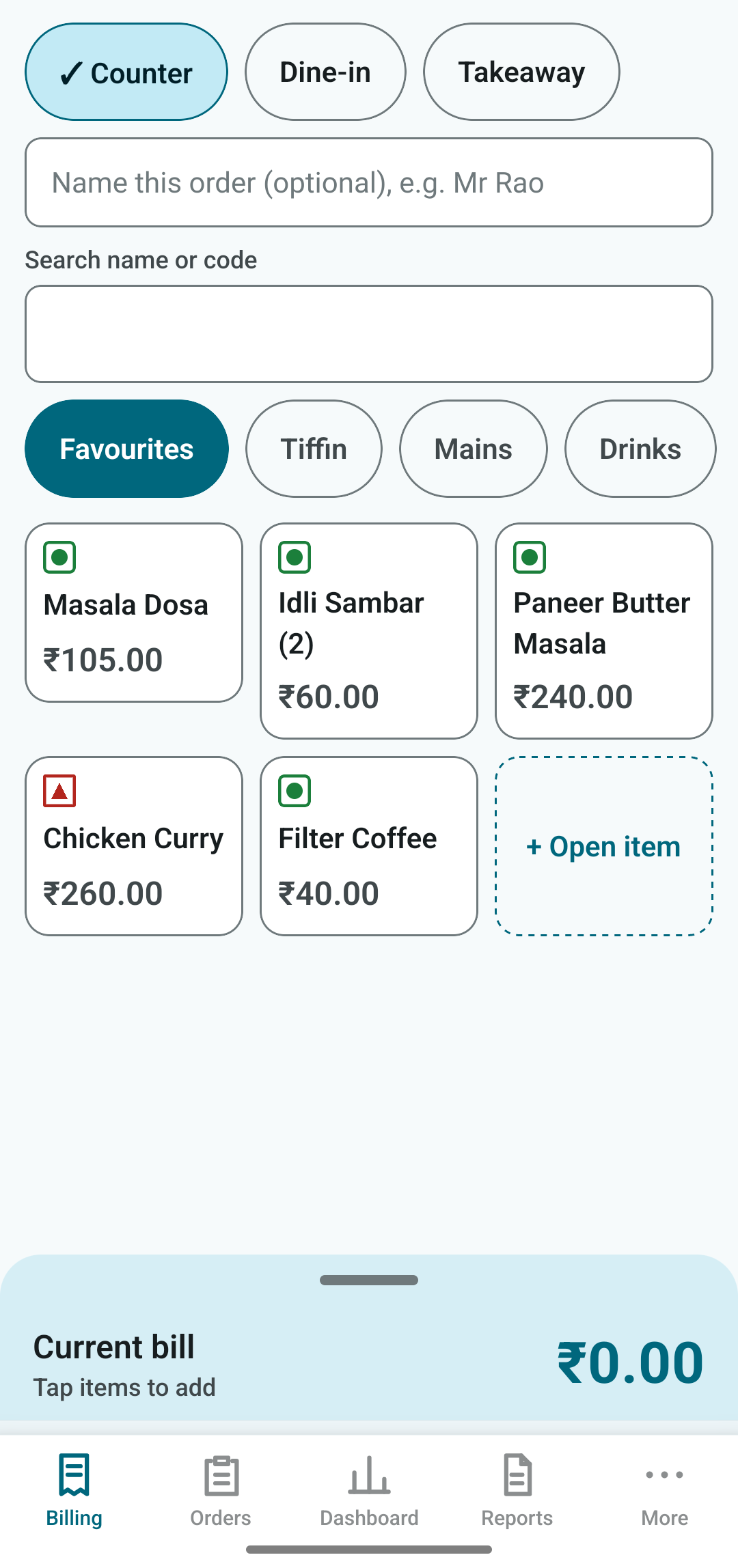
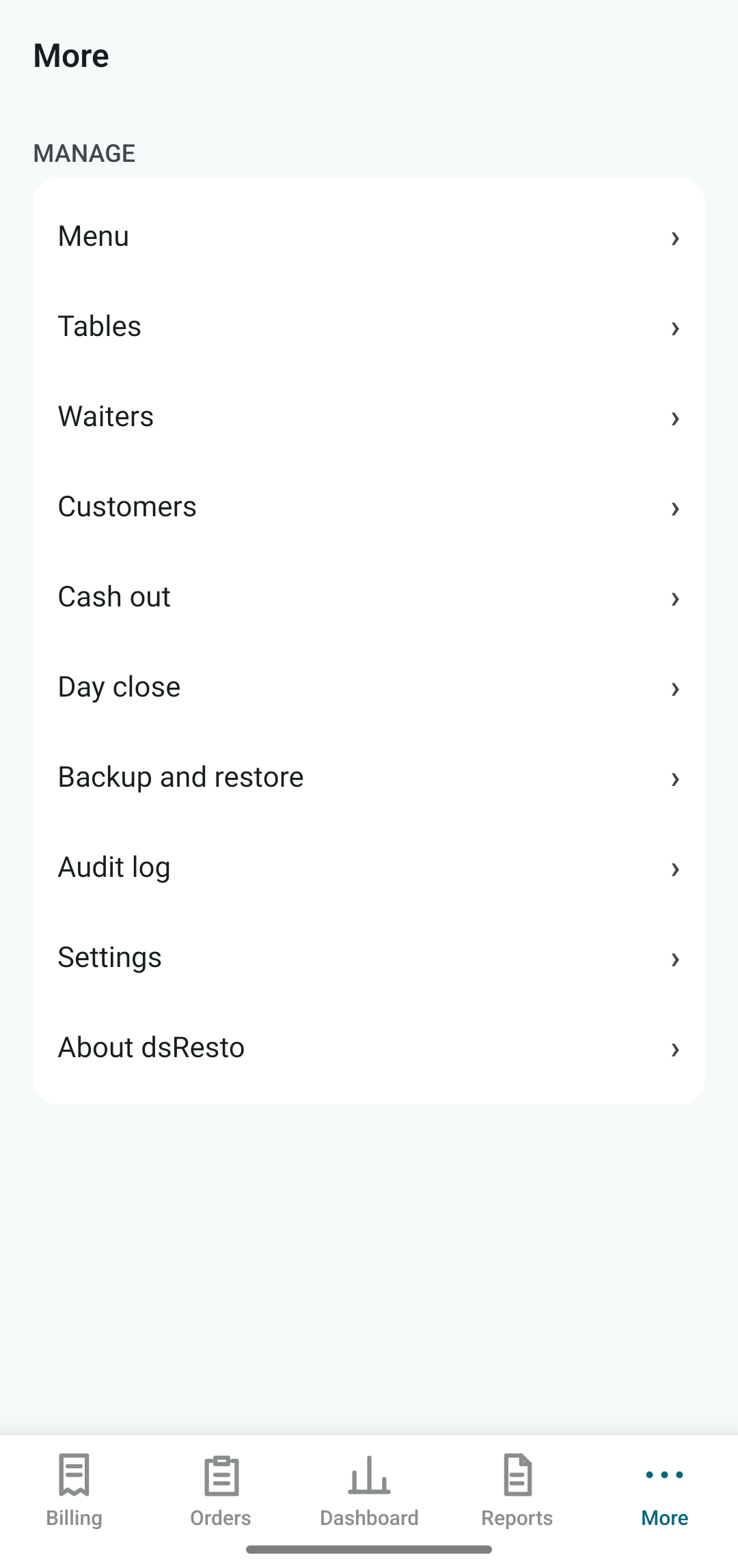
The bar at the bottom is your map. Five tabs:
| Tab | Use it to |
|---|---|
| Billing | Take an order and make the bill. This is the home screen. |
| Orders | Find today's bills, held orders, unpaid bills. Reprint, share or correct a bill. |
| Dashboard | Today at a glance: sales, cash in drawer, how it was paid. Owner PIN. |
| Reports | Day summary, item-wise sales, GST summary, and more, each shareable as PDF. Owner PIN. |
| More | Menu, tables, waiters, customers, cash out, day close, backup, settings, audit log. |
First-time setup
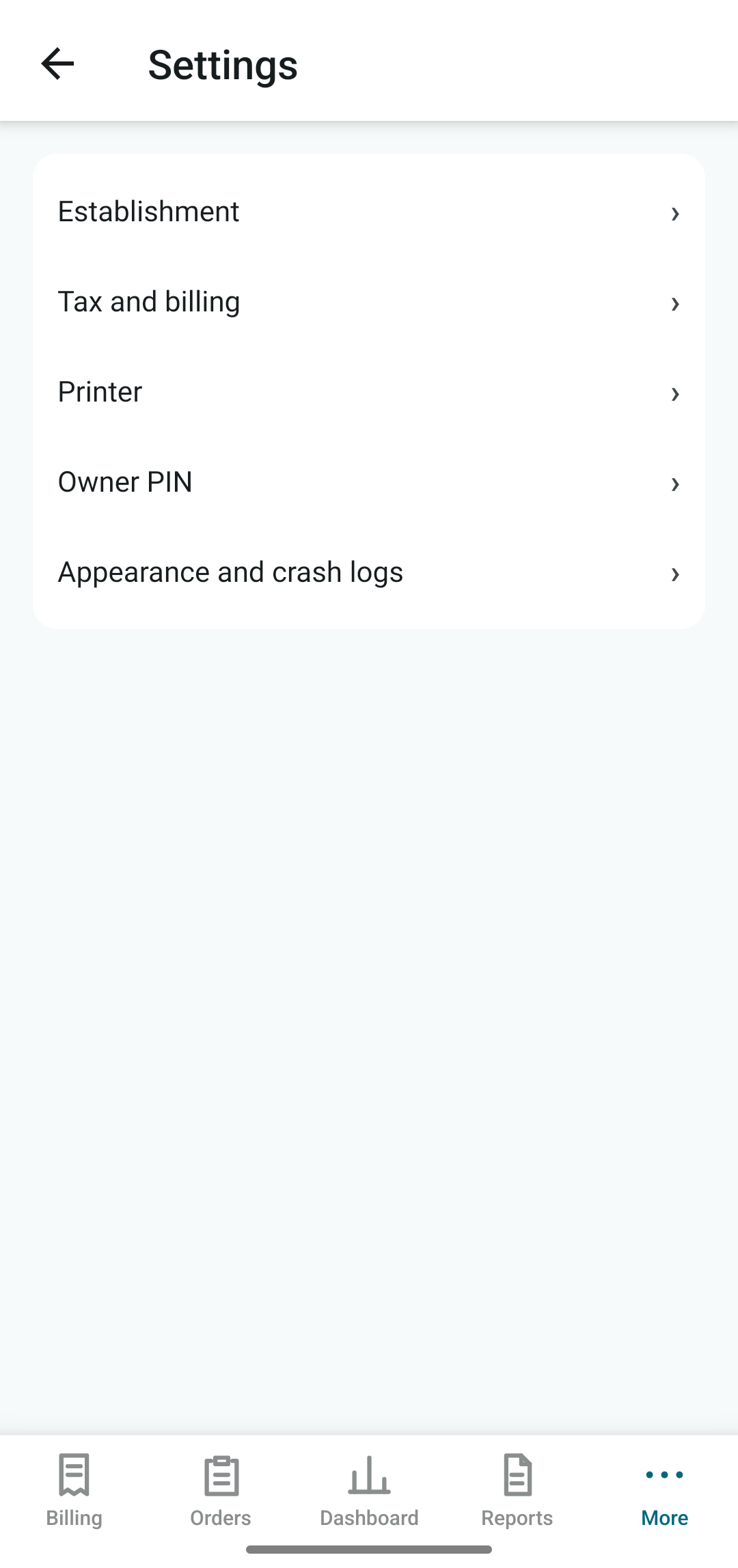
Do this once, before the first customer. Open More › Settings and enter the owner PIN.
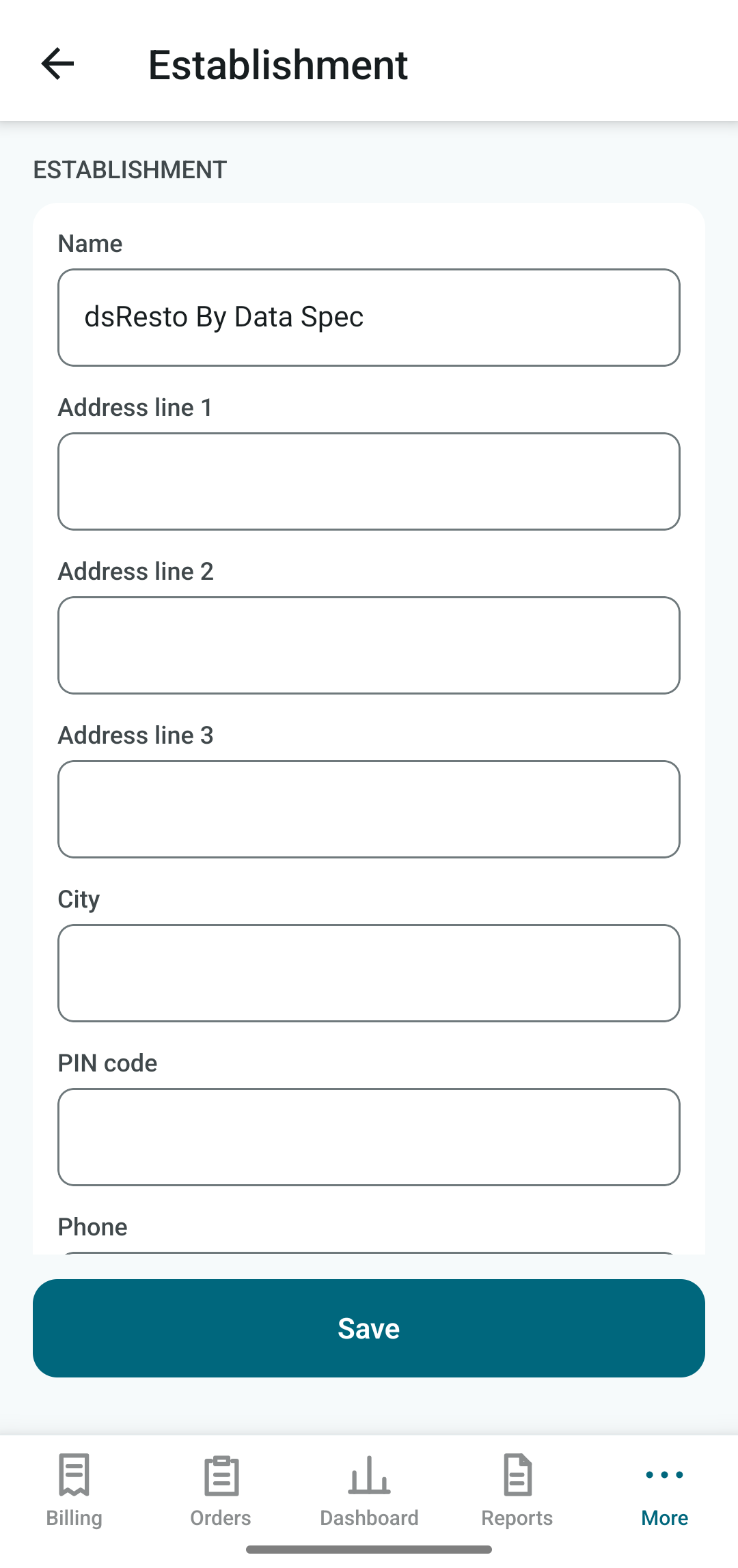
1. Establishment
Enter your restaurant name, address and phone. These print at the top of every bill.
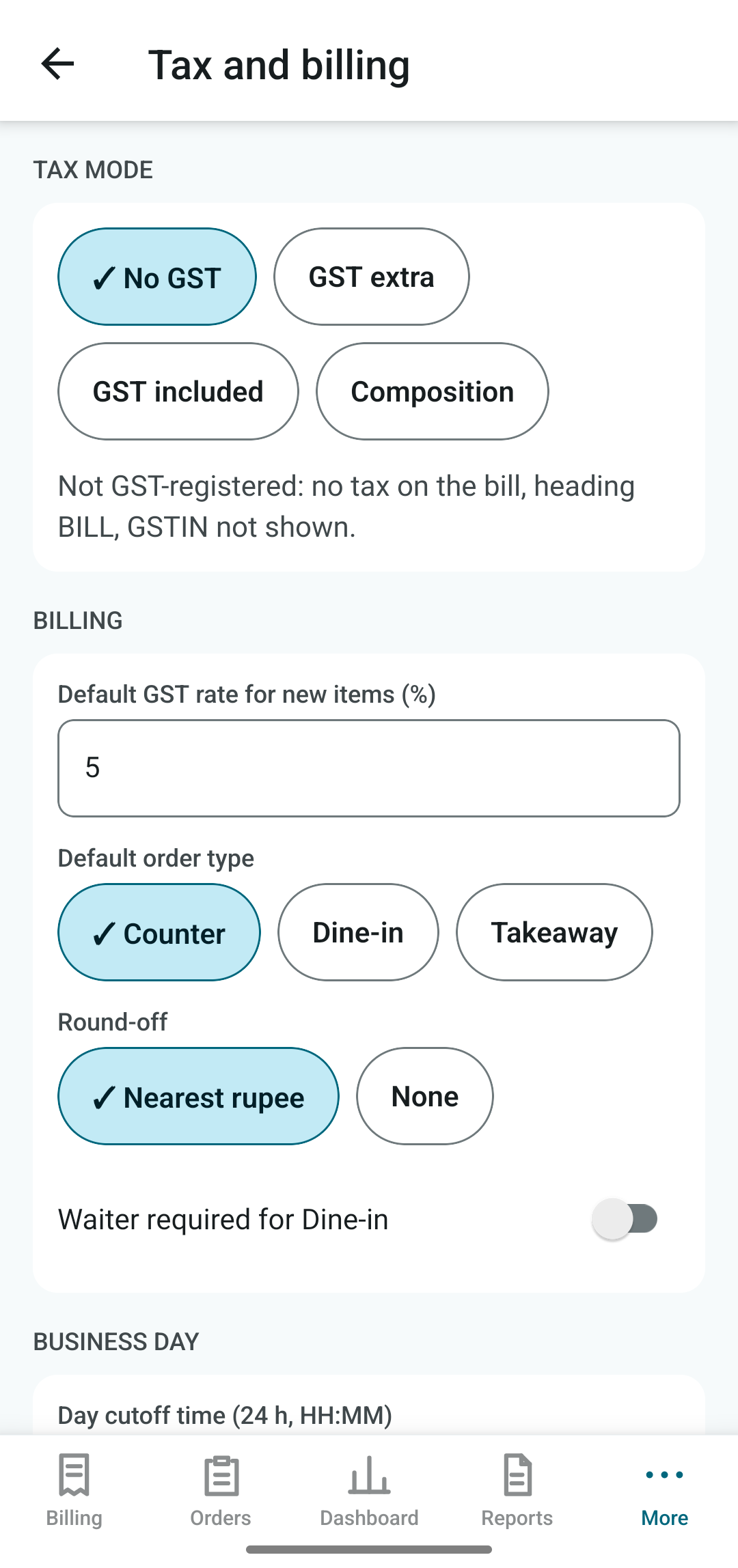
2. Tax and billing
Choose how your bills treat GST:
- No GST: not GST-registered. The bill says BILL, with no tax lines.
- GST extra: tax is added on top of the menu rate.
- GST included: menu rates already contain tax.
- Composition: Bill of Supply for composition-scheme restaurants.
Also set the default order type (Counter, Dine-in or Takeaway), round-off (nearest rupee or none), whether a waiter is required for Dine-in, and your day cutoff time.
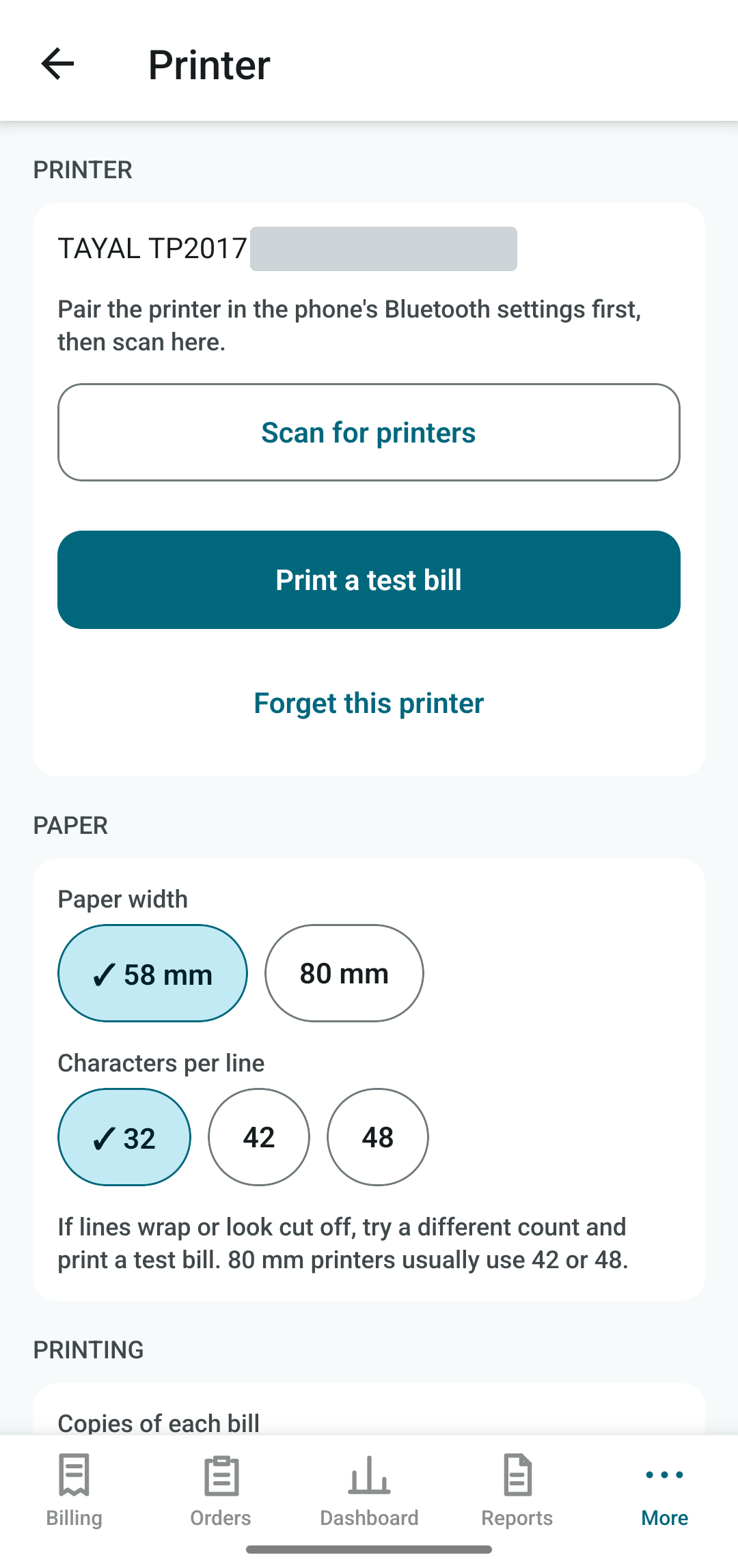
3. Printer
- Pair the Bluetooth thermal printer in the phone's own Bluetooth settings first.
- In dsResto, open Settings › Printer and tap Scan for printers. Pick yours.
- Choose the paper width (58 mm or 80 mm) and characters per line.
- Tap Print a test bill. If lines wrap or look cut off, try a different characters-per-line value.
If the printer is off, the bill is still saved. You can print it later from Orders.
4. Menu, owner PIN, look
Add your items under Menu. Set or change the PIN under Settings › Owner PIN. Light or dark appearance is under Appearance and crash logs.
Making a bill
The fastest path: three taps for items, then Settle.
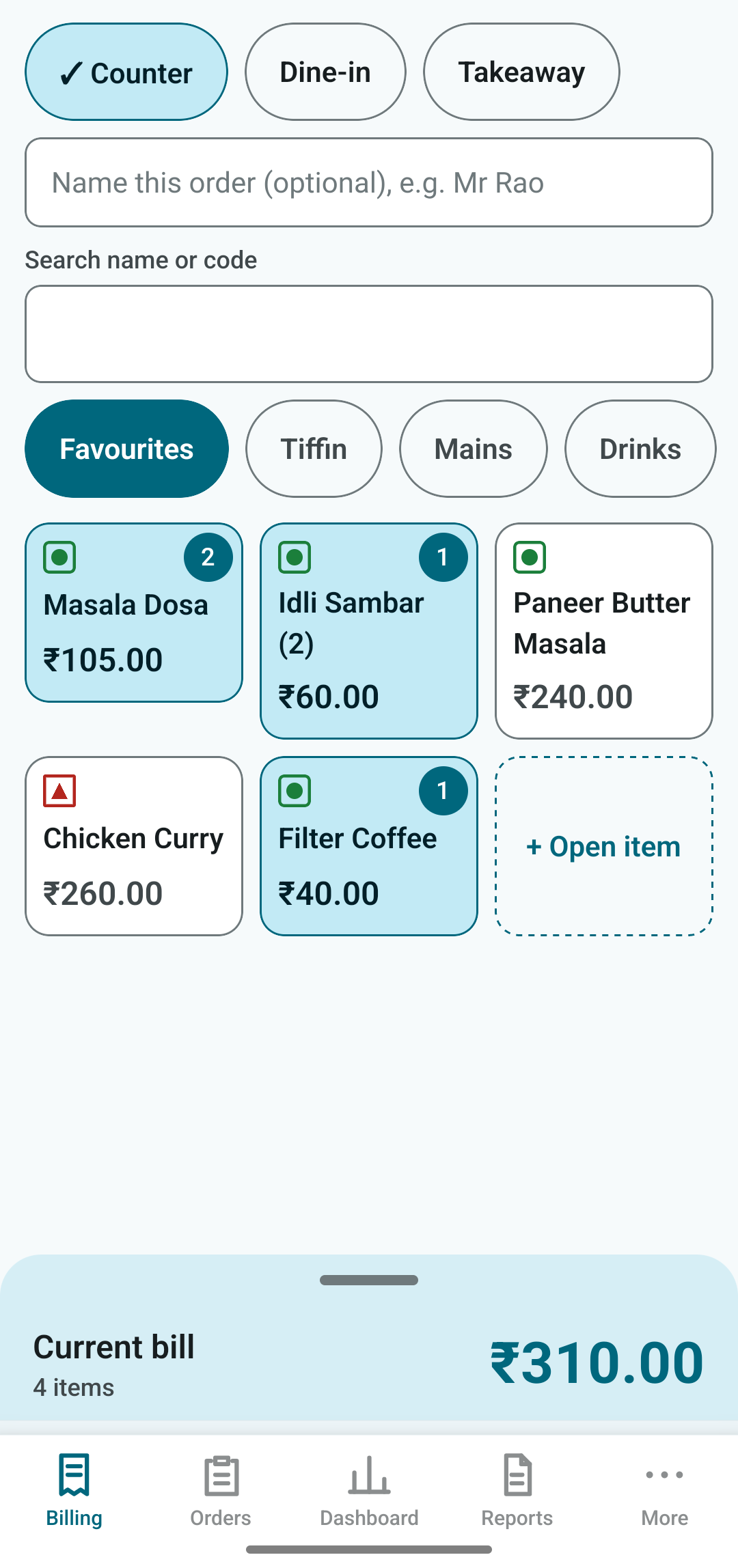
Pick the order type
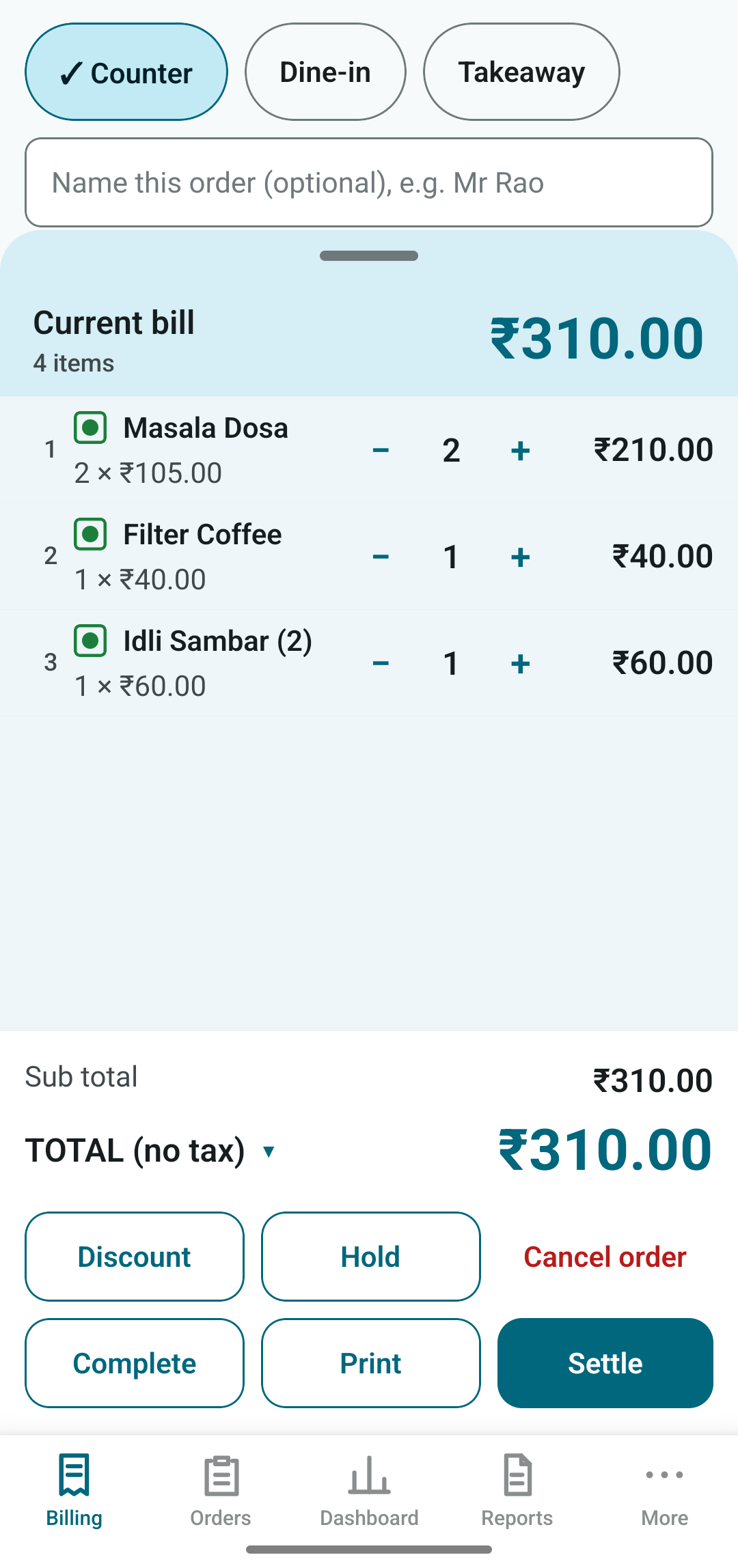
At the top, choose Counter (token, pay now), Dine-in (a table) or Takeaway. Your default is pre-selected. You can type an optional name, such as "Mr Rao", to find the order later.
Tap items
Tap a tile to add one. Tap again to add another. A number badge shows how many are in the cart. A green dot means vegetarian, a red triangle means non-vegetarian.
- Favourites shows your quick sellers. Other tabs are your categories.
- The search box finds by name or item code.
Check the cart
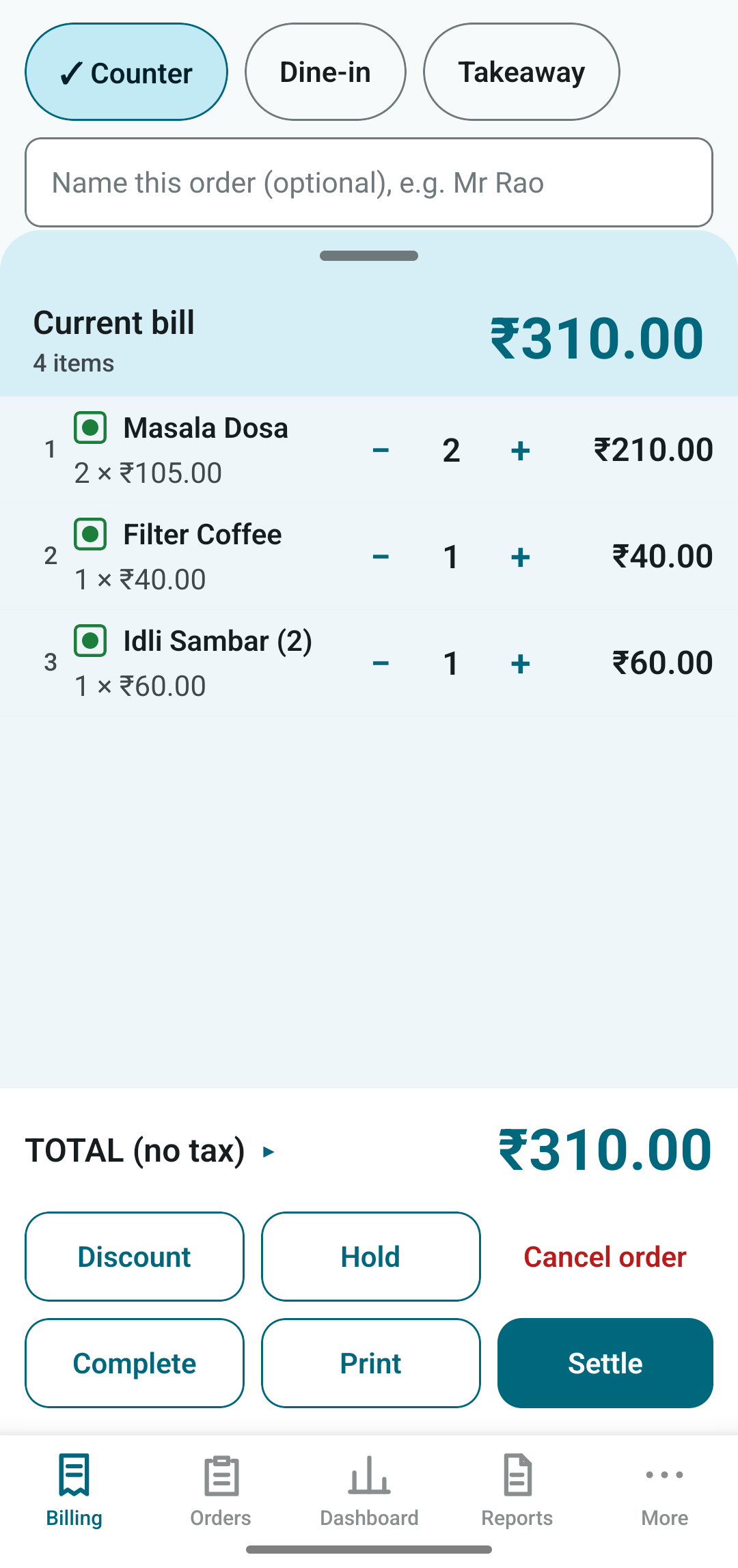
Drag the Current bill panel up, or tap it. Each line has − and + to change the quantity. Swipe a line away to remove it; an Undo bar appears for a few seconds. The big figure at the bottom is the total.
Tap TOTAL ▸ to show the breakup: sub-total, discount, tax and round-off.
Choose what to do
| Button | What it does |
|---|---|
| Settle | Take payment, complete the bill and print it. |
| Print the bill now; take payment later (shows in Orders as unpaid). | |
| Complete | Finish the bill without printing. |
| Hold | Park the order and come back to it (open orders, tables). |
| Discount | See Discount. |
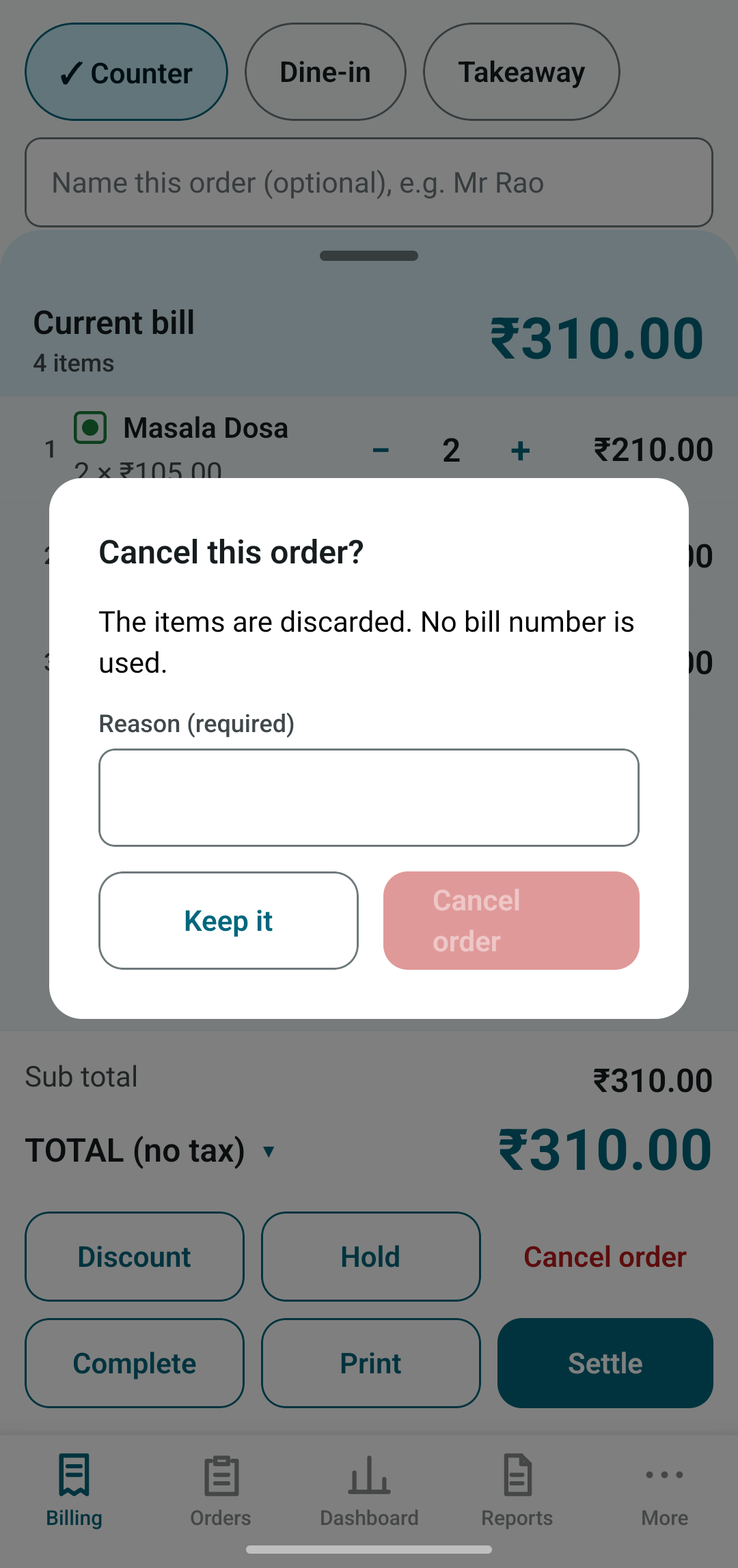
| Cancel order | Throw the order away. Needs a reason; no bill number is used. |
Cancelling an order
Cancel order asks for a reason. The cancellation is recorded in the audit log with your reason.
Discount
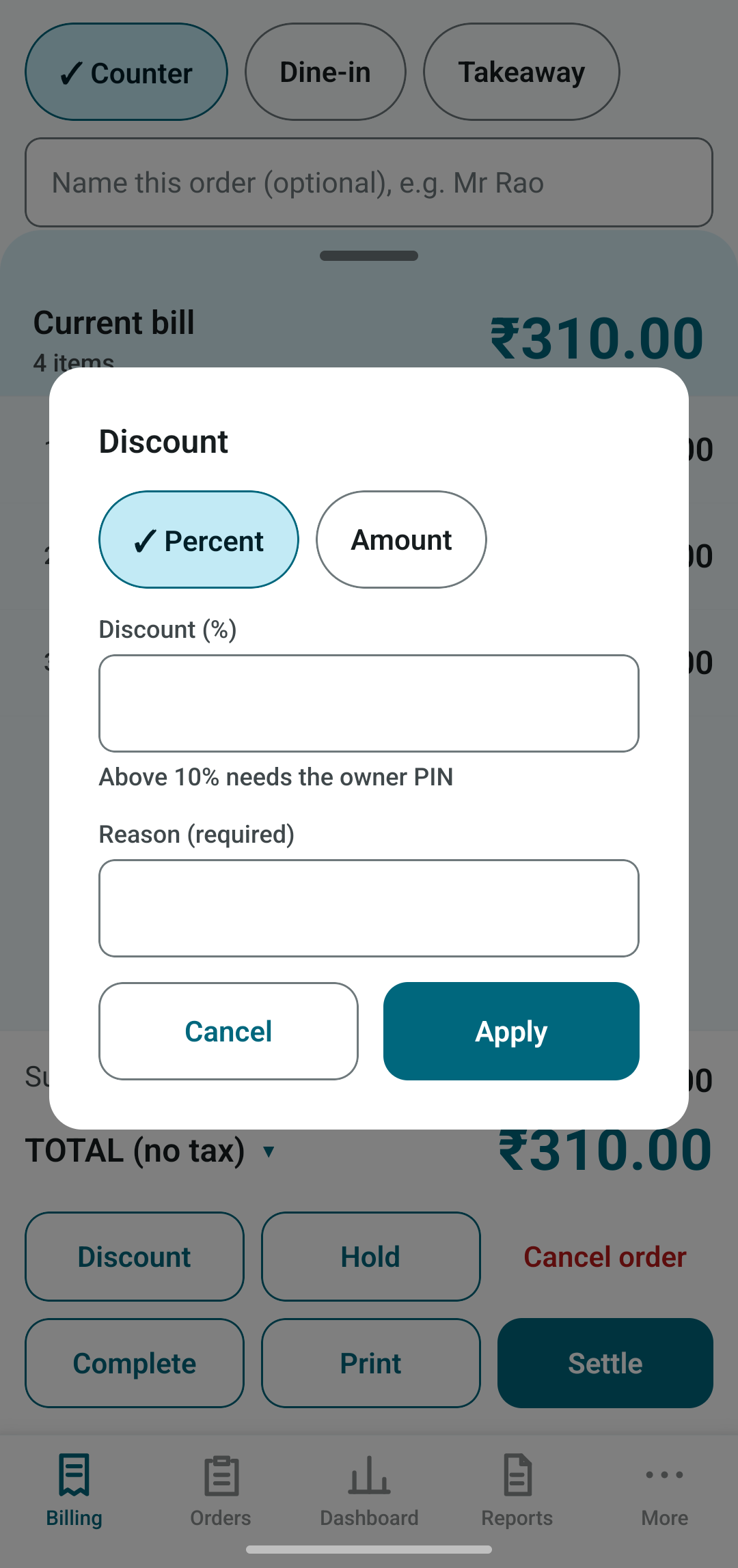
Tap Discount in the cart. Choose Percent or Amount, enter the value, and give a reason (required). Tap Apply.
- The discount is taken off before tax, so it reduces the taxable value.
- A discount above 10% needs the owner PIN.
- Every discount appears in the Discounts report and the audit log.
Taking payment
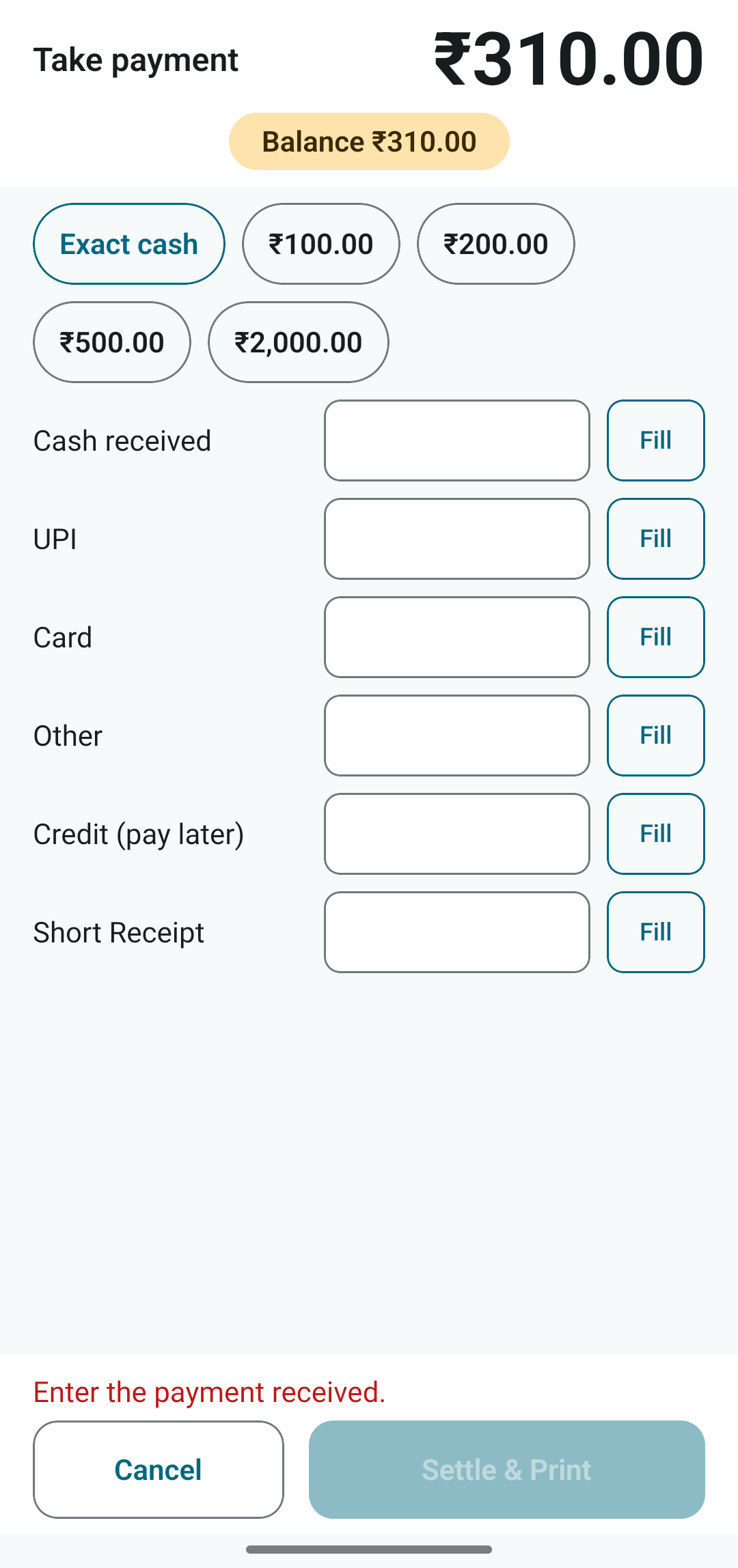
Tap Settle. The Take payment sheet shows the total at the top and a balance chip.
Pay in one or more ways
Fill any of: Cash received, UPI, Card, Other, Credit (pay later), Short Receipt. A guest can split a bill across several. The Fill button puts the remaining balance into that row.
For cash, the quick chips Exact cash, ₹100, ₹200, ₹500, ₹2,000 fill the amount received in one tap.
When the balance reaches zero, the chip turns green with ✓ Settled.
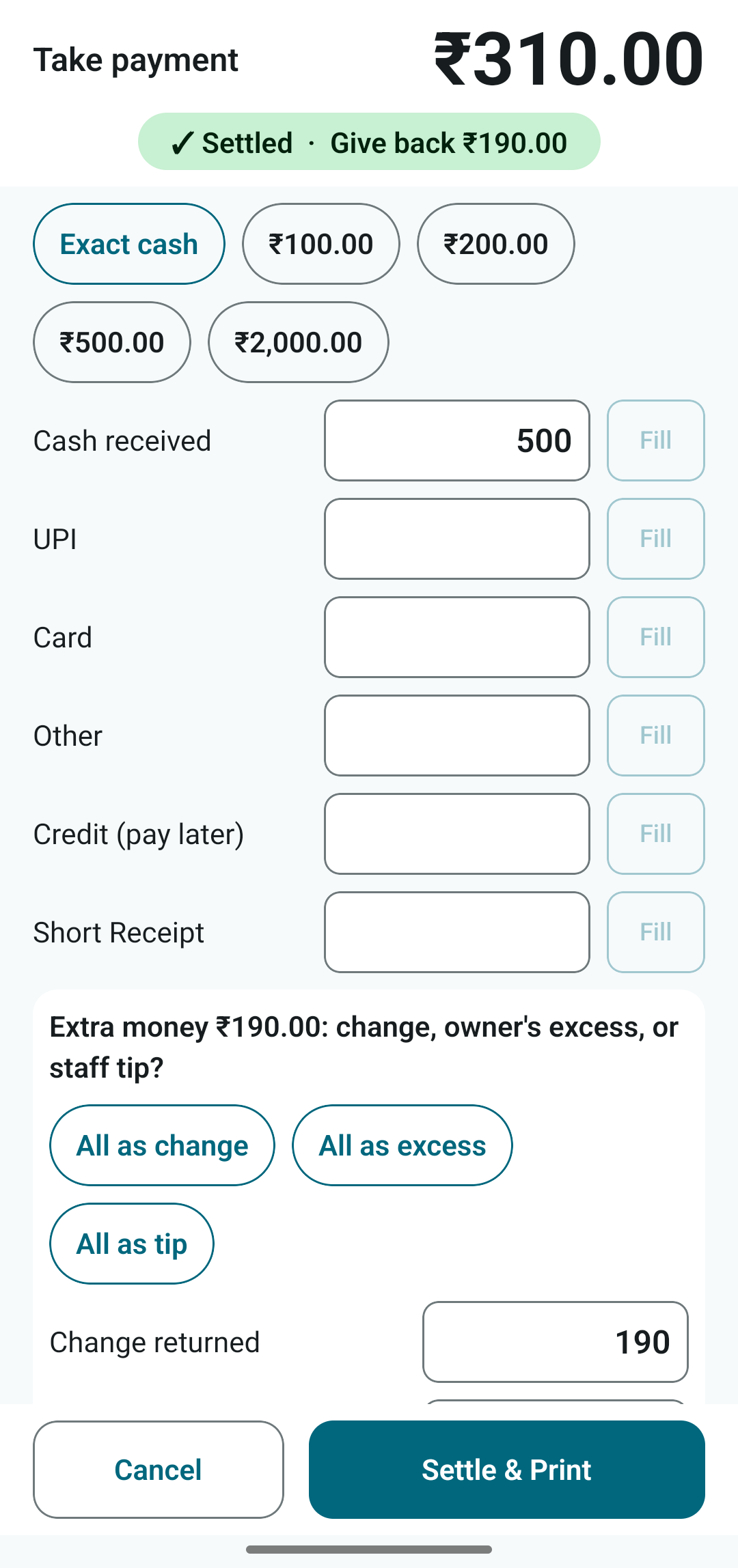
Customer gave more than the bill
The app will not let you finish until the extra money is classified:
- Change: you give it back. Enter the change returned.
- Excess: an overpayment you keep. Reported separately, not counted as sales.
- Tip: belongs to staff. Recorded, never counted as sales.
Customer paid less
Use Short Receipt for a small shortfall you choose to forgive. Above the limit set in Settings (default ₹50) it needs the owner PIN. For a customer who will pay later, use Credit; name and mobile number are then required.
UPI with a QR code
Put the amount in the UPI row, then tap Show UPI QR for ₹…. Show the screen to the guest; any UPI app can scan it. Tap Done after you see the payment arrive. Add the last digits of the transaction id in the reference box, so a dispute can be traced.
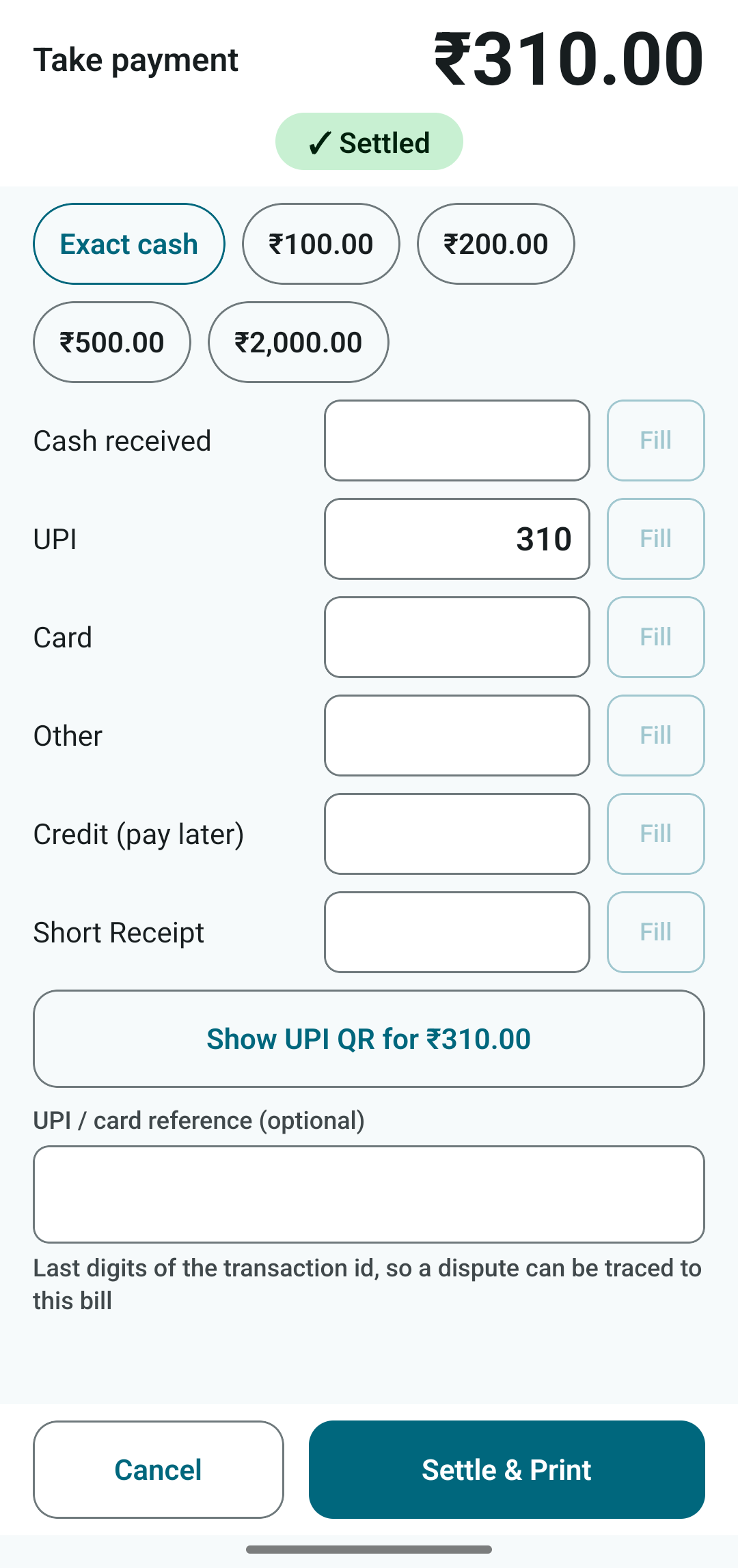
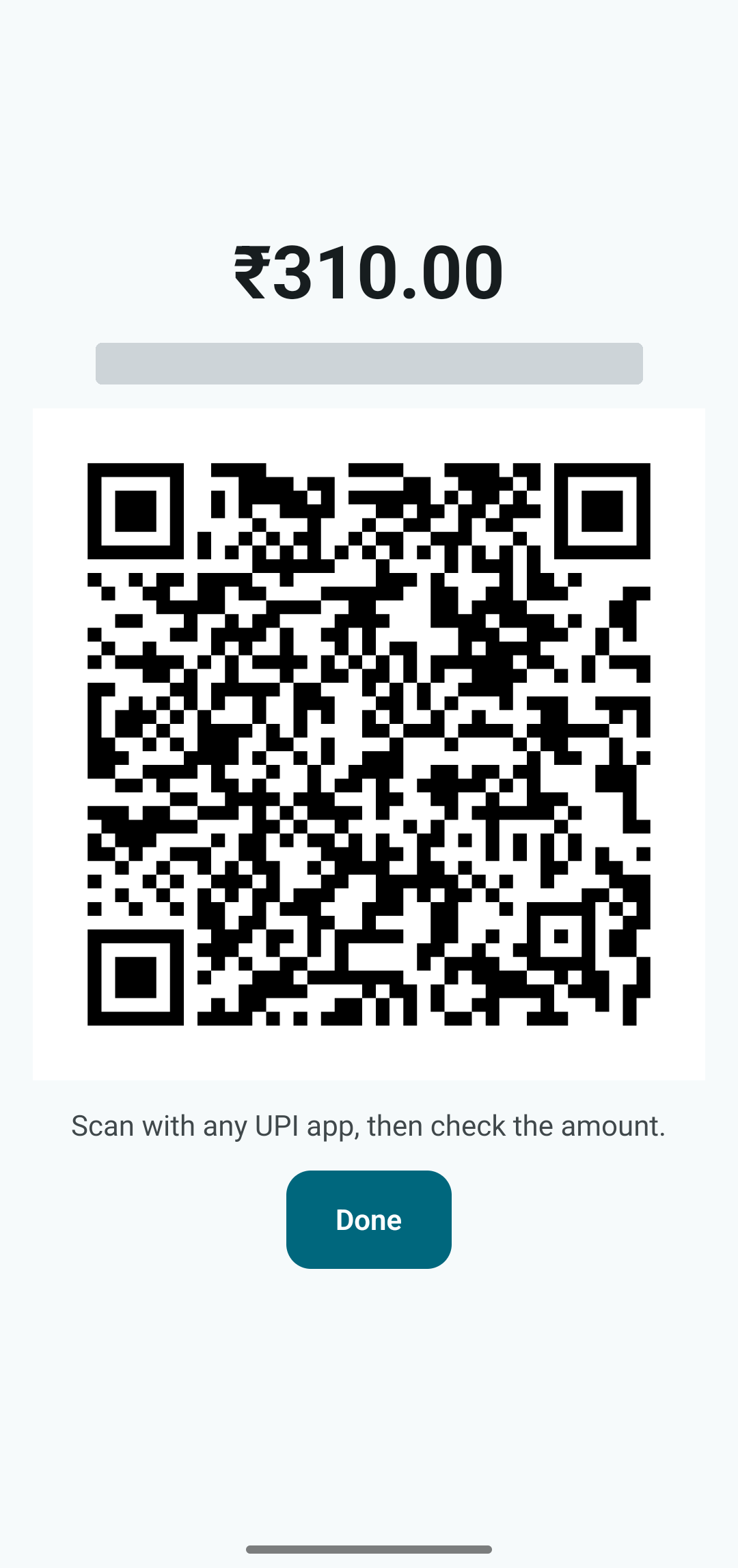
Finally tap Settle & Print. The bill number is assigned, the receipt prints, and the screen is ready for the next order.
Dine-in and tables
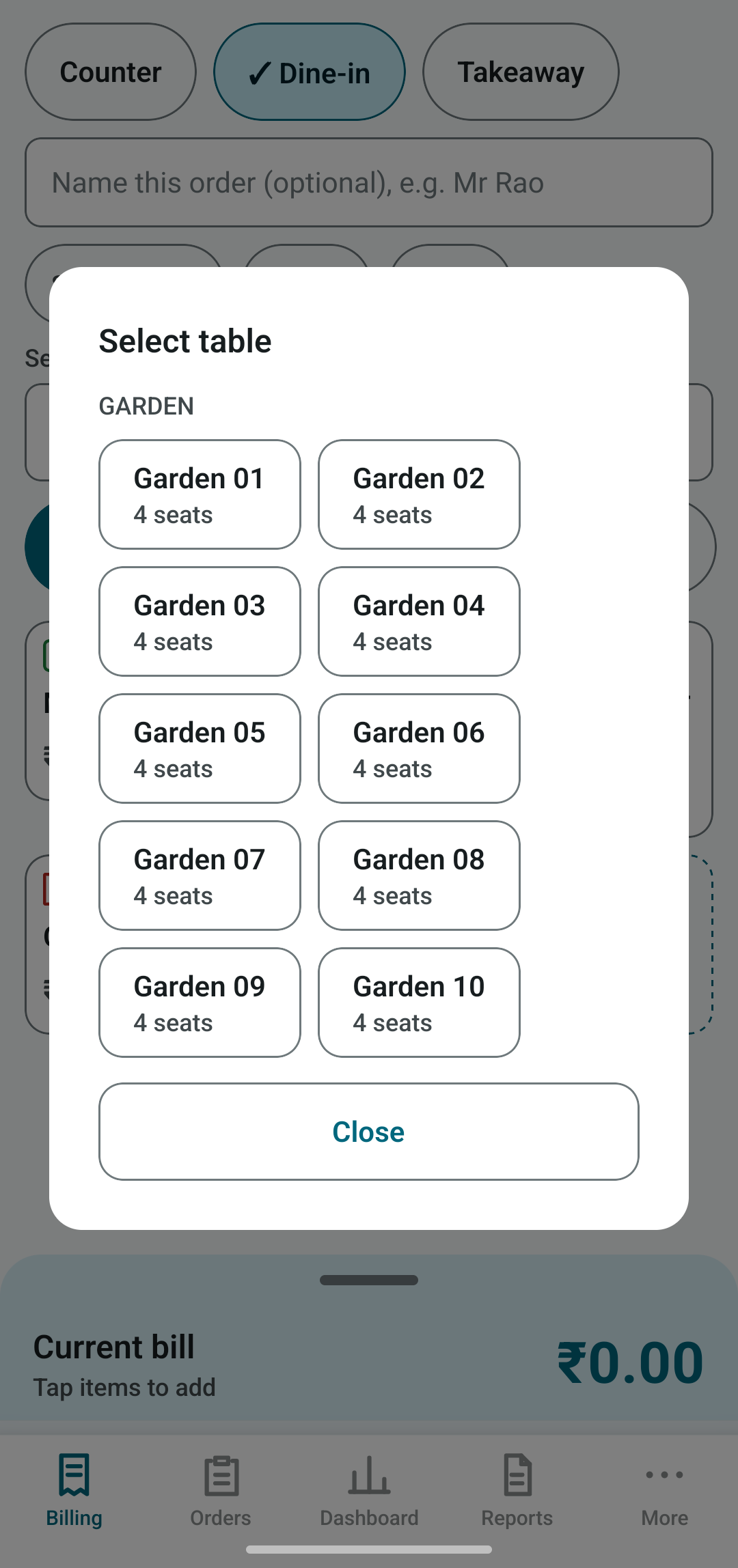
- Tap Dine-in. Three chips appear: Select table (required), Guests and Waiter.
- Tap Select table and pick one. Your tables are grouped by section.
- Add items. Tap Hold to keep the order on that table while the guests eat.
- Later, open it from Orders › Open, add more, then print the bill and settle.
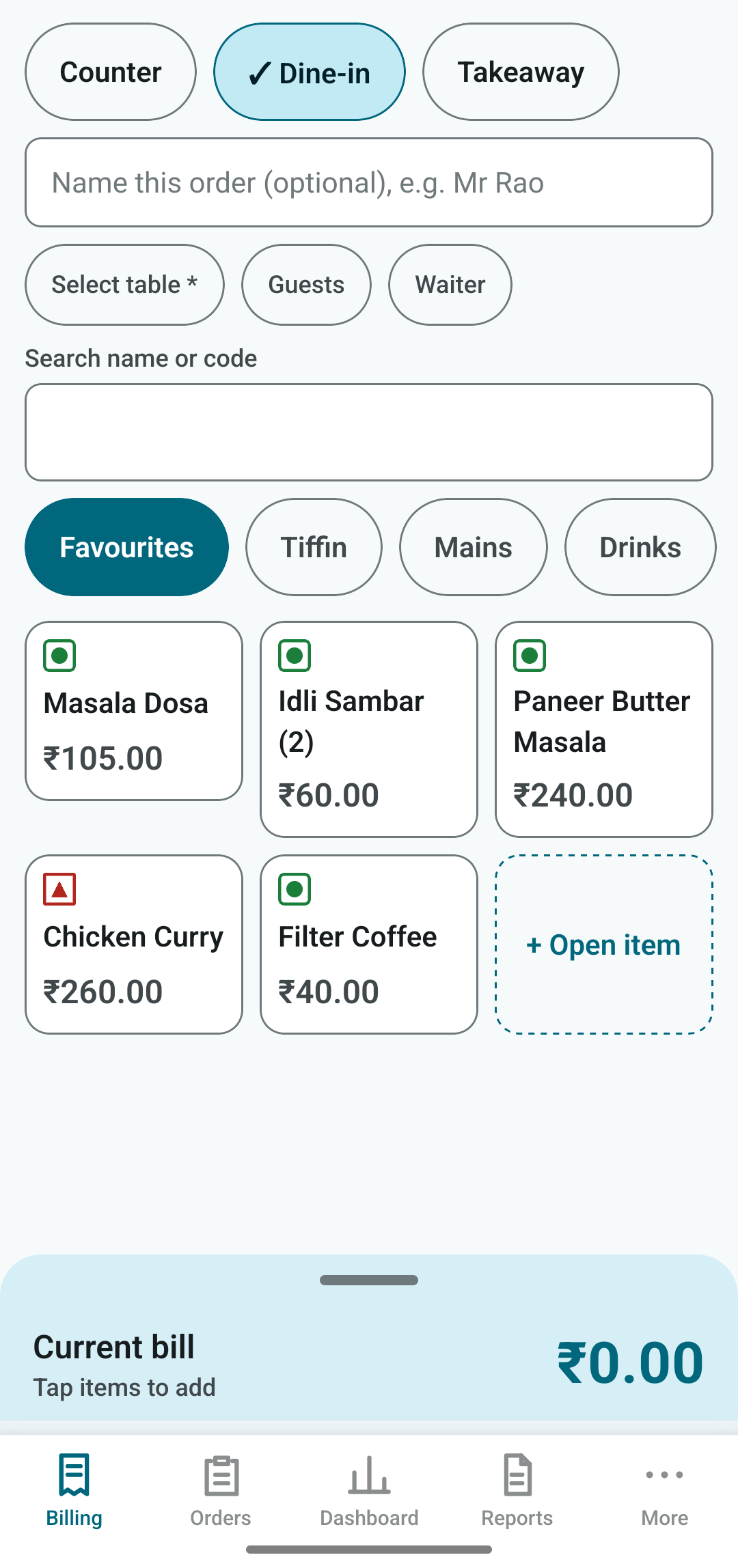
Open item
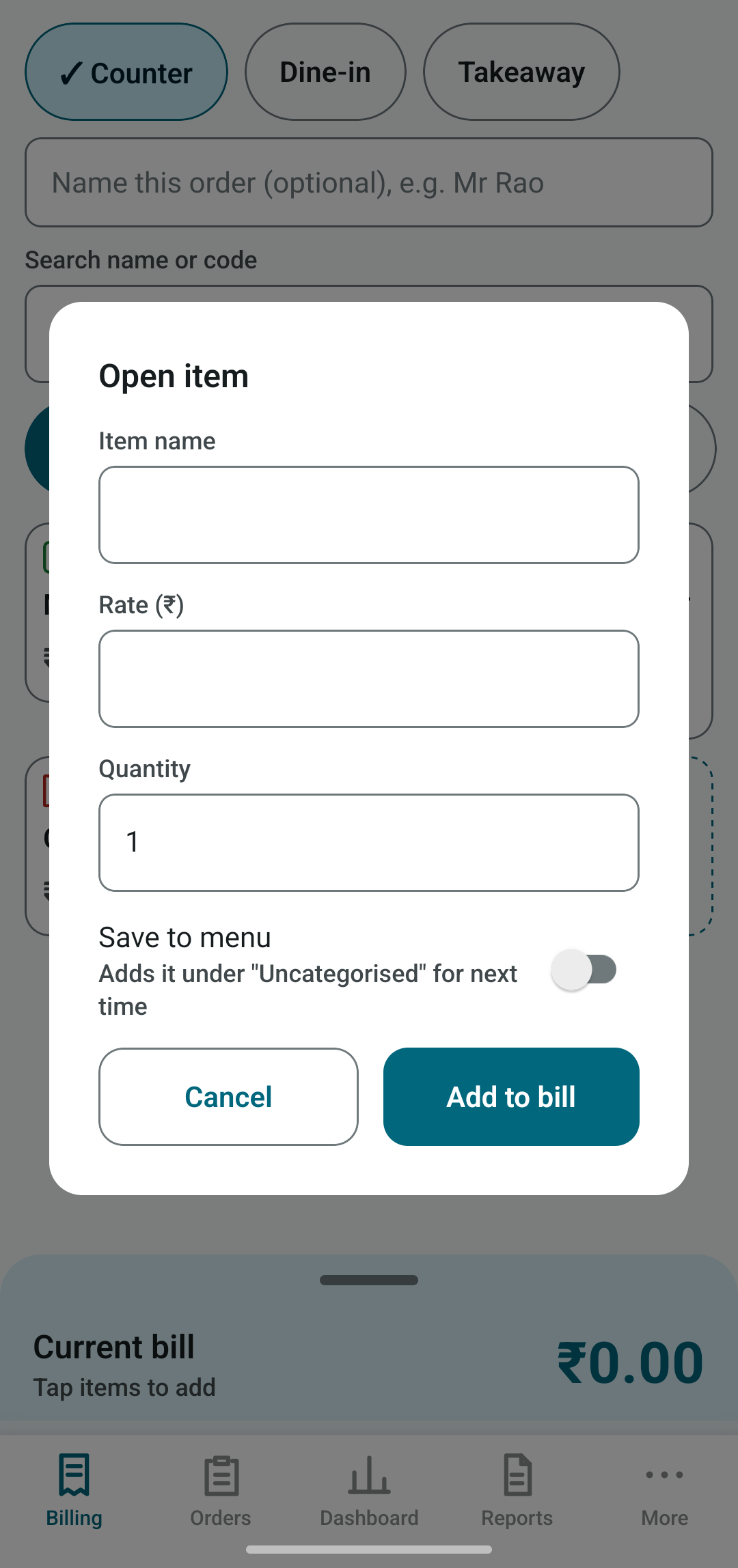
When a guest orders something that is not on the menu, tap the dashed + Open item tile.
Enter the item name, rate and quantity. Turn on Save to menu if you want it kept under "Uncategorised" for next time. It is never forced.
Orders and bills
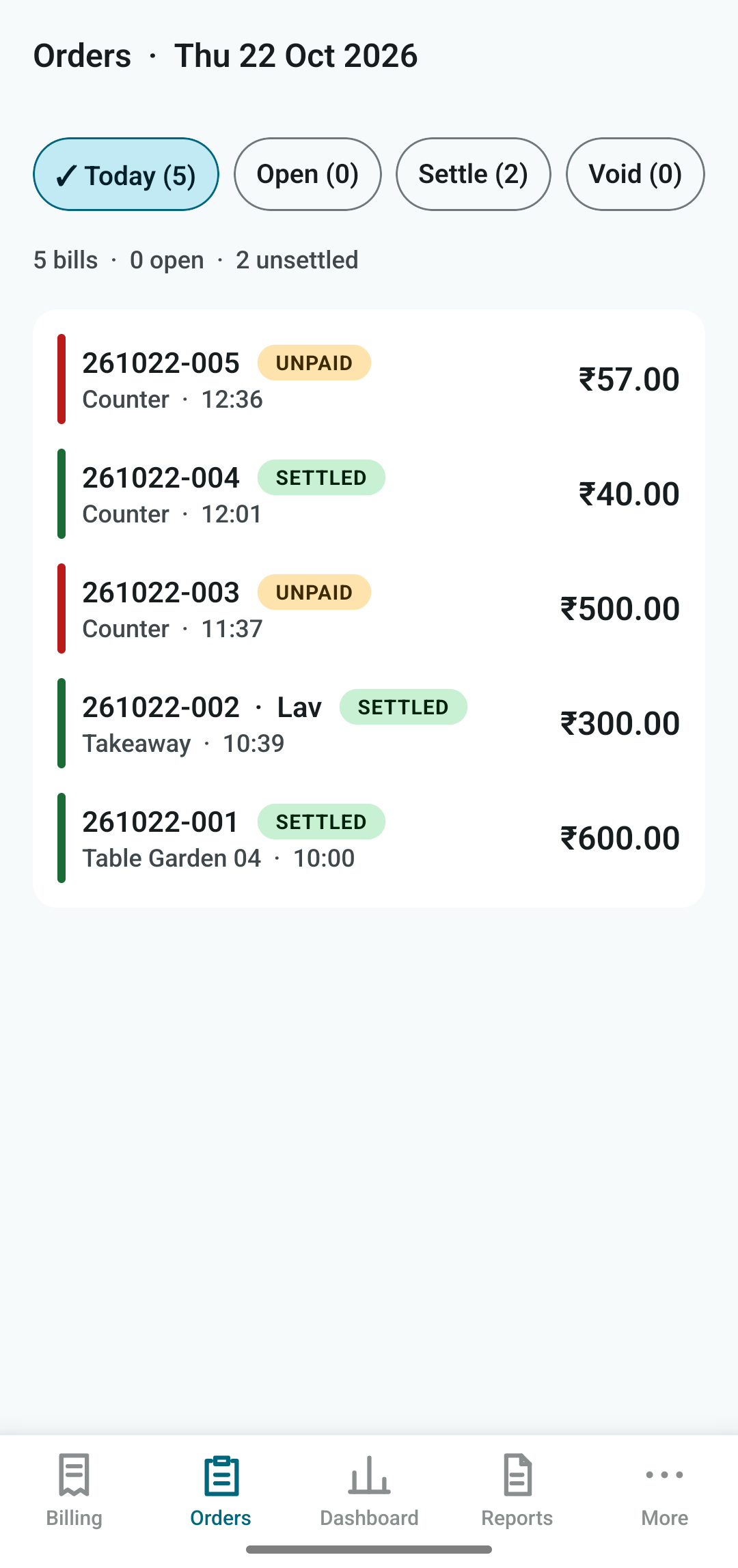
The Orders tab lists the business day's bills. Tabs: Today, Open (held orders), Settle (bills still unpaid) and Void.
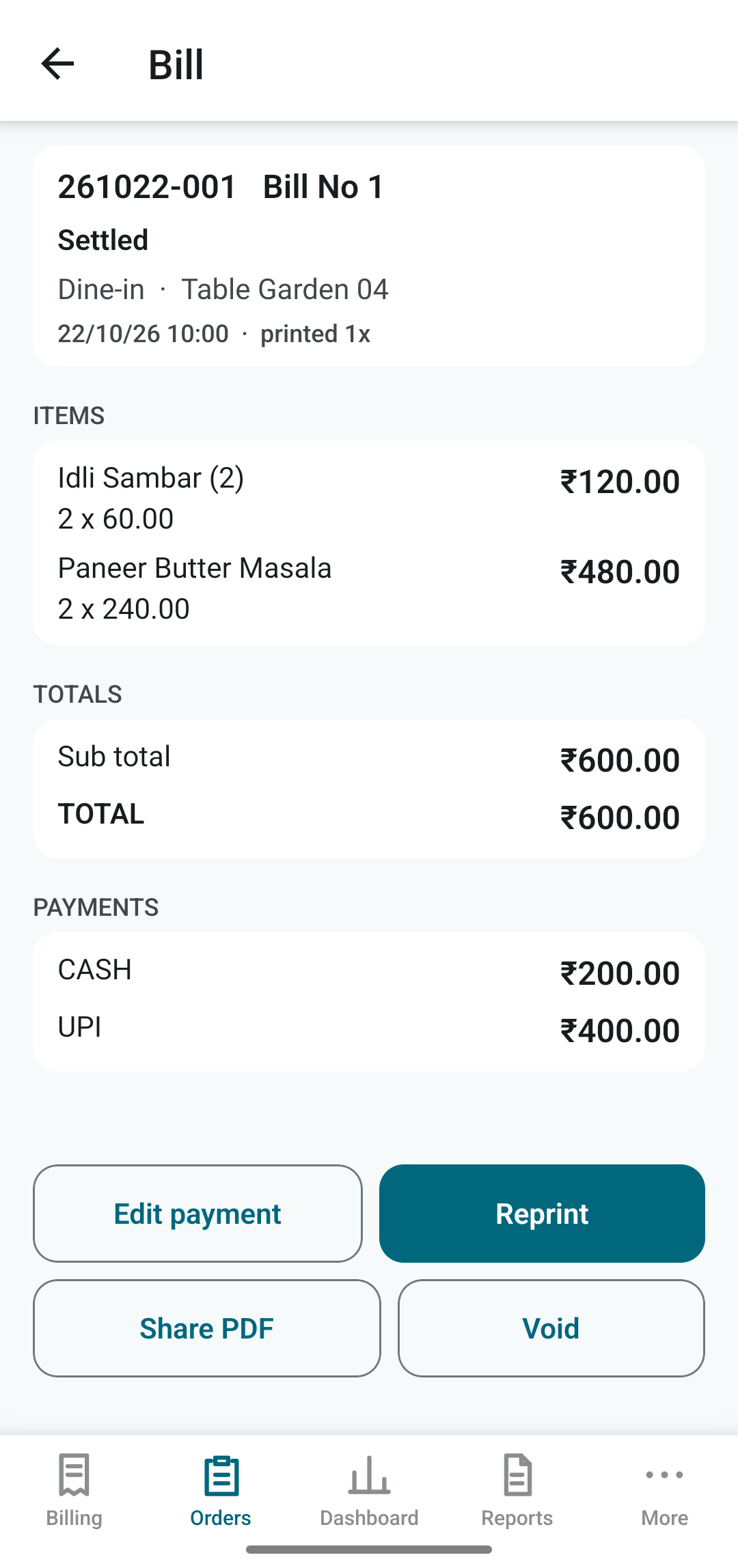
Each row shows the invoice number, status (SETTLED or UNPAID), order type, time and amount. Invoice numbers look like 261022-005, which is year, month, day, then the bill count for that day.
Inside a bill
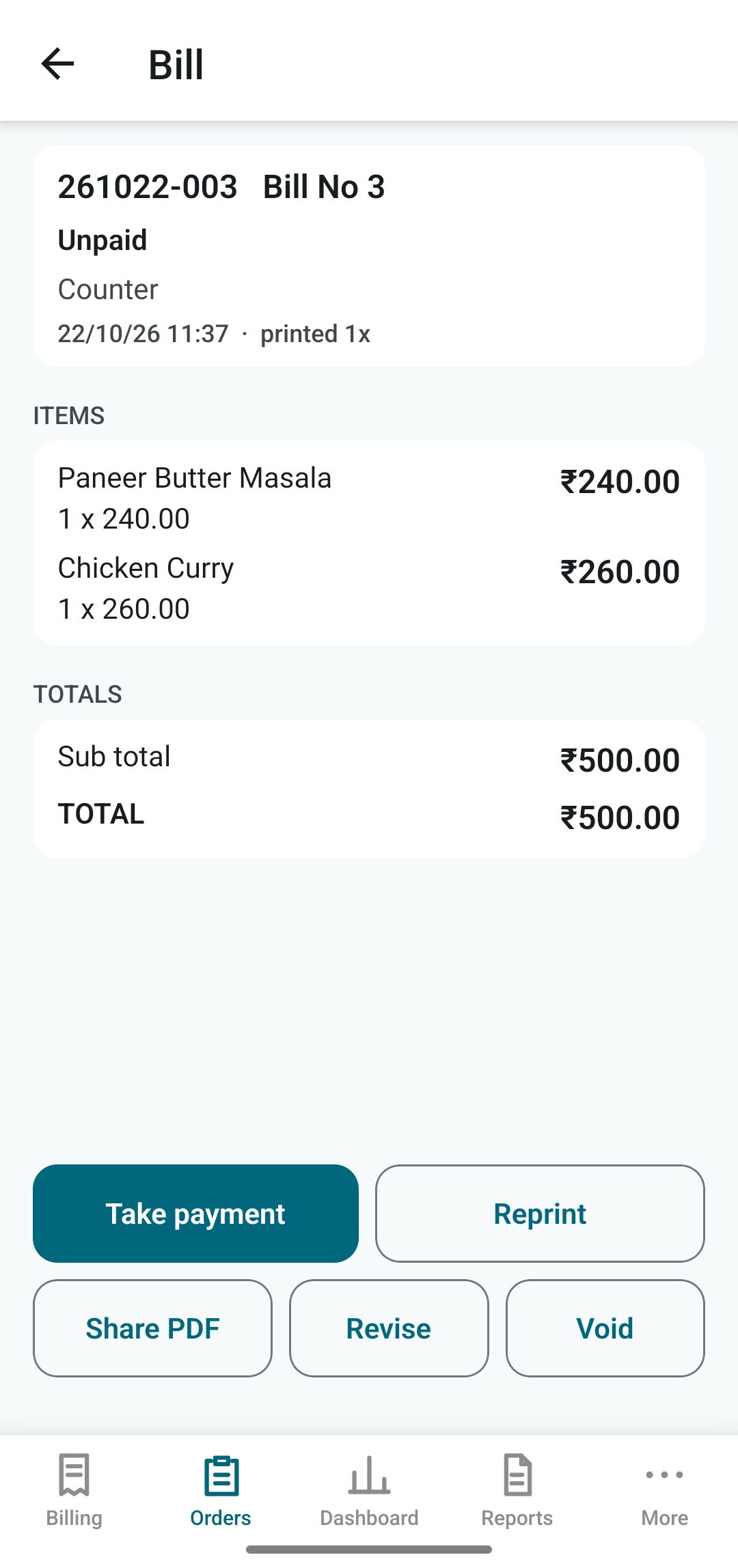
Tap a row to open the bill. Actions at the bottom:
- Take payment: for unpaid bills.
- Edit payment: change how a settled bill was paid (owner PIN, recorded in the audit log).
- Reprint: marked DUPLICATE on paper.
- Share PDF: send the bill by WhatsApp, email and so on.
- Revise and Void: correct or cancel a printed bill. Both need the owner PIN and a reason, and are audited. A printed bill is never silently changed.
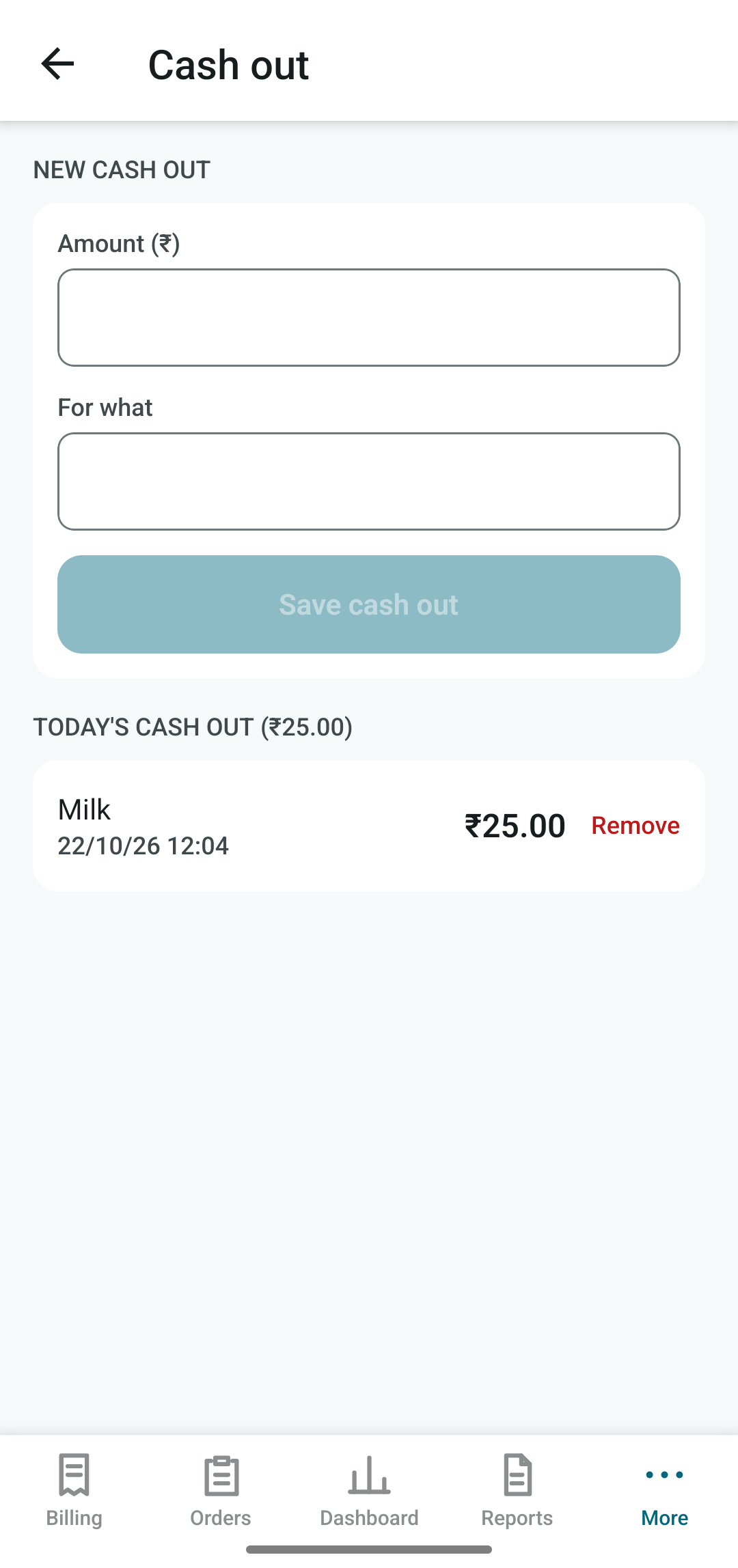
Cash out
Money you take from the drawer for expenses, such as milk or gas, should be entered here so the cash position stays right.
- Open More › Cash out.
- Enter the amount and what for, then tap Save cash out.
- Today's entries are listed below with their total. Use the remove button on an entry made by mistake.
Cash out is deducted from Cash position on the Dashboard and shows up in the Cash out report.
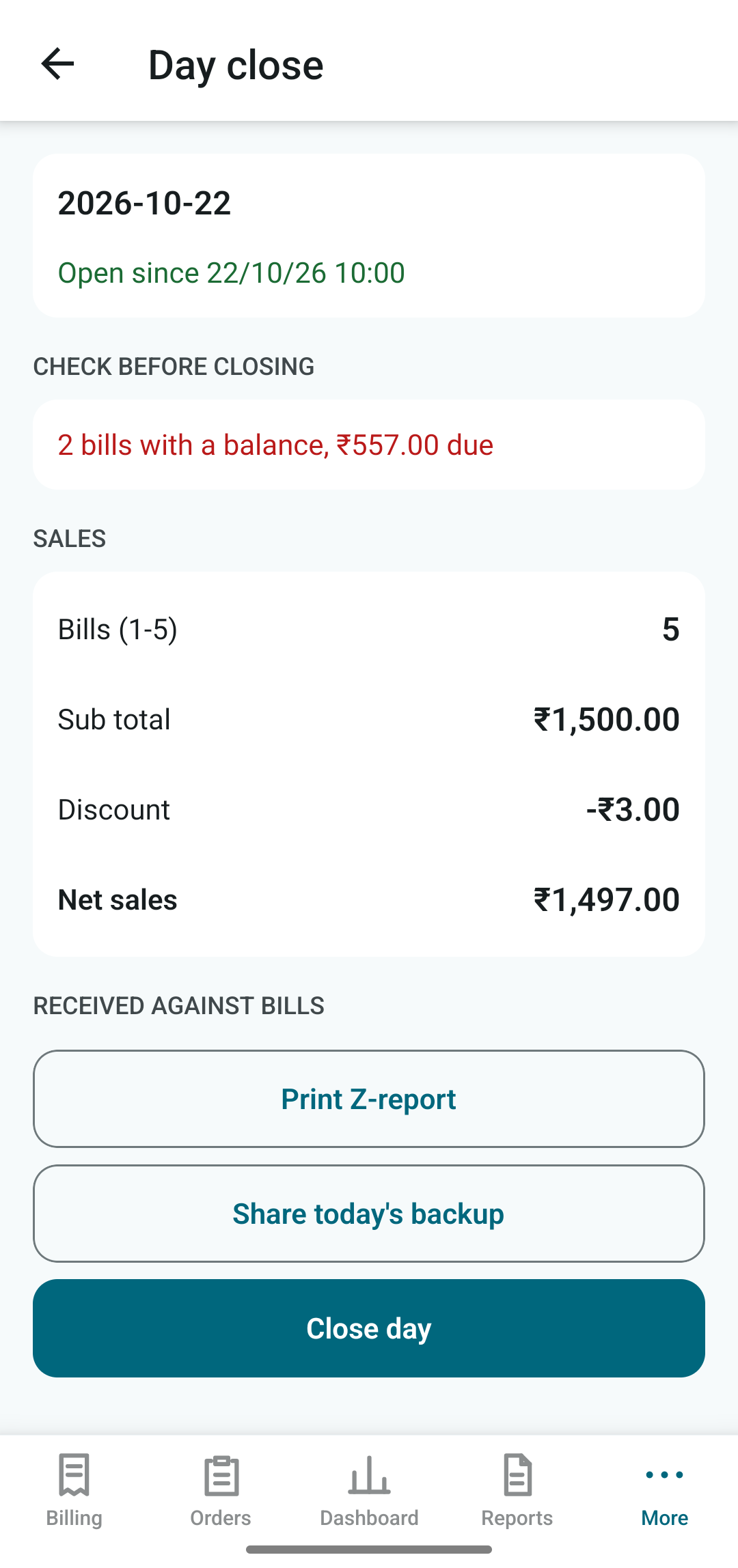
Day close
At the end of the business day open More › Day close.
- Check before closing warns about unpaid bills or open orders. Settle or cancel them first, if you can.
- The summary shows bills, sub-total, discount and net sales, and what was received against bills.
- Print Z-report prints the day's totals.
- Share today's backup sends a backup copy out of the phone.
- Close day ends the business day. Bill numbering restarts at 1 for the next day.
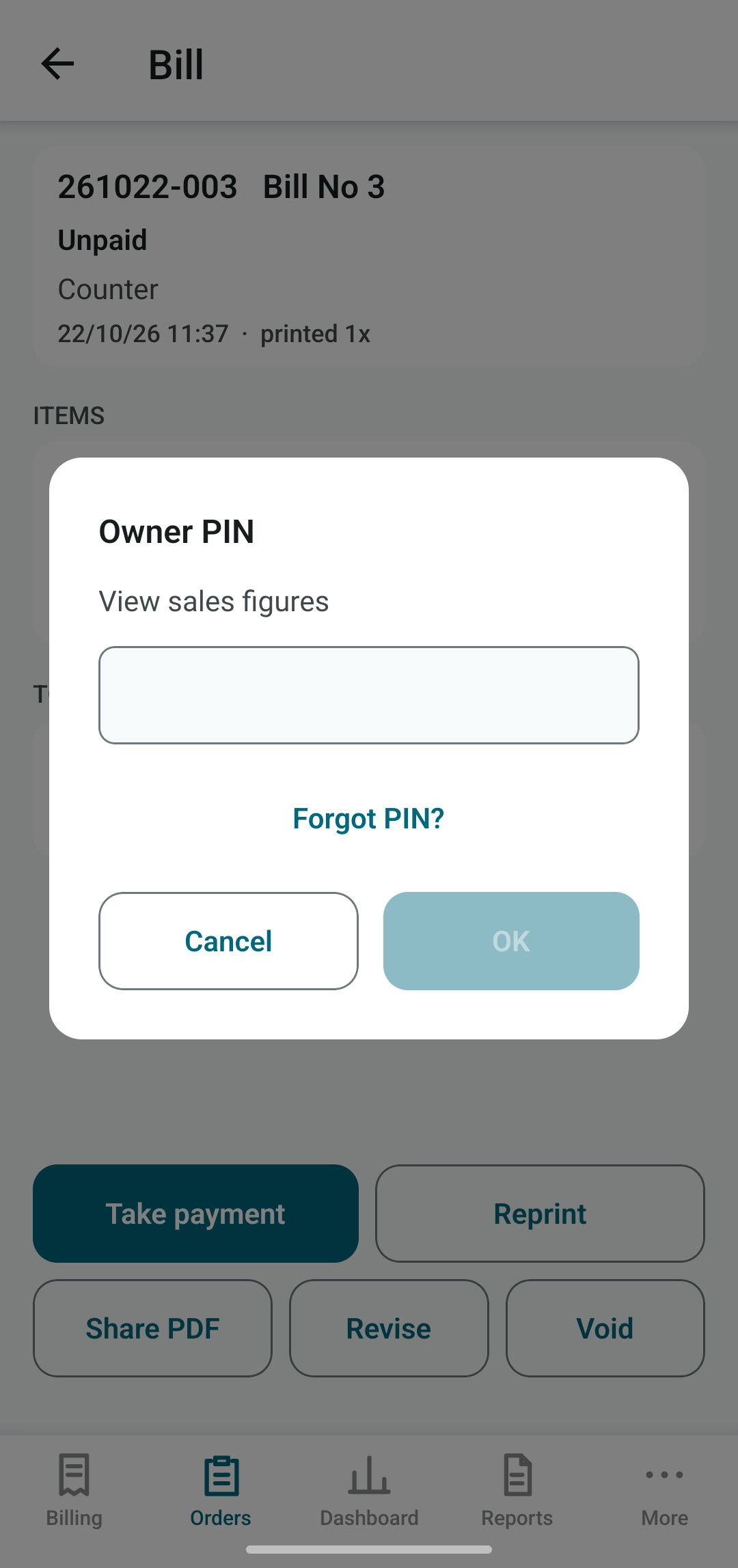
Dashboard (owner PIN)
Tap Dashboard. The first time, the PIN prompt appears.
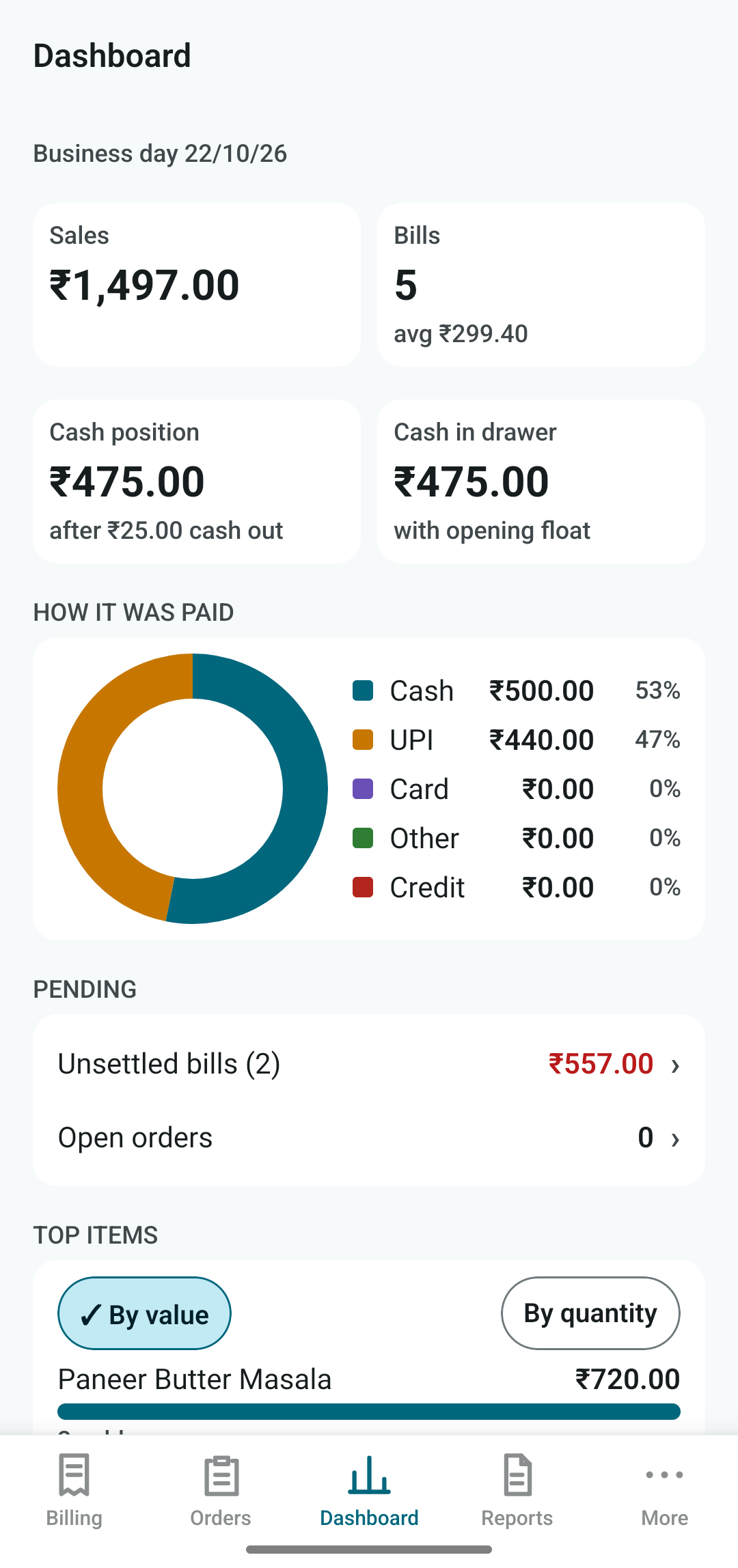
The top tiles show Sales, Bills with the average bill, Cash position (after cash out) and Cash in drawer. Below, a ring chart shows how it was paid.
Scroll for:
- Pending: unsettled bills and open orders. Tap to jump to them.
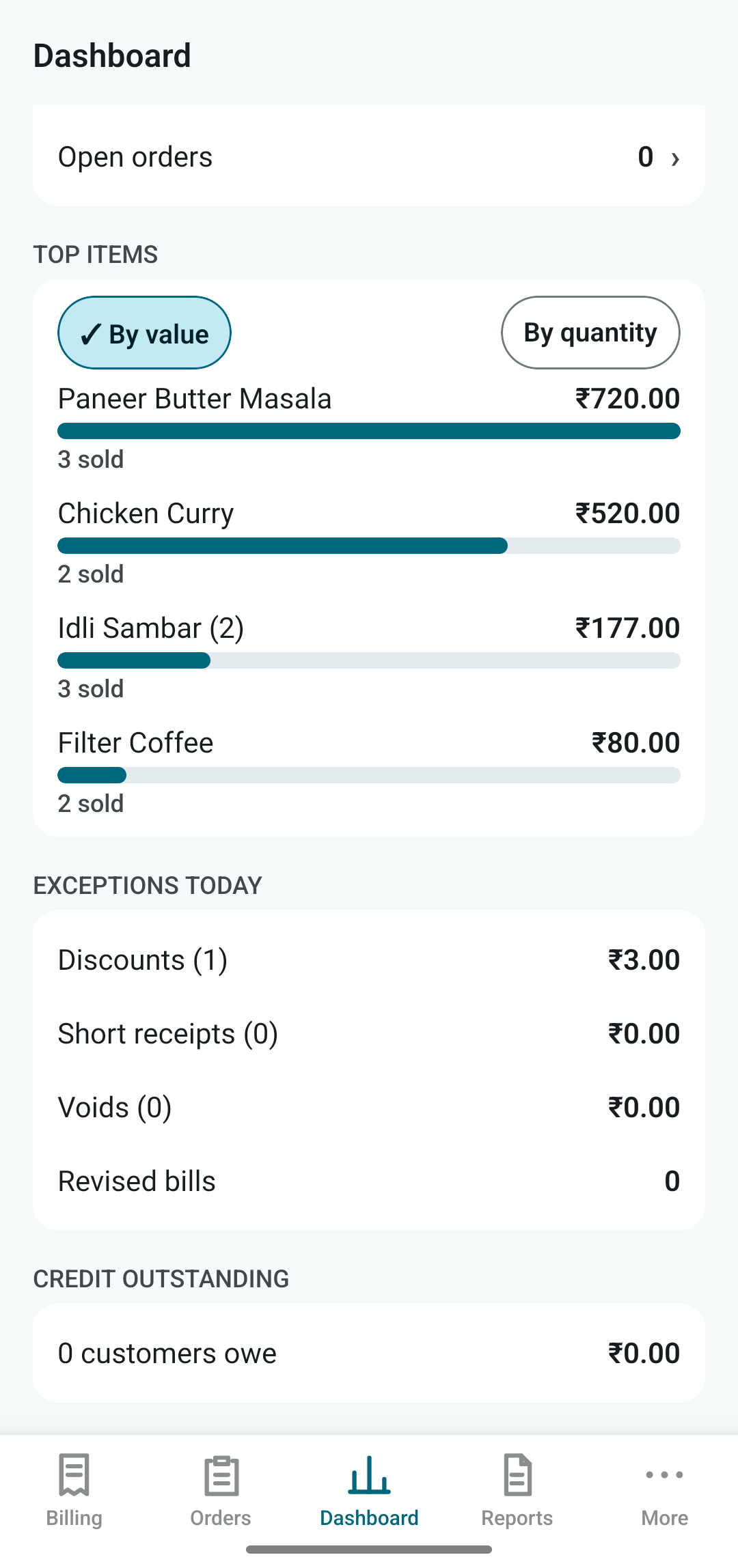
- Top items: by value or by quantity.
- Exceptions today: discounts, short receipts, voids, revised bills. Watch these for leakage.
- Credit outstanding: how many customers owe, and how much.
Reports (owner PIN)
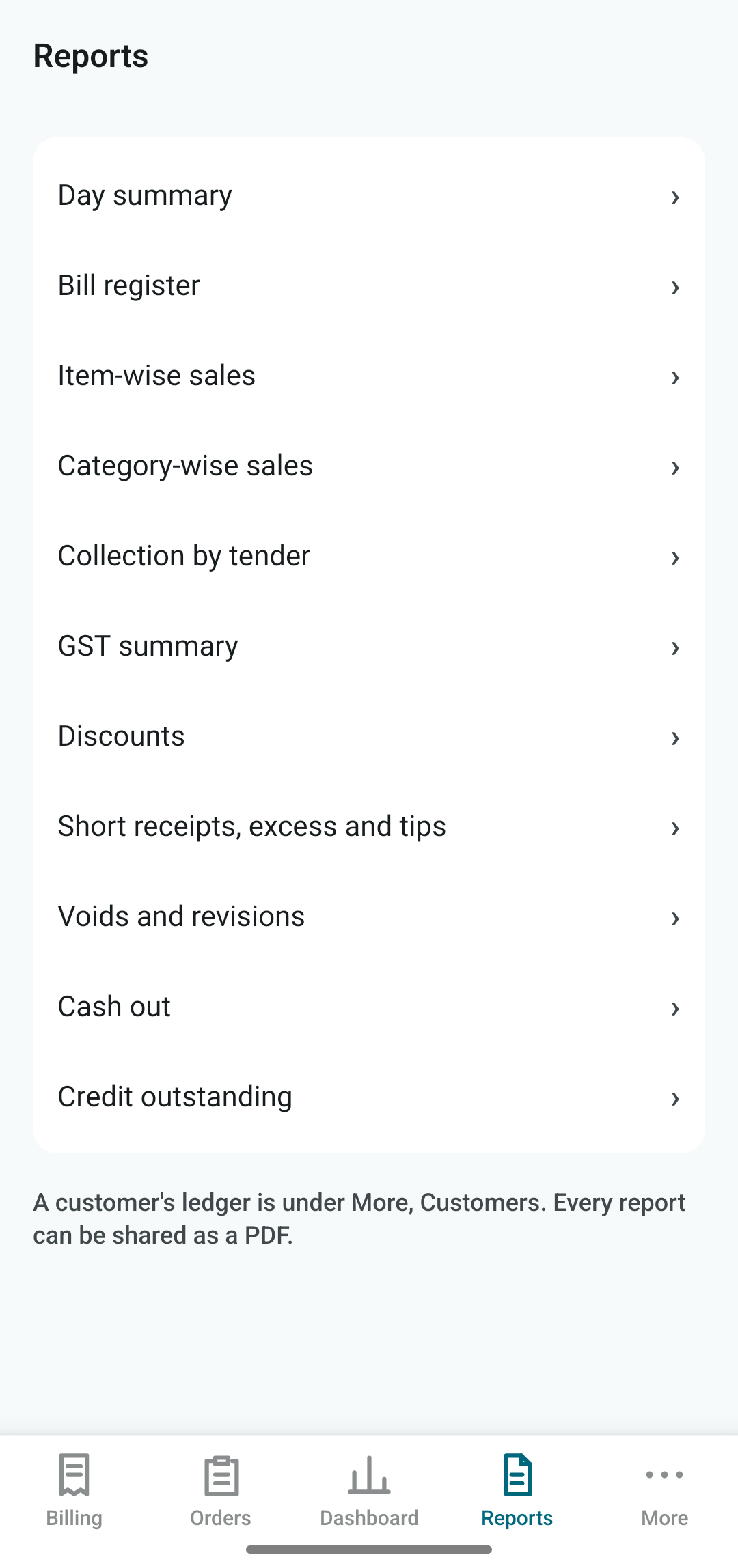
Pick a report from the list:
Day summary · Bill register · Item-wise sales · Category-wise sales · Collection by tender · GST summary · Discounts · Short receipts, excess and tips · Voids and revisions · Cash out · Credit outstanding.
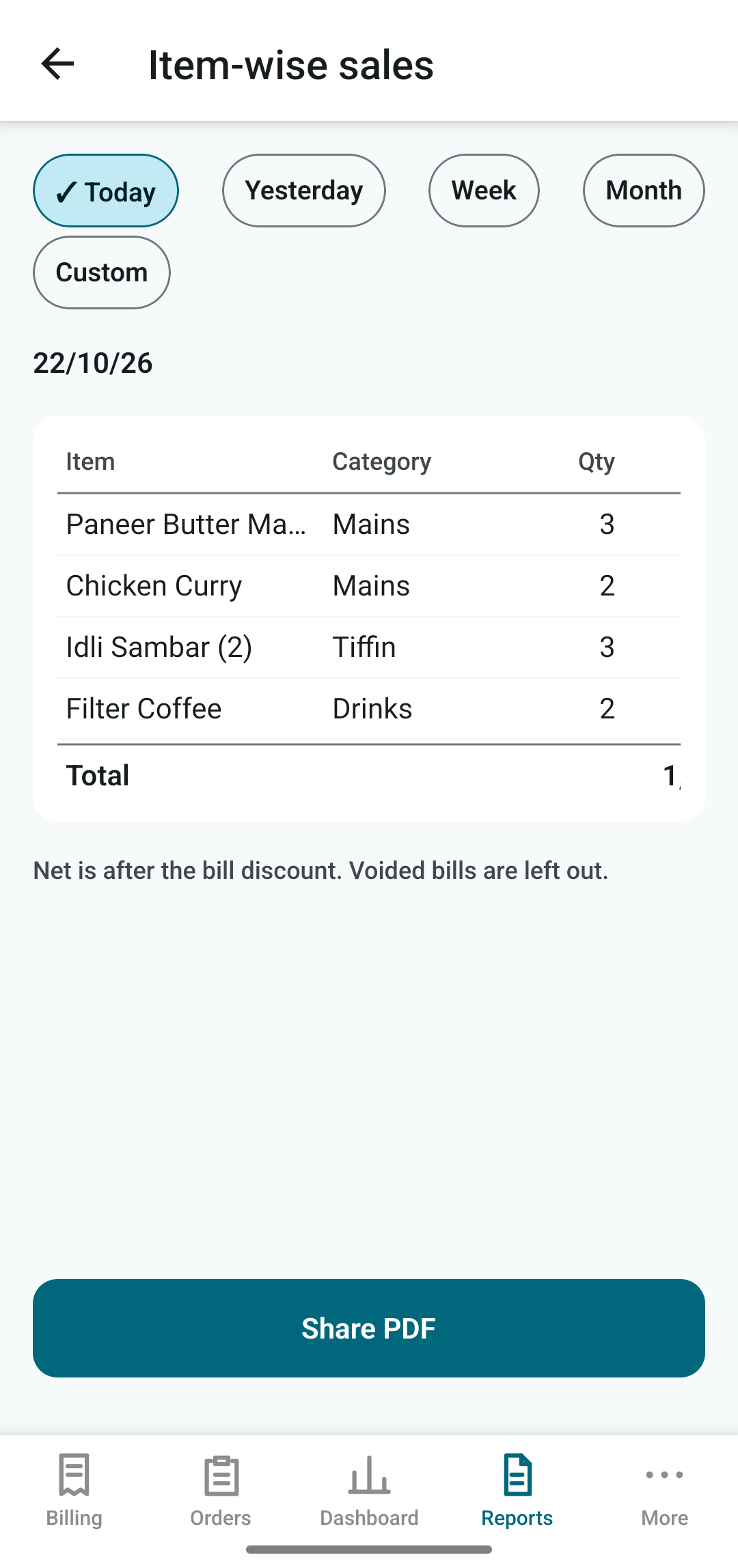
Choose a period (Today, Yesterday, Week, Month or Custom) and tap Share PDF to send it to your accountant. A single customer's ledger is under More, Customers.
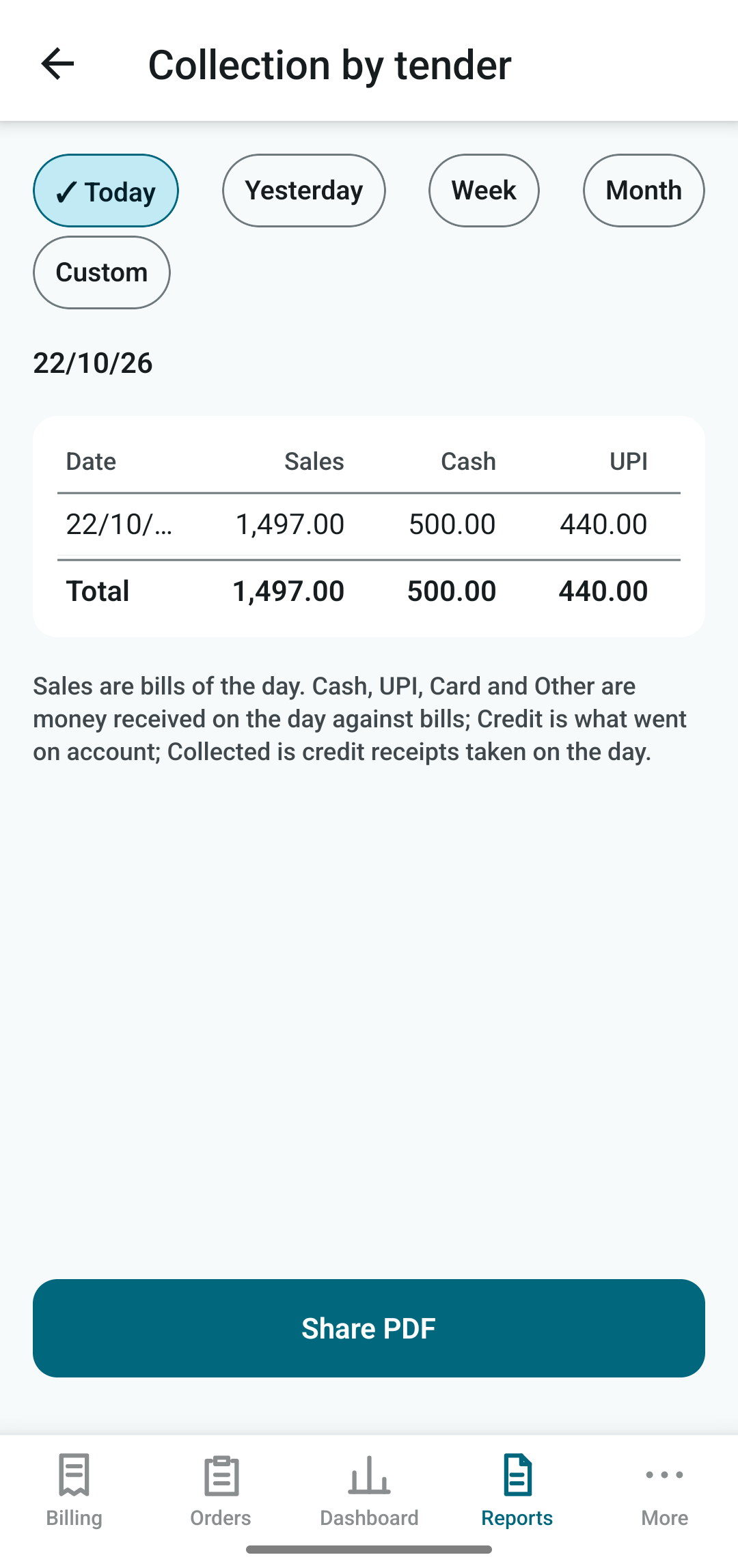
Collection by tender splits each day's sales into cash, UPI, card and so on, which is what you reconcile against the drawer and your bank.
Menu
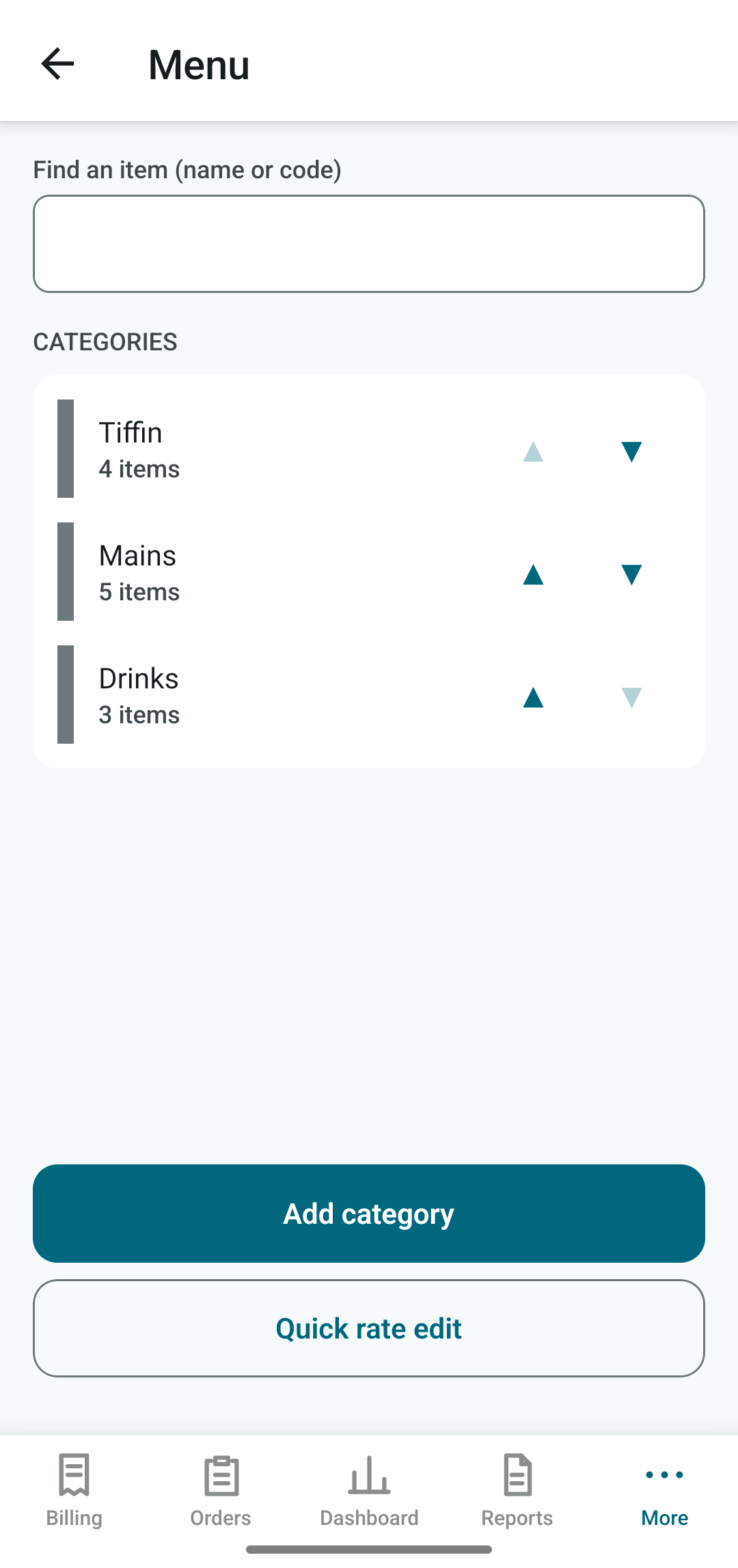
Open More › Menu. Categories are listed with item counts. Use the arrows to reorder; the order here is the order of tabs in Billing.
- Add category creates a new one.
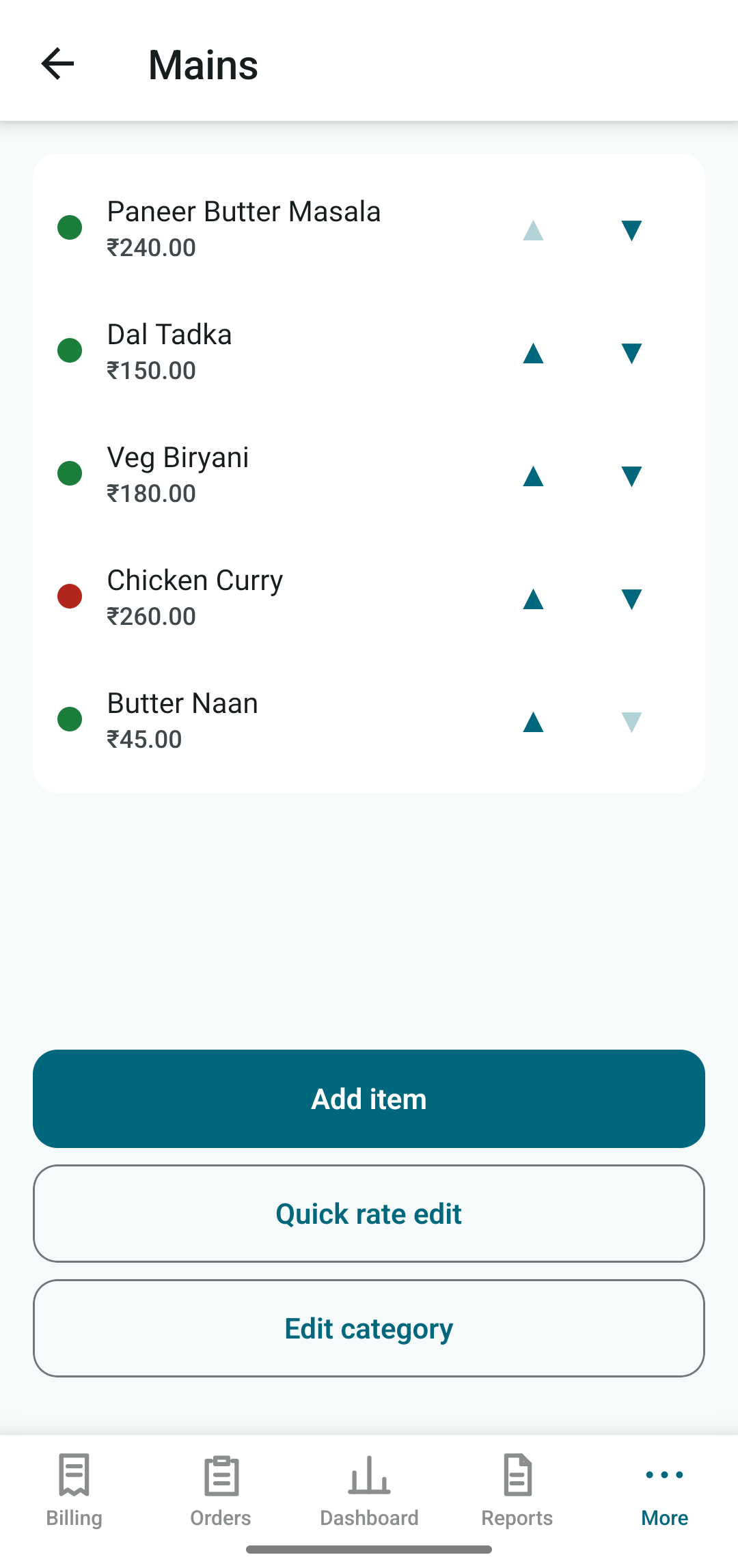
- Tap a category to see its items, shown with a vegetarian or non-vegetarian label and rate.
- Quick rate edit shows rates as an editable column, handy for a price change across many items.
- Search by name or code at the top.
Tables and waiters
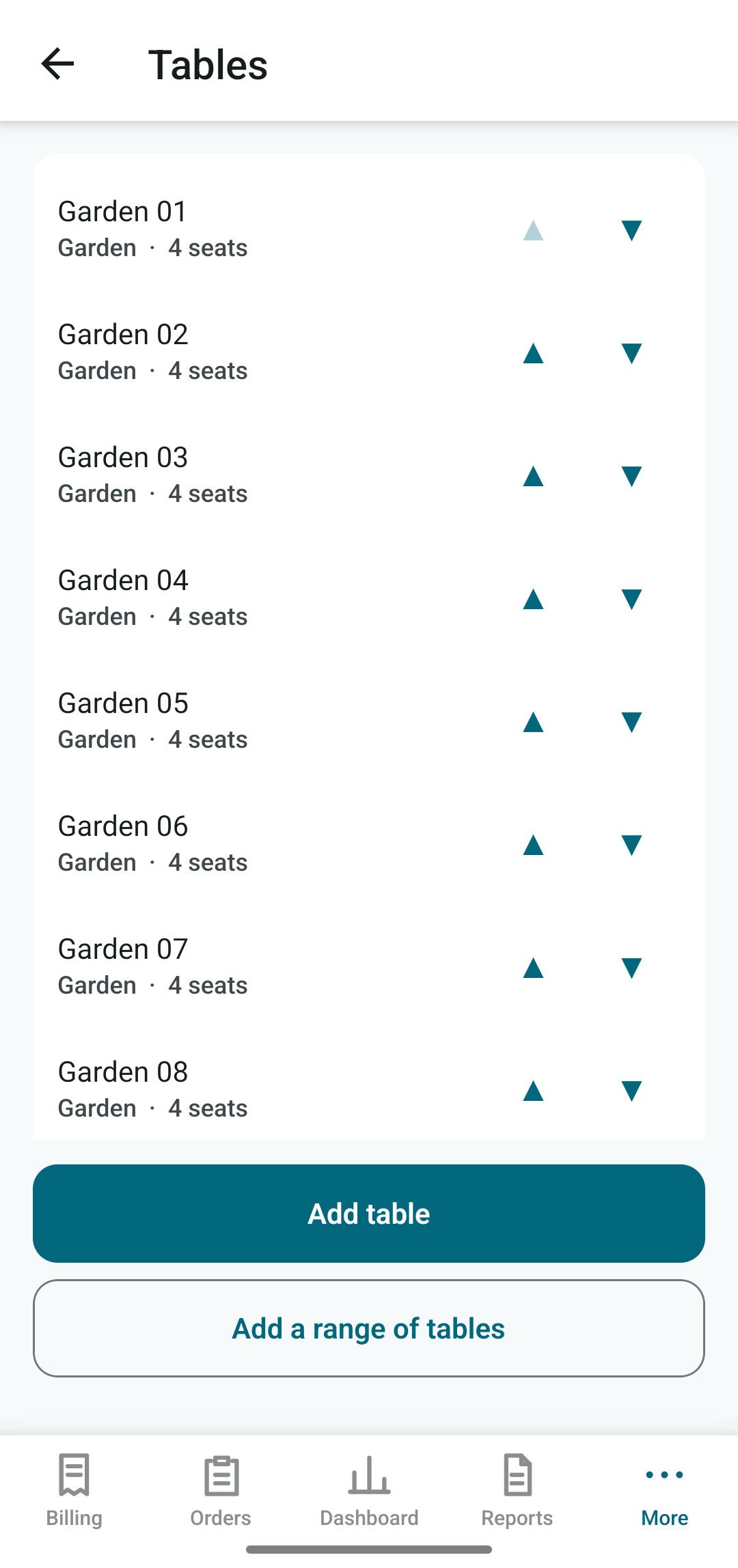
More › Tables lists your tables by section with seat counts. Add, edit, reorder, or generate a numbered range in one go.
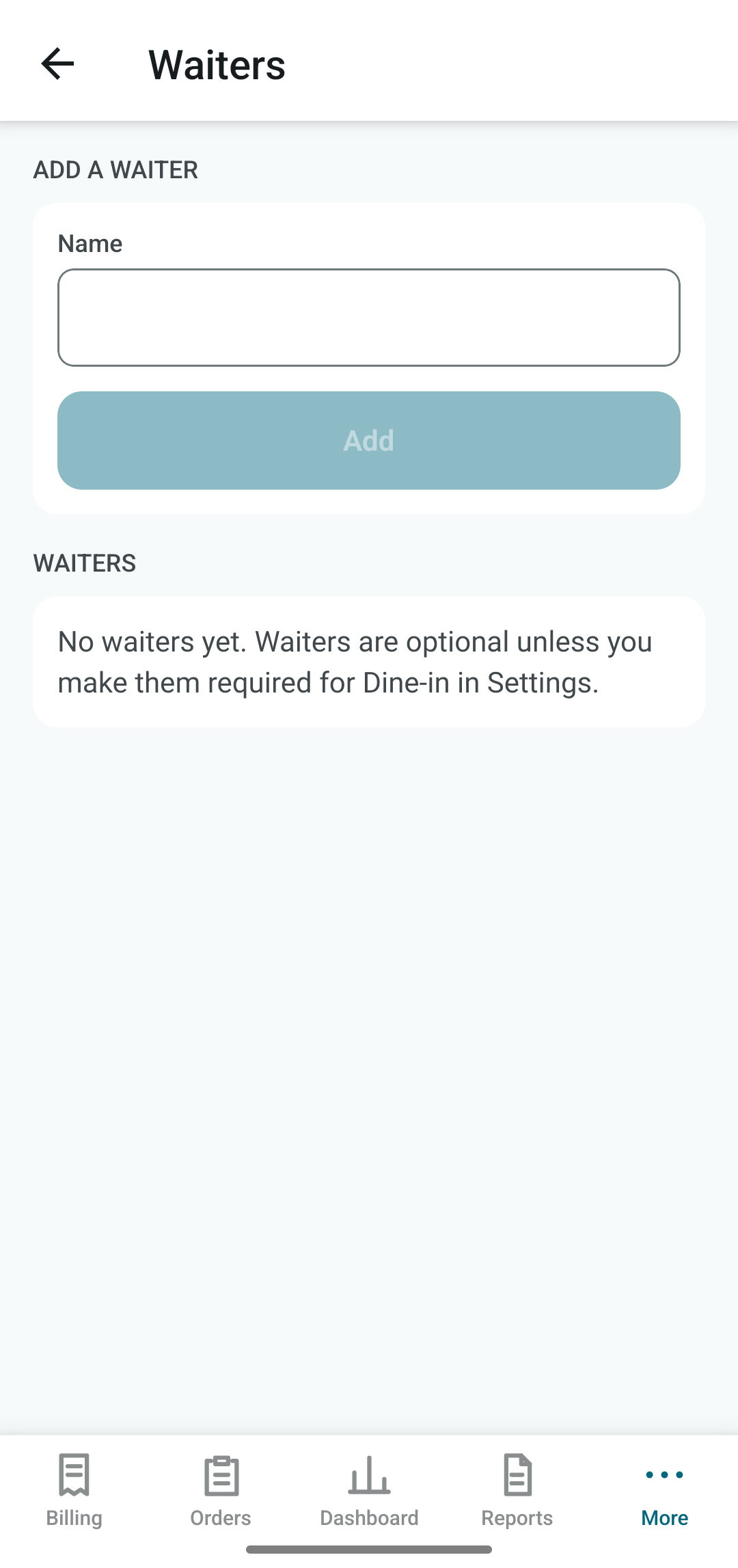
More › Waiters: type a name and tap Add. Waiters are optional unless you make them required for Dine-in in Settings.
Customers and credit (owner PIN)
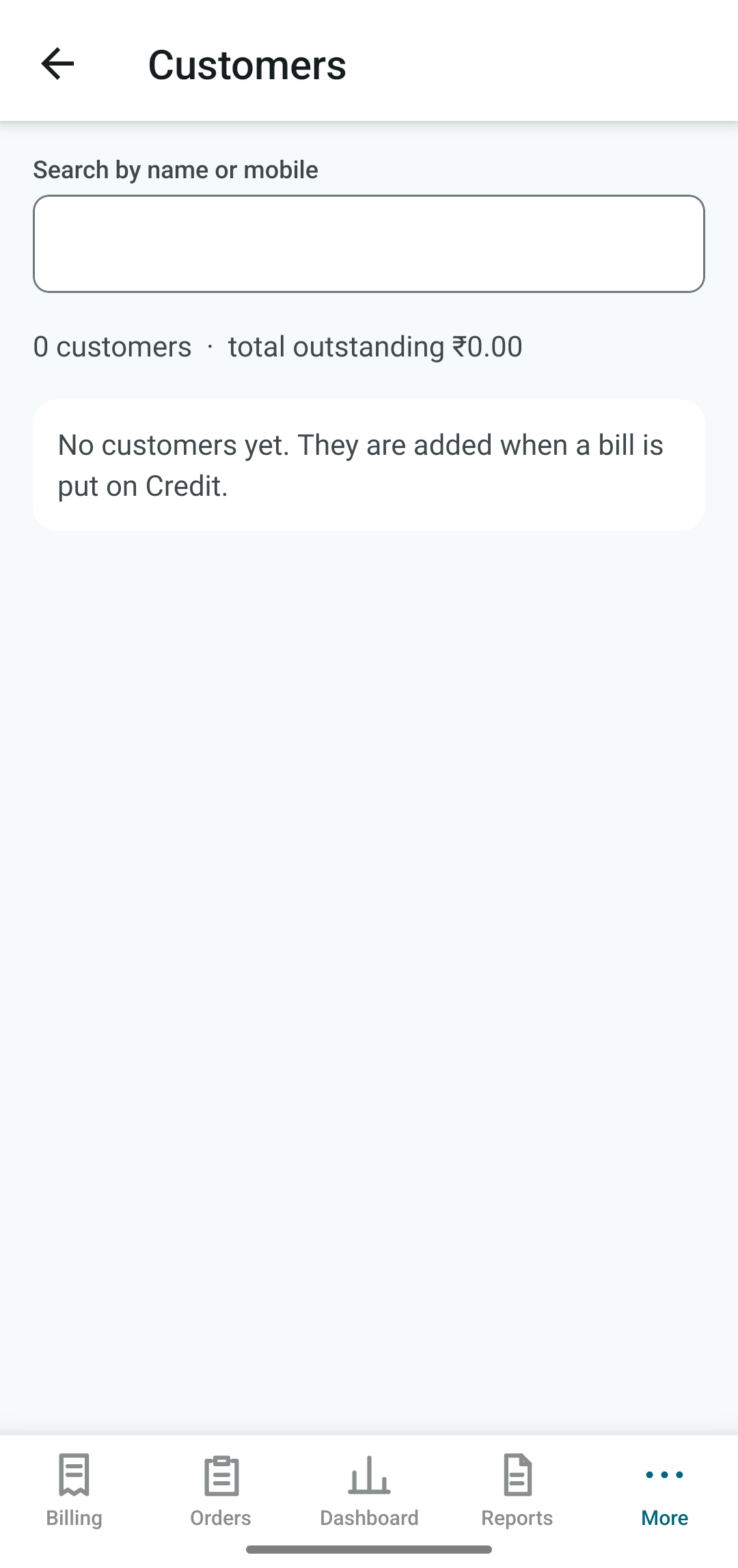
A customer is added automatically when a bill is put on Credit (name and mobile are required, and the mobile is the key). Open More › Customers to search by name or mobile, see each customer's bills, collections and outstanding amount, and receive a payment against it.
The header shows total customers and the total outstanding.
Settings (owner PIN)
Full walkthrough of the key screens is in First-time setup. In short:
| Section | Holds |
|---|---|
| Establishment | Name, address, phone, email printed on the bill. |
| Tax and billing | Tax mode, default GST rate, default order type, round-off, waiter rule, day cutoff. |
| Printer | Pair, test print, paper width, characters per line, copies per bill. |
| Owner PIN | Set or change the PIN that protects sales screens and settings. |
| Appearance and crash logs | Light, dark or phone setting. Send an error log to DataSpec if the app misbehaves; it never contains bills or customers. |
Backup and restore
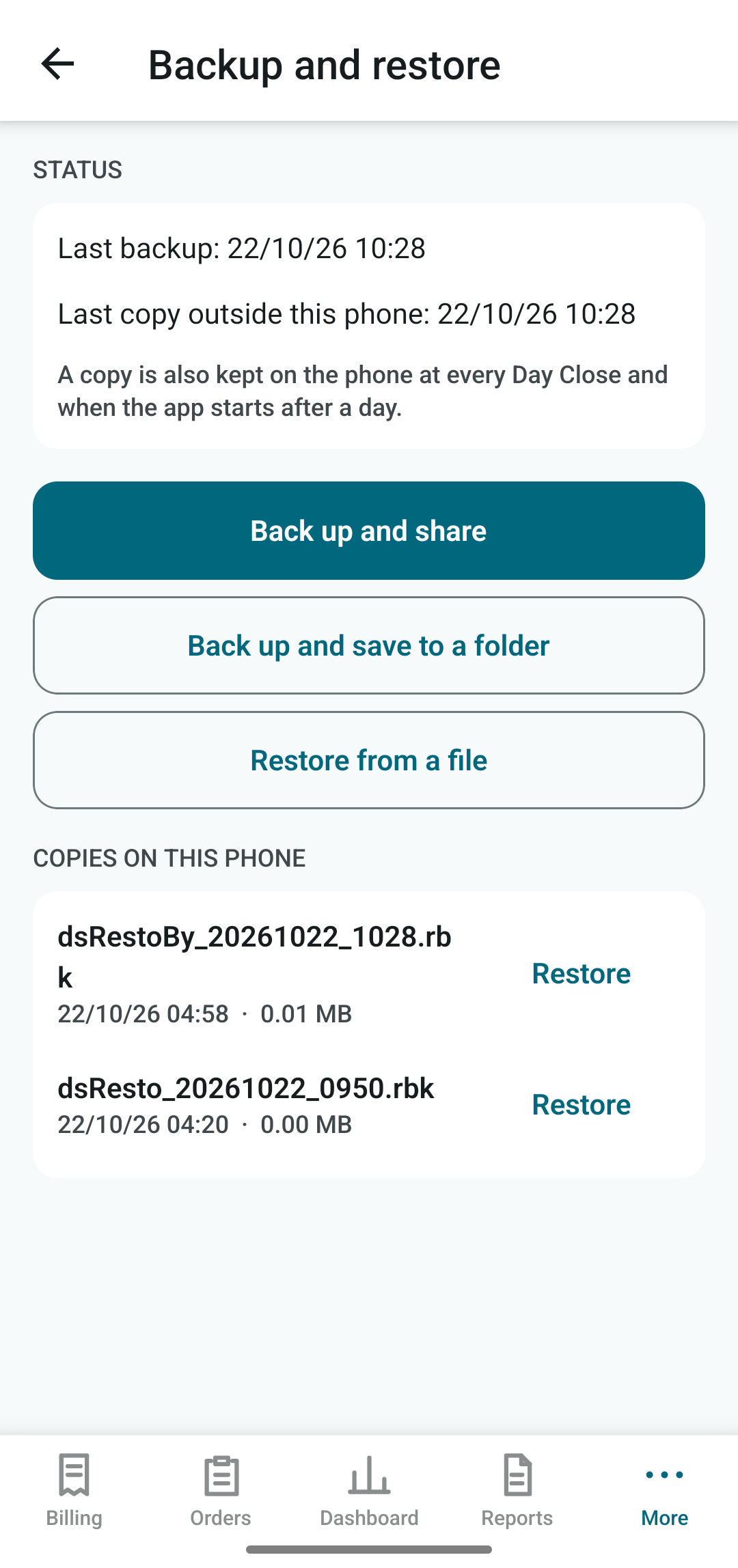
Your data lives only on this phone, so back it up. Open More › Backup and restore.
- Status shows the last backup, and the last copy kept outside this phone.
- Back up and share makes a backup file and opens the share sheet (WhatsApp, email, Drive).
- Back up and save to a folder saves it to a folder you choose.
- Restore from a file loads a backup. It replaces the current data, so use it on a new phone or after a loss.
- Copies on this phone lists automatic copies, each with a Restore button.
Audit log (owner PIN)
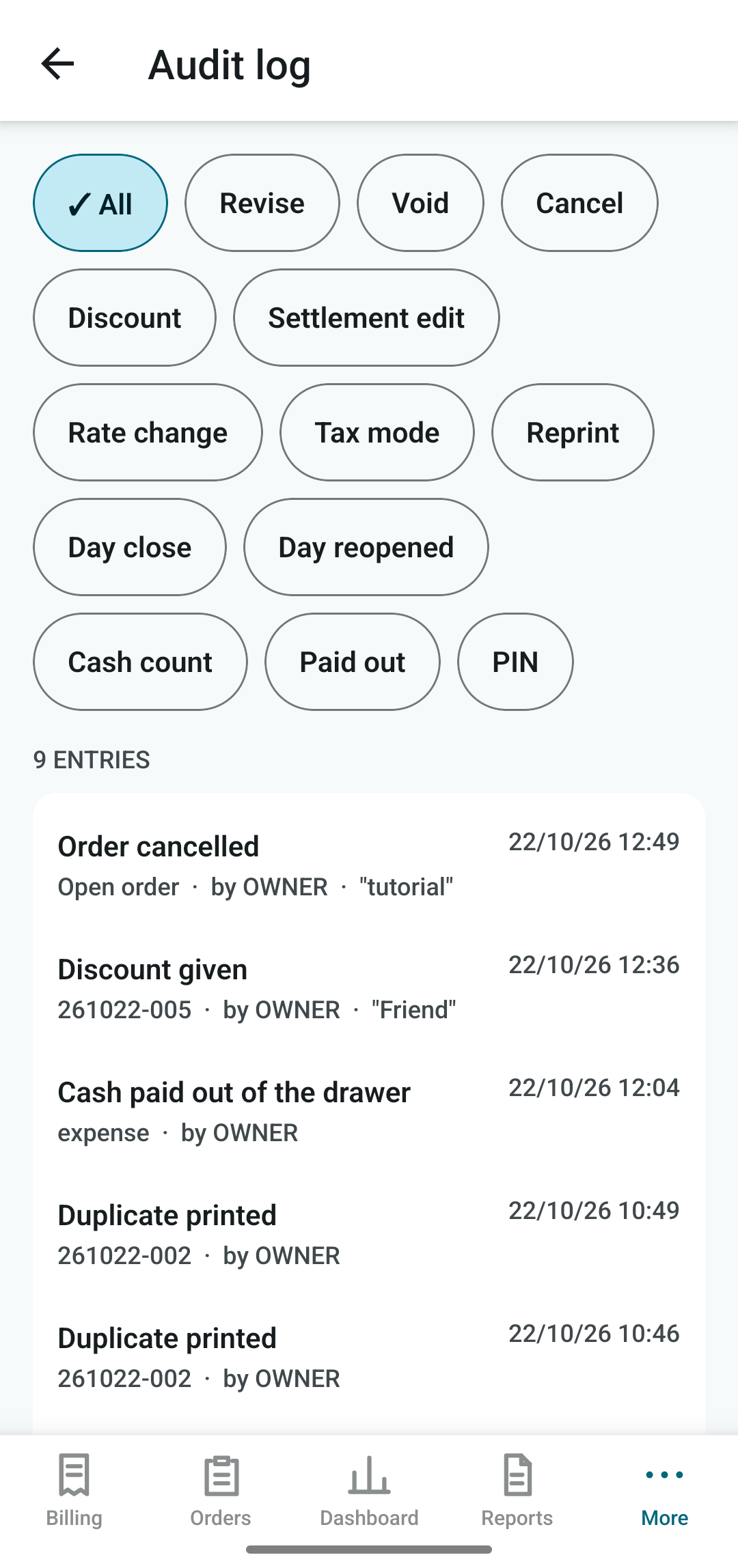
Every sensitive action is written down with the time, who did it and the reason: revisions, voids, cancelled orders, discounts, settlement edits, rate changes, tax mode changes, reprints, day close, cash counts, paid-outs and PIN changes.
Use the filter chips at the top to look at one kind of action. Entries cannot be edited or deleted.
Quick answers
| Question | Answer |
|---|---|
| The printer did not print. | The bill is saved. Check the printer is on and paired, then Orders › the bill › Reprint. |
| I billed the wrong item. | Not yet printed: change the cart. Already printed: Orders › the bill › Revise (PIN) or Void (PIN). |
| A customer will pay tomorrow. | Settle with Credit, add name and mobile. Collect later from Customers. |
| Where is my money for the day? | Dashboard › Cash in drawer, and Reports › Collection by tender. |
| I bought milk from the drawer. | More › Cash out. |
| I forgot my PIN. | Use Forgot PIN? on the PIN prompt and follow the recovery steps. |
| Changing phone. | Back up and share, install dsResto on the new phone, then Restore from a file. |
dsResto is a product of Data Spec, Bilaspur · dataspec.info