3. Playing a Classic game
Select a cell, tap a digit. Everything else on the screen is there to make that easier.
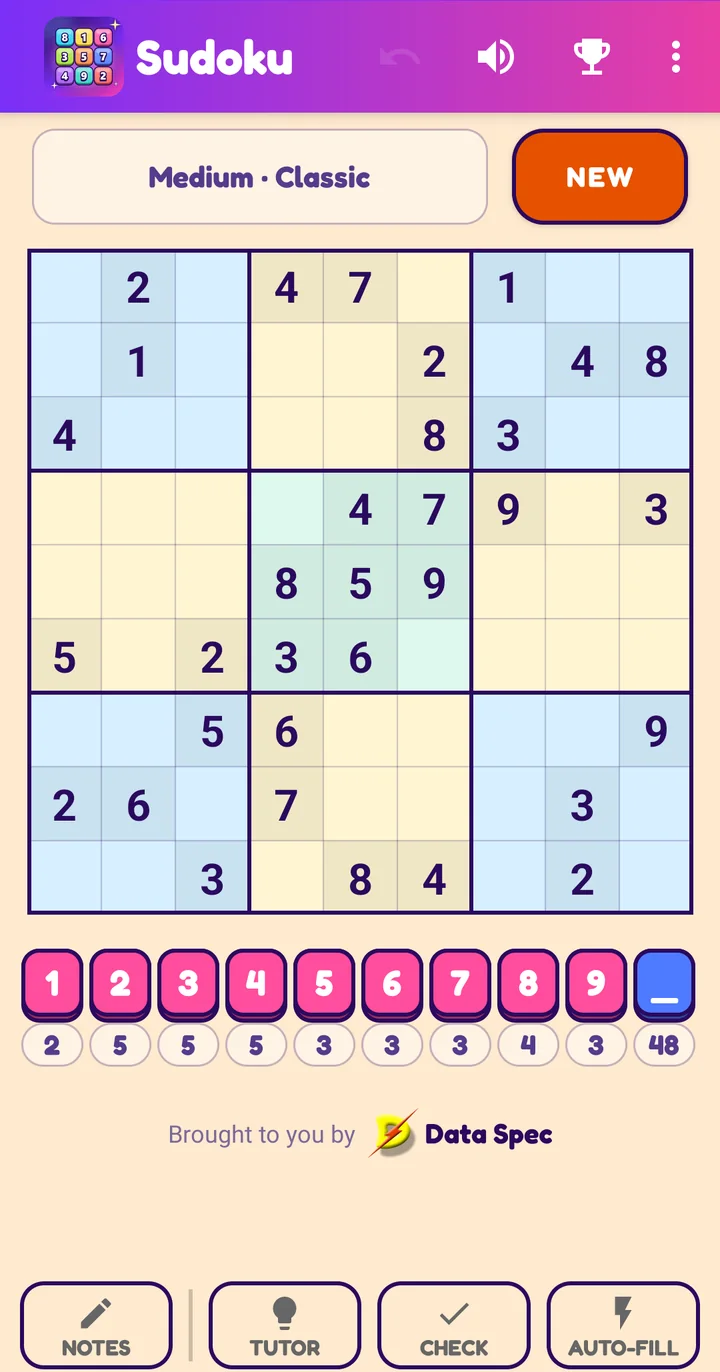
Meet the screen
- Title bar. Undo (the arrow) takes back your last change; speaker turns the sounds on and off; trophy shows your best Challenge scores; the three dots open How to Play, How to use Tutor, Share and About.
- Status box. Shows the level and type, for example Medium · Classic. In a Challenge it also shows the clock (see Challenge).
- NEW opens the New game screen.
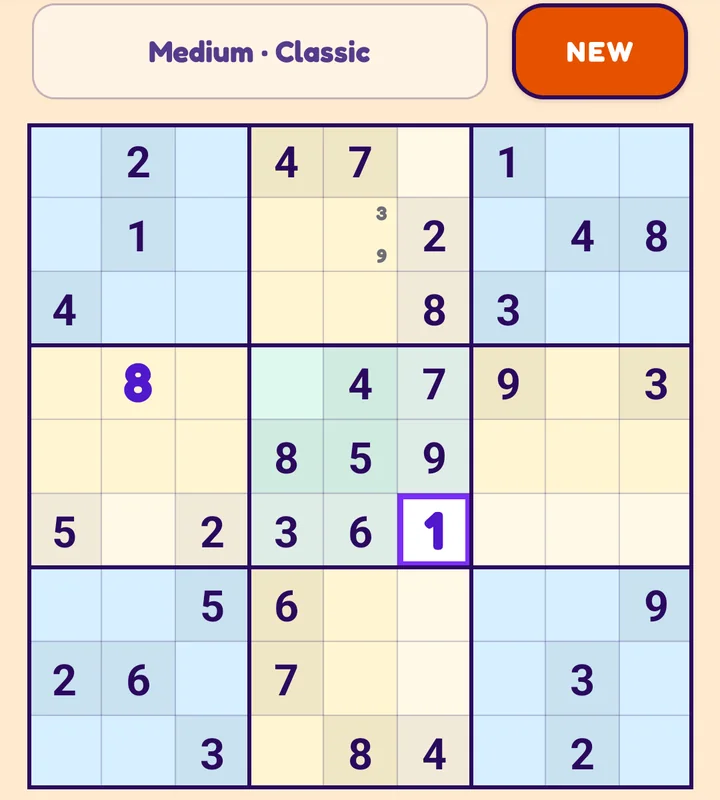
- Grid. The numbers that came with the puzzle sit on slightly darker cells and never change. The numbers you add are bold violet.
- Number pad. Digits 1 to 9 and the blank _ button.
- Tools row. Notes, then the three helpers Tutor, Check and Auto-fill.
Fill a cell
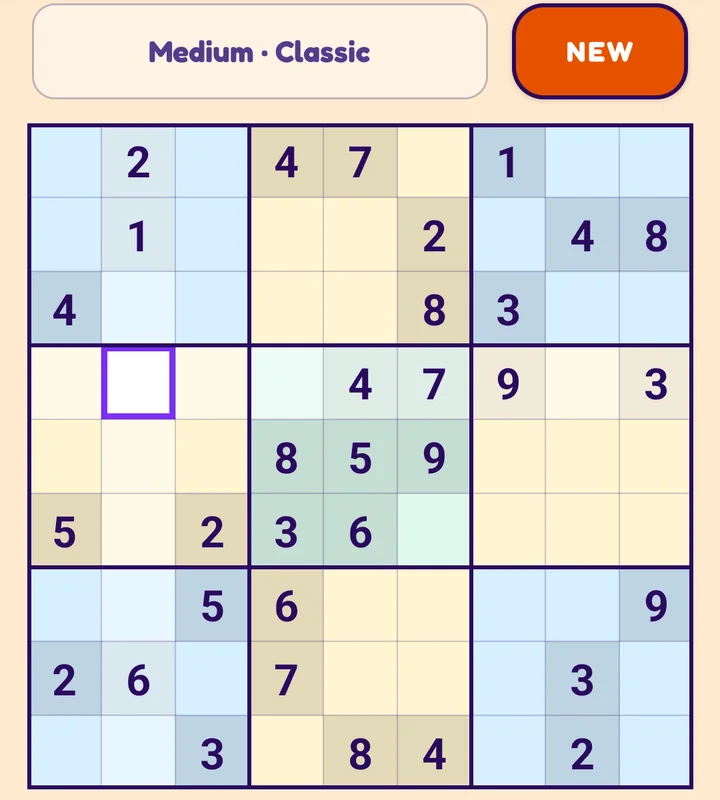
1. Tap an empty cell. It gets a violet frame, and the row, column and box around it are tinted.
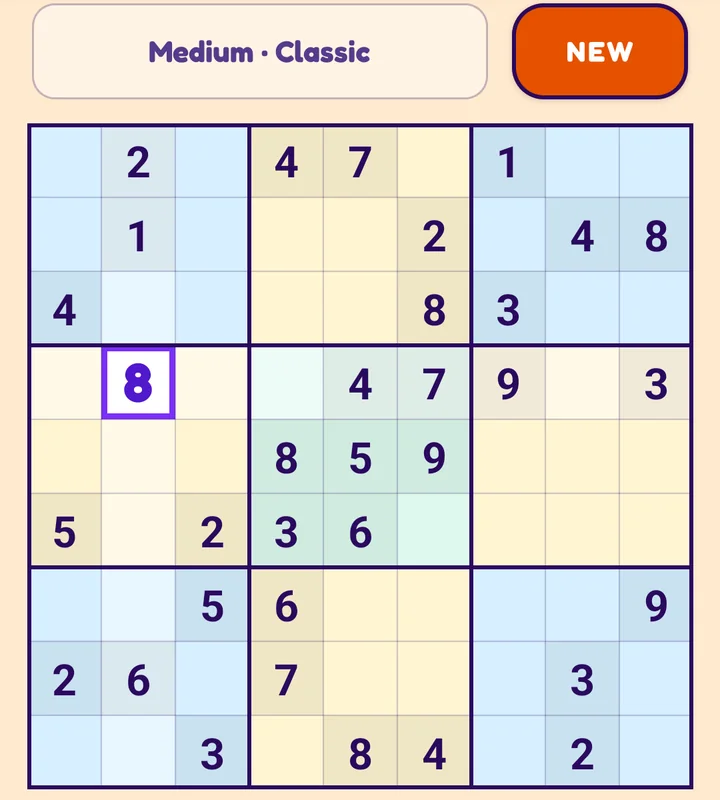
2. Tap a digit on the pad. It appears in the cell, in bold violet.
You can change your mind: select the cell again and tap another digit. Cells that came with the puzzle cannot be changed.
The pad and its counters
- The small number under each digit says how many of that digit are on the board. When all nine are placed, its button turns dark grey: that digit is finished.
- The number under the blank _ button is how many cells are still empty.
- Tap _ with a cell selected to clear it. Long-press _ to clear all your numbers (the game asks first).

Undo
Made a slip? Tap the arrow in the title bar. Each tap takes back one change, as far back as the start of the game. It also undoes a number placed by Auto-fill or Tutor.
Notes (pencil marks)
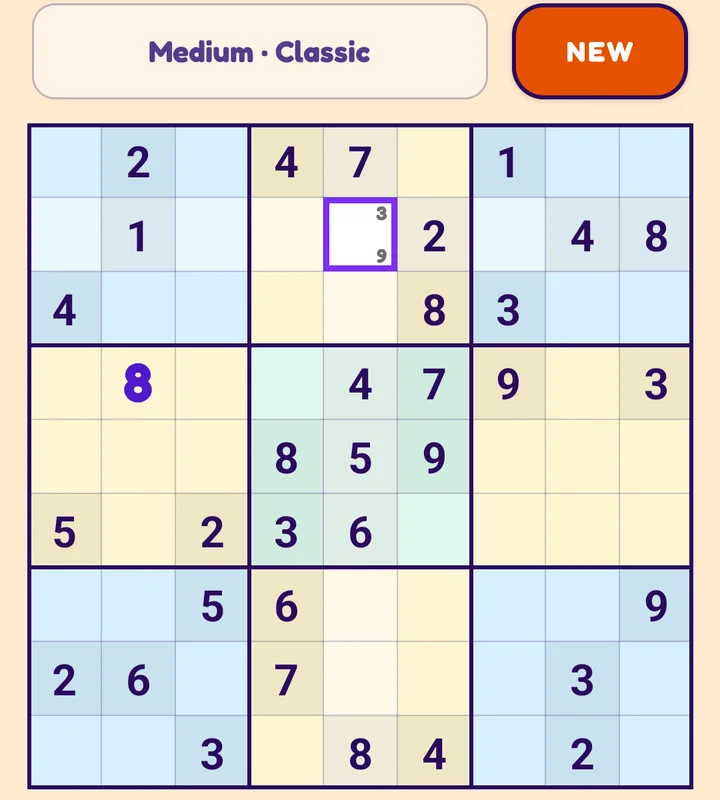
Notes let you jot down the digits a cell could be, without committing.
- Tap Notes to switch it on (it turns violet).
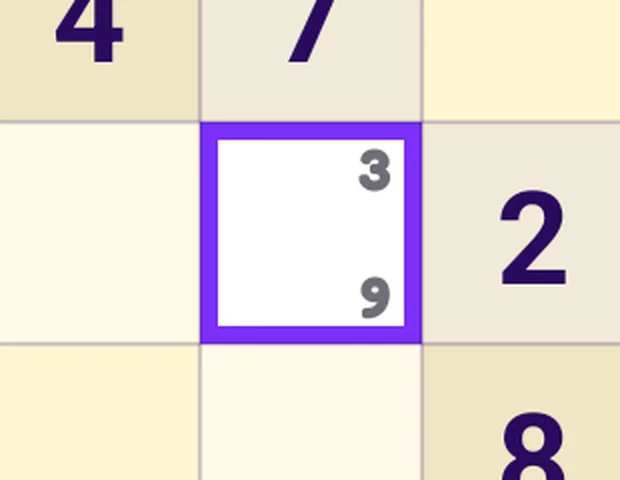
- Select an empty cell and tap digits. Each one appears as a small mark; tap it again to remove it. The marks sit in a 3x3 pattern: 1 top-left up to 9 bottom-right.
- Tap Notes again to go back to entering real numbers.
When you place a number in a cell, its own marks vanish and the same digit is struck out of the marks in its row, column and box.
Check: show me my mistakes
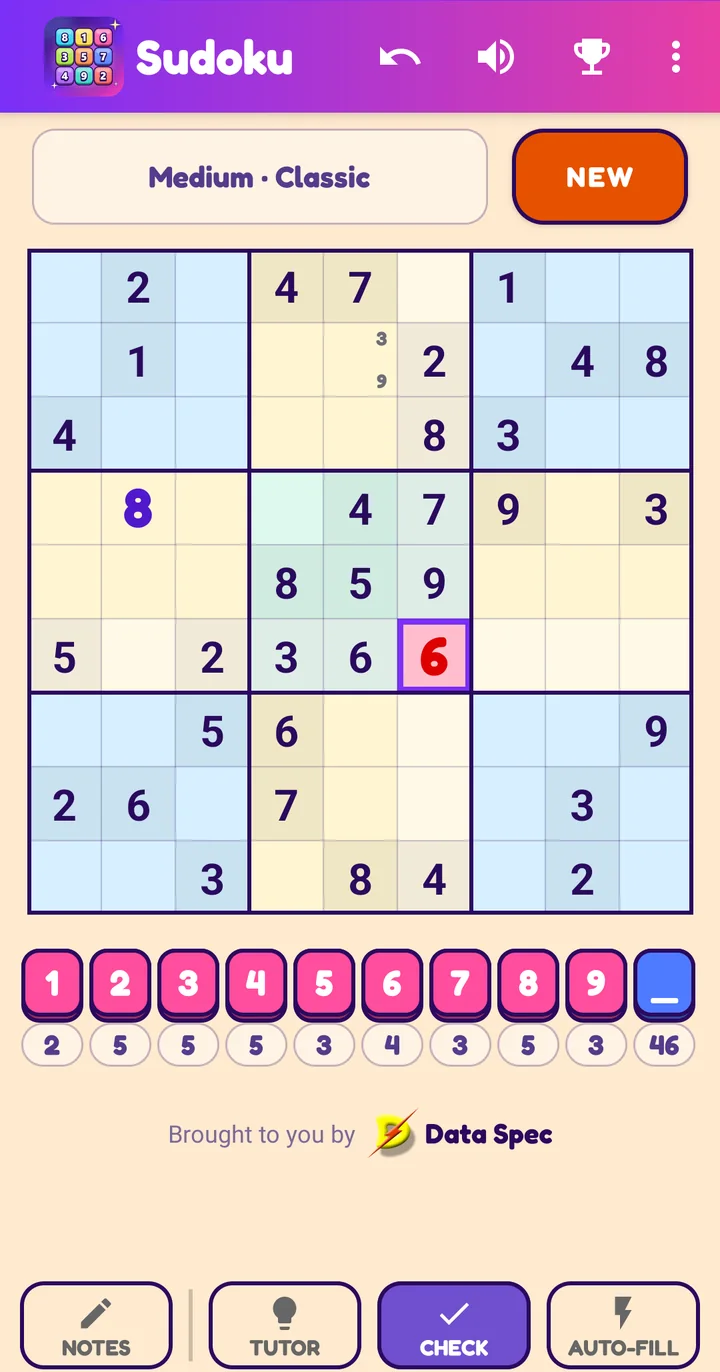
Tap Check to switch it on. Wrong numbers are now marked:
- A bold red number on a pink cell does not belong there (it is not the solution).
- A bold pink number repeats a number in its row, column or box.
- When you complete a row, column or box correctly, it flashes green.
Switch Check off again whenever you like. With it off, the game never tells you if a number is wrong.
Auto-fill
Auto-fill fills in the numbers that are certain.
- Tap Auto-fill to switch it on.
- Long-press a digit on the pad (hold your finger on it for a moment).
- Every empty cell that must hold that digit is filled: either it is the only digit that fits that cell, or no other cell in its row, column or box can take it.
Auto-fill reasons from the numbers on the board, including yours, so a mistake can lead it astray. If nothing is certain for that digit, a short message says so. Auto-fill is hidden while Tutor is on.
Solving the puzzle
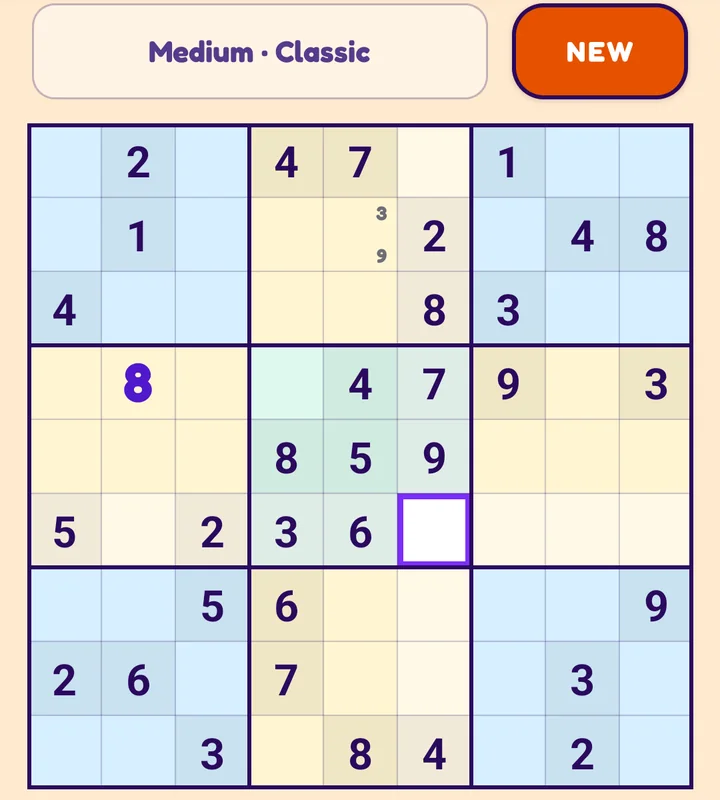
When the last number goes in and the grid is correct, the board lights up in a colourful wave and a Solved box appears with New puzzle and Close. The board then locks, so a stray tap cannot spoil it; undo a step, or start a new game, to carry on.
Next: Tutor: tap a cell or jump to Challenge