4. Tutor: tap a cell
Tutor teaches you how to work out what can go where. It never plays for you and never says right or wrong: you make every move.
Switch it on
Tap Tutor in the row of buttons above the ad. It turns violet and a framed panel opens under the number pad. At first it says Tap a cell or a digit.
- While Tutor is on, the Auto-fill button is hidden. It comes back when you switch Tutor off.
- Check still works, and is useful alongside Tutor.
- The first time you use Tutor, a short tip appears in the panel.
- Tap the line What do these buttons do? in the panel for a quick reminder.
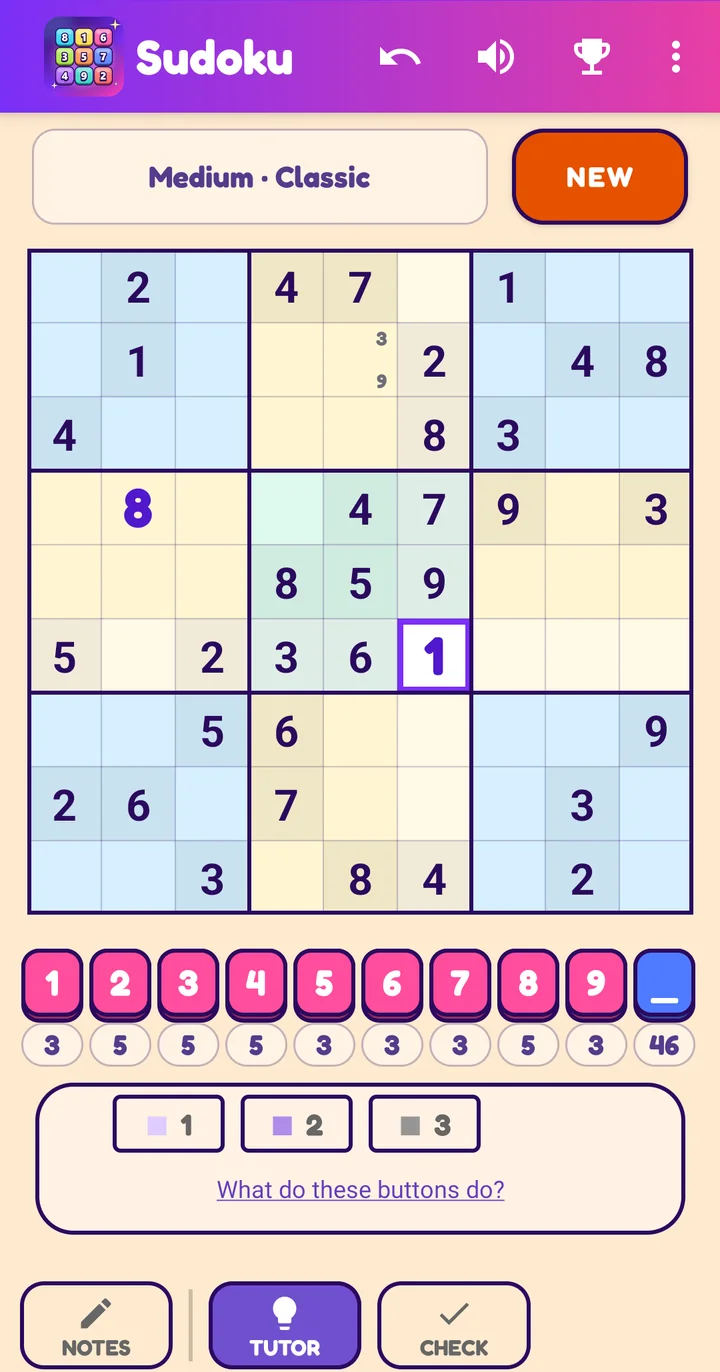
Way 1: tap an empty cell
Pick an empty cell and ask: what can go here? Three numbered buttons appear in the panel. Each one adds a layer, and you can use any mix. They are independent: switch each on or off.
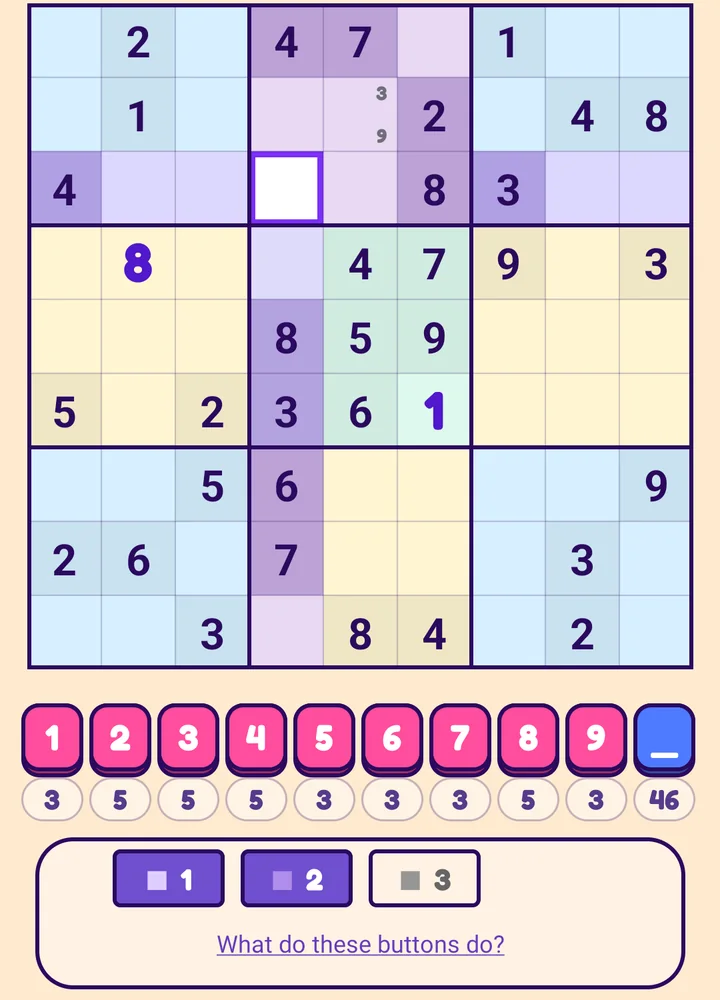
Select the cell. The panel shows three buttons: 1 2 3. None is on yet. Start by looking at the cell and its surroundings yourself, then switch a layer on to check your thinking.
A cell that came with the puzzle cannot change, so the panel just says Part of the puzzle - it cannot change.
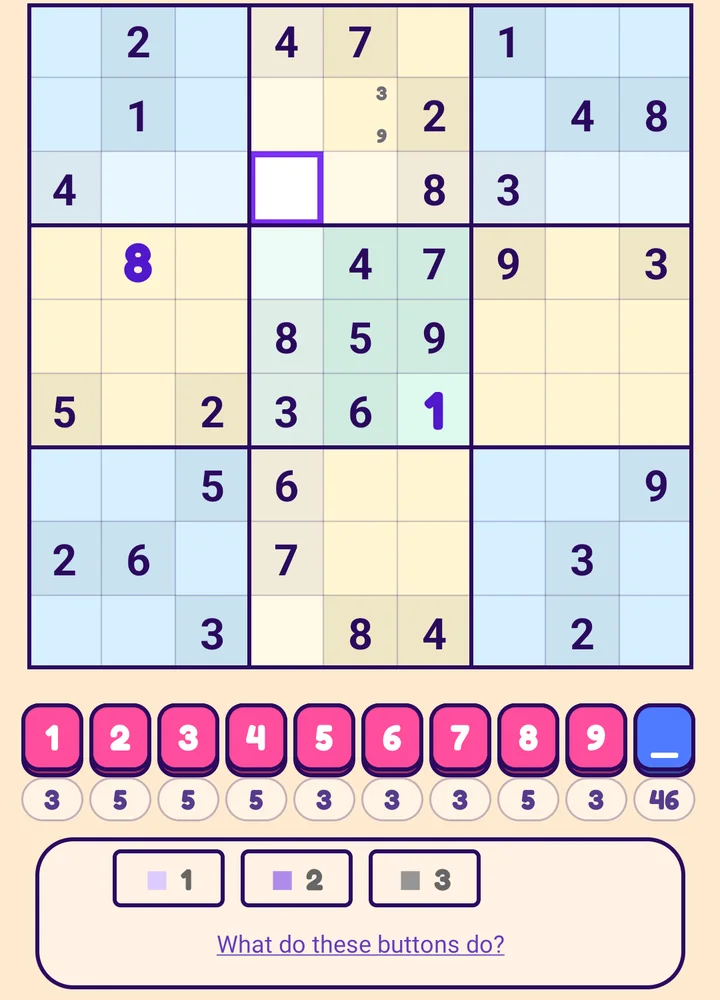
1 Look
Shades the row, column and box of the cell: these are the cells you must check. A digit that already appears anywhere in the shaded area cannot go in your cell.
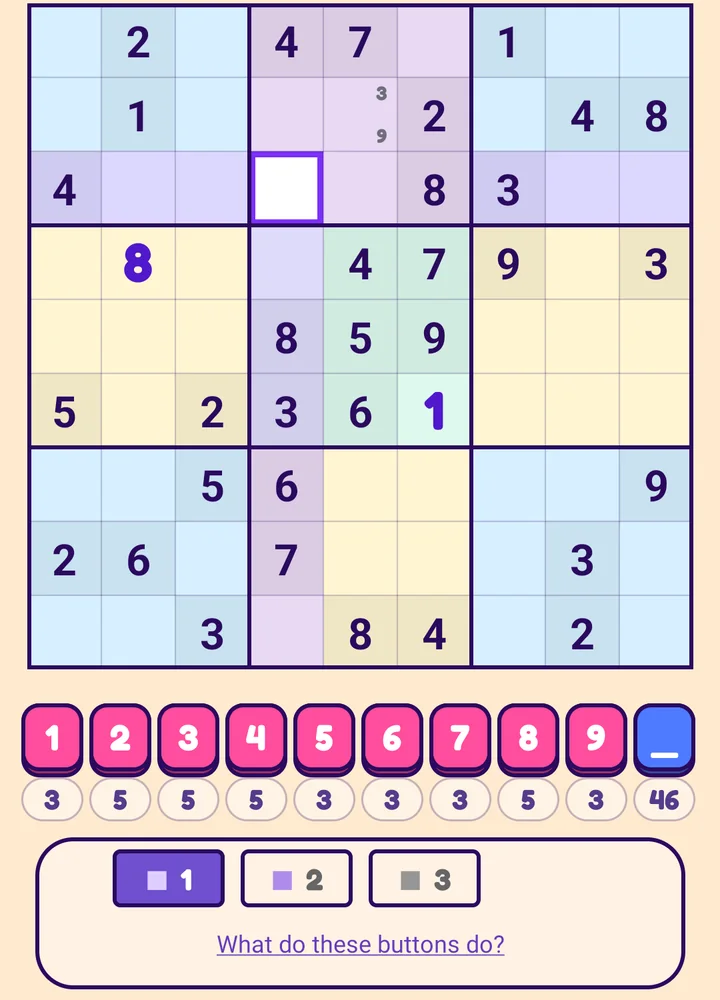
2 Filled
Highlights the numbers already present in the shaded cells. Each highlighted number rules out one digit for your cell.
3 Can be
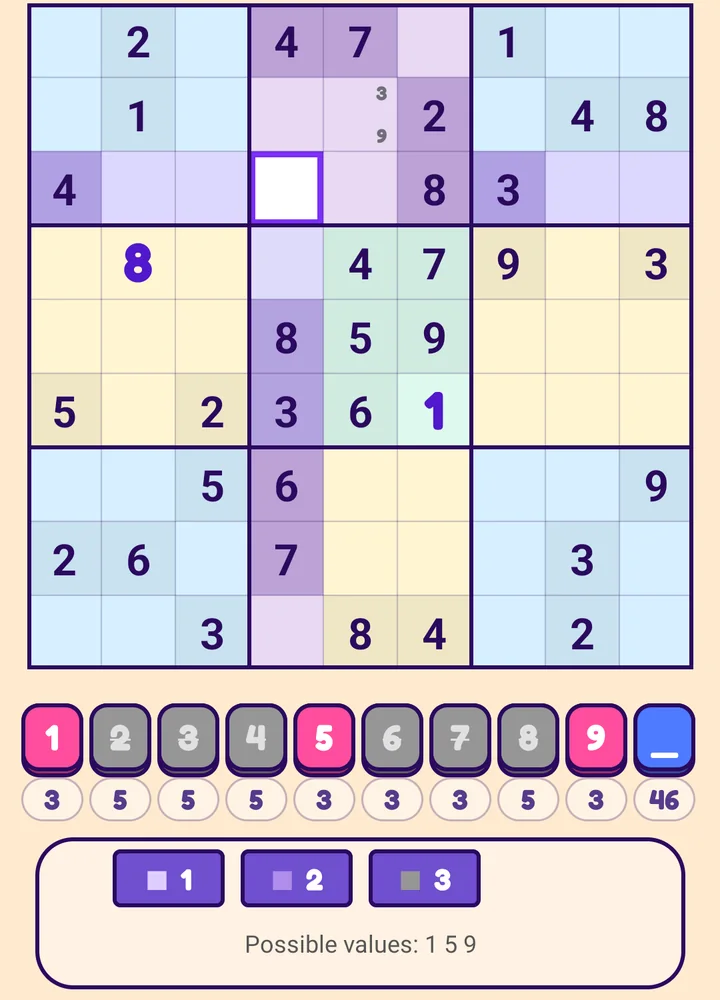
Greys out the digits on the pad that cannot go in the cell, and lists the ones that still fit: Possible values: 1 5 9. If only one is left the line says Sure value: 4: that is the answer. If none fits, it says No number fits - check for a mistake, which means an earlier number is wrong (Check will show you which).
Placing a number
- With a cell selected, tap a digit to place it. Tap the digit the cell already shows to clear it.
- Tap the cell again to finish with it (the selection and its layers go away).
- Each layer you switch on is remembered for the next cell, so you do not have to set it up again.
Next: Tutor: tap a digit