
12. Backup and restore
Your data lives only on this phone. If the phone is lost, broken or stolen, the data goes with it, unless you kept a copy elsewhere. A backup is that copy.
Careful. Please back up at least once a day. A backup that stays only on the phone does not help if the phone is lost.
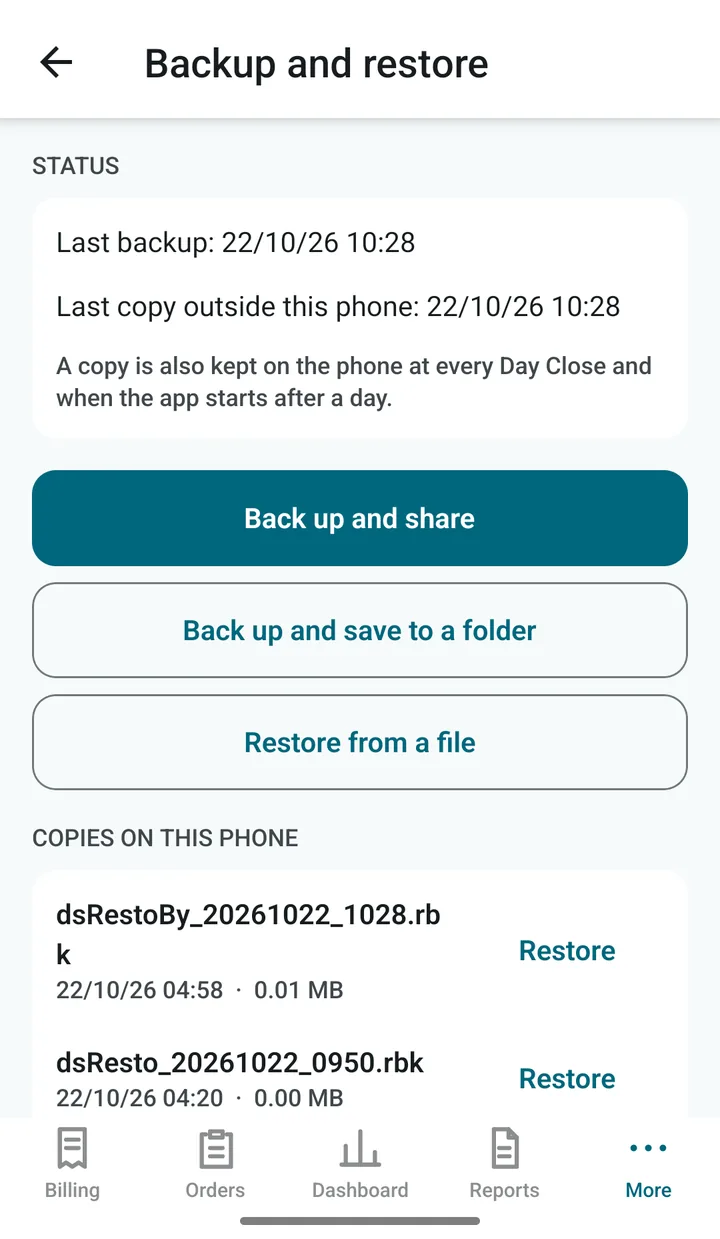
Open More › Backup and restore.
- Status shows when the last backup was made, and when a copy last left the phone.
- Back up and share makes a backup file and opens the share sheet. Send it to WhatsApp, email or Google Drive.
- Back up and save to a folder saves the file into a folder you choose.
- Restore from a file loads a backup file. It replaces everything on the phone.
- Copies on this phone lists the copies the app made by itself, each with a Restore button.
The app also reminds you with a banner on the Billing screen and a Copy needed tag on More when it is time to make a copy.
Moving to a new phone
- On the old phone: Back up and share. Send the file to yourself.
- On the new phone: install dsResto from Google Play.
- Open the backup file from WhatsApp or Drive, save it to the phone, then in dsResto tap Restore from a file and choose it.
- Type the owner PIN, then type the word RESTORE to confirm.
- The app restarts with all your bills, menu and customers.
Tip. Your subscription belongs to your Google account, not to the phone. On the new phone, sign in to Google Play with the same account and tap Restore purchases on More › Subscription.
Careful. Restore wipes what is on the phone now. Before it begins, the app keeps a safety copy, but only use Restore when you really mean to.