13. PIN, audit and safety
Set the owner PIN
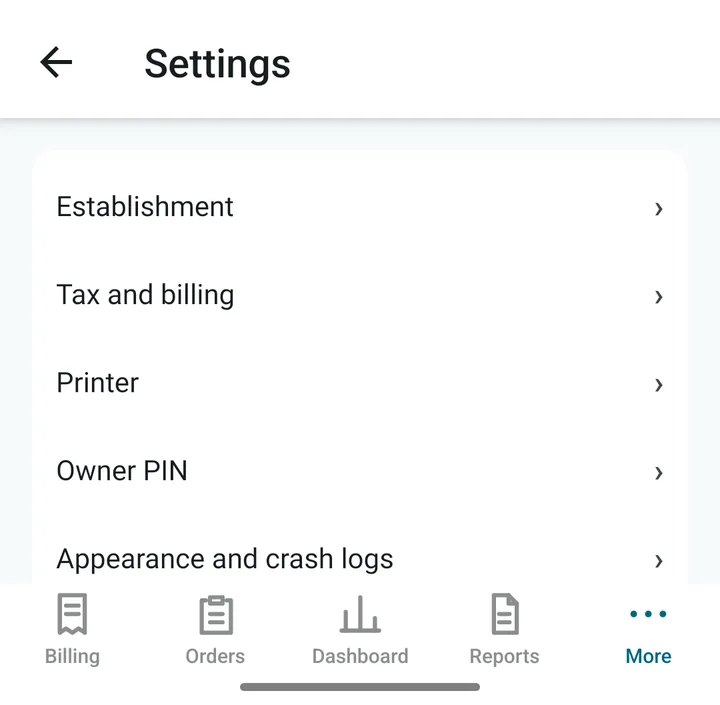
- Open More › Settings › Owner PIN.
- Type a PIN of 4 to 6 digits, twice. Tap Set PIN.
- Choose a number staff cannot guess. Not 1234, and not your phone number.
Under Sales figures you can choose whether Dashboard, Reports and Customers ask for the PIN.
The recovery code: your spare key
When you set the PIN, the app makes a recovery code of 12 letters and numbers, like ABCD-EFGH-JKLM. If you ever forget the PIN, this code lets you set a new one.
- Tap Save on the recovery sheet. (The code only works after you save it.)
- Tap Print recovery slip, or Send it to yourself on WhatsApp or email.
- Keep the slip somewhere safe, such as with your papers. Not in the cash drawer.
To use it: on the PIN box tap Forgot PIN?, type the code and a new PIN. You then get a new code, because each code works only once.
Things that ask for the PIN
- Opening Settings, Dashboard, Reports, Customers and the Audit log.
- Changing a price or the tax mode.
- A big discount or a big short receipt.
- Voiding or revising a printed bill, and editing a payment.
- Backing up to share, and restoring a backup.
- Removing a cash-out entry.
After a few wrong PINs the app makes you wait before you can try again. This stops guessing.
The audit log
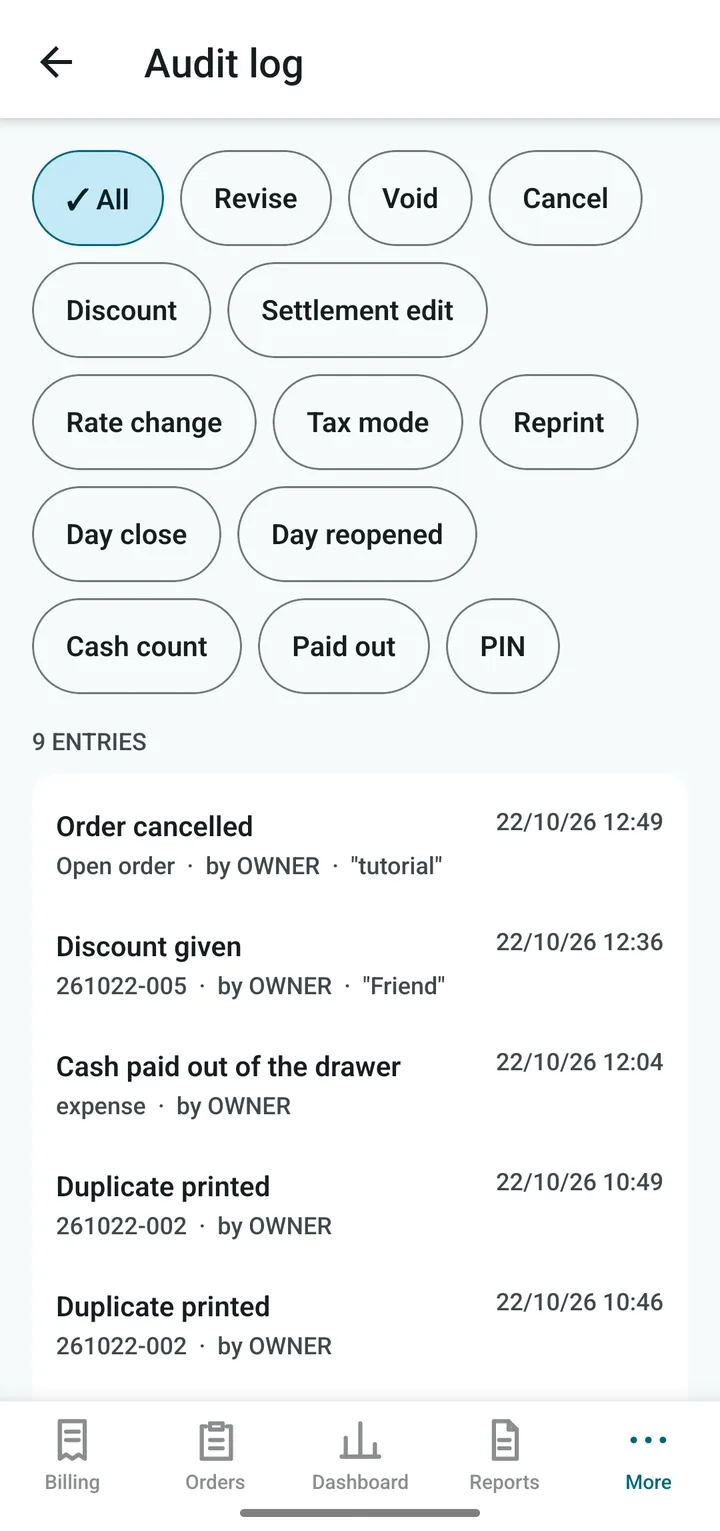
Open More › Audit log. The app writes down every important action: who did it, when and why. For example, a bill voided or revised, a discount given, a price changed, a day closed, a PIN changed.
Use the chips at the top to see one kind of action. Entries cannot be edited or deleted. If something looks wrong in your accounts, this is the first place to look.