11. Dashboard and reports Owner PIN
How much did I sell today? How much cash should be in the drawer? These two tabs answer such questions.
Dashboard
Tap Dashboard. The first time, type your owner PIN.
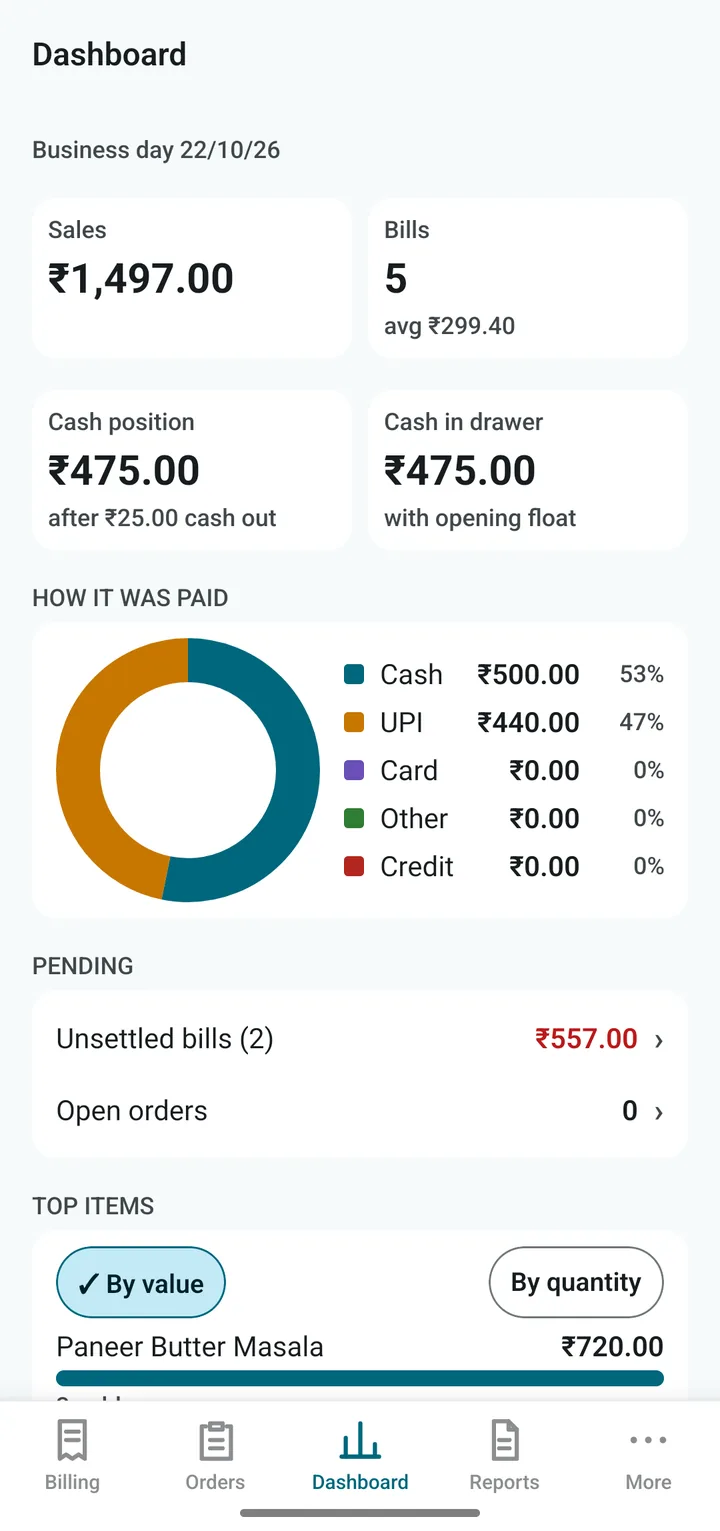
- Sales and Bills: how much you sold today and how many bills.
- Cash position and Cash in drawer: the cash you should have, after cash out and the opening float.
- The ring chart shows how people paid: cash, UPI, card, credit.
Scroll down for:
- Pending: bills not yet paid and orders still open. Tap to go to them.
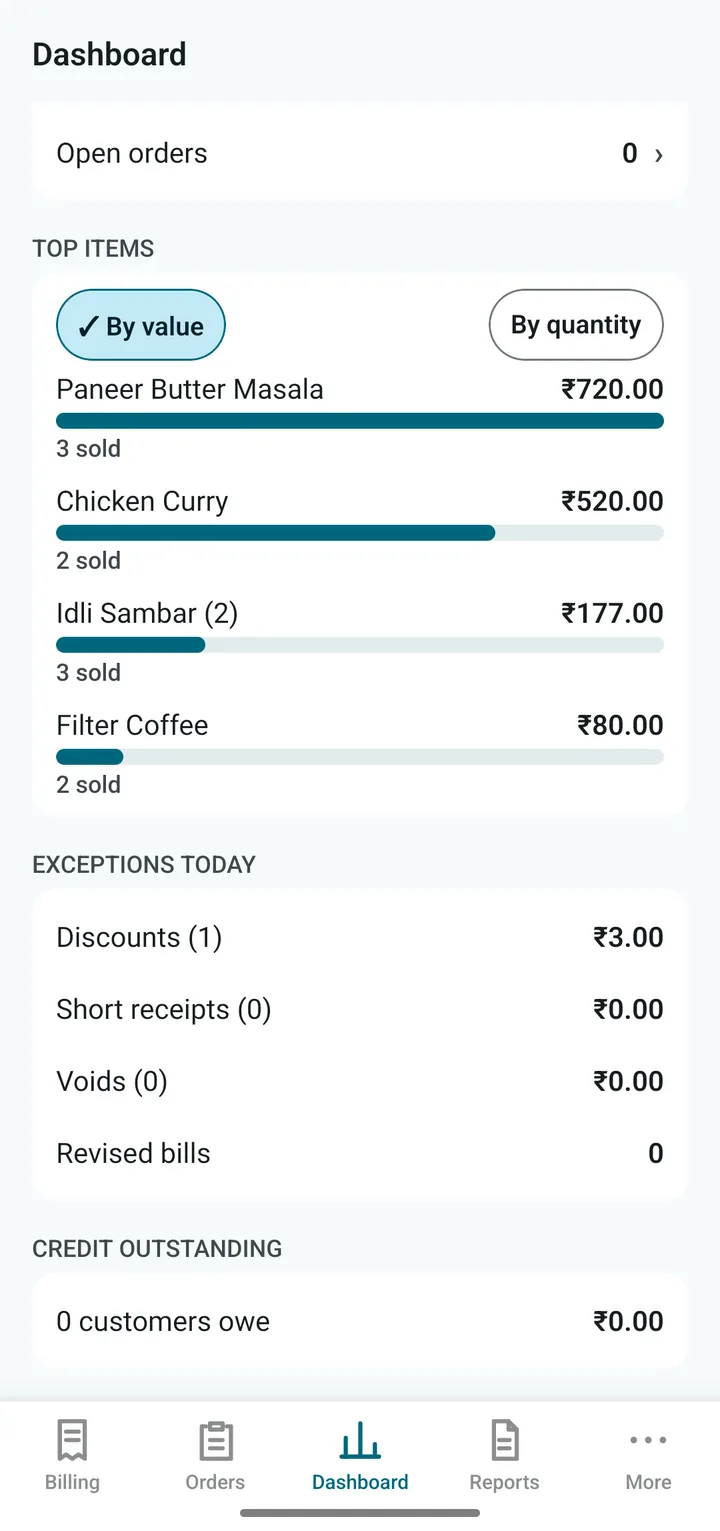
- Top items: your best sellers, by money or by quantity.
- Exceptions today: discounts, short receipts, voids and revised bills. Look here to spot leakage.
- Credit outstanding: how much customers owe you.
Reports
Tap Reports. Pick a report from the list:
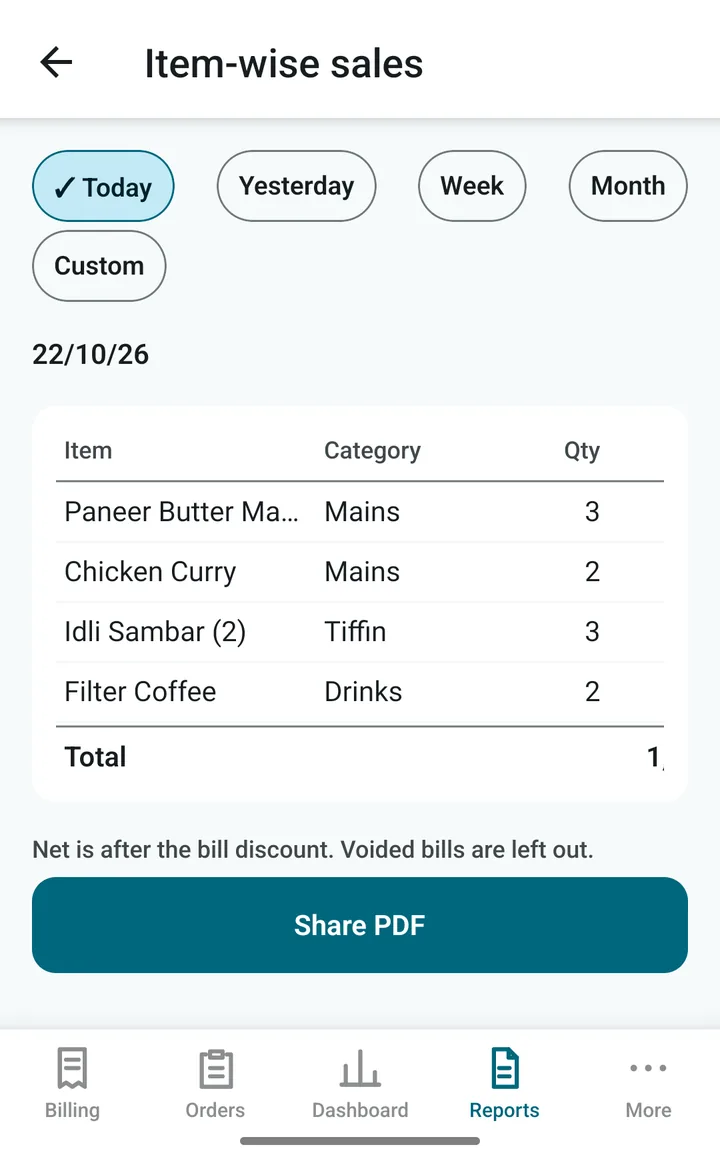
Day summary · Bill register · Item-wise sales · Category-wise sales · Collection by tender · GST summary · Discounts · Short receipts, excess and tips · Voids and revisions · Cash out · Credit outstanding.
Choose the period: Today, Yesterday, Week, Month or Custom dates. Tap Share PDF to send it, for example to your accountant.
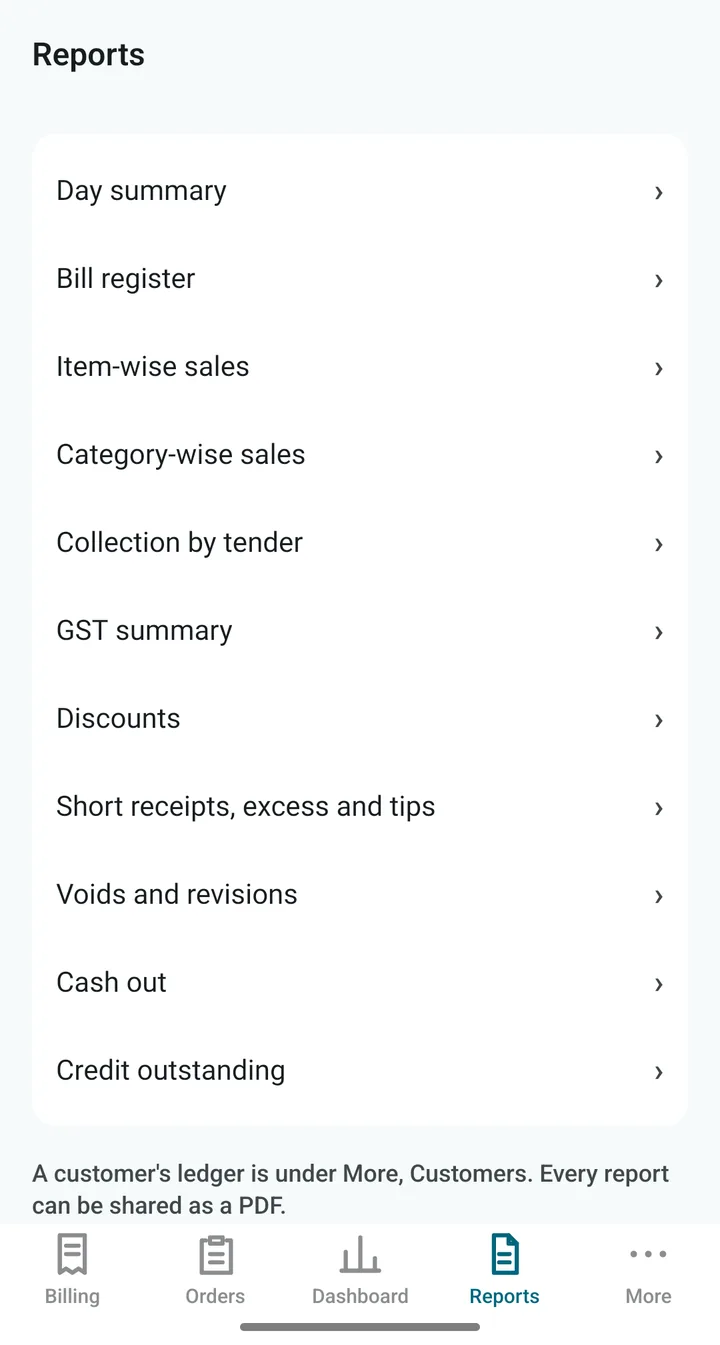
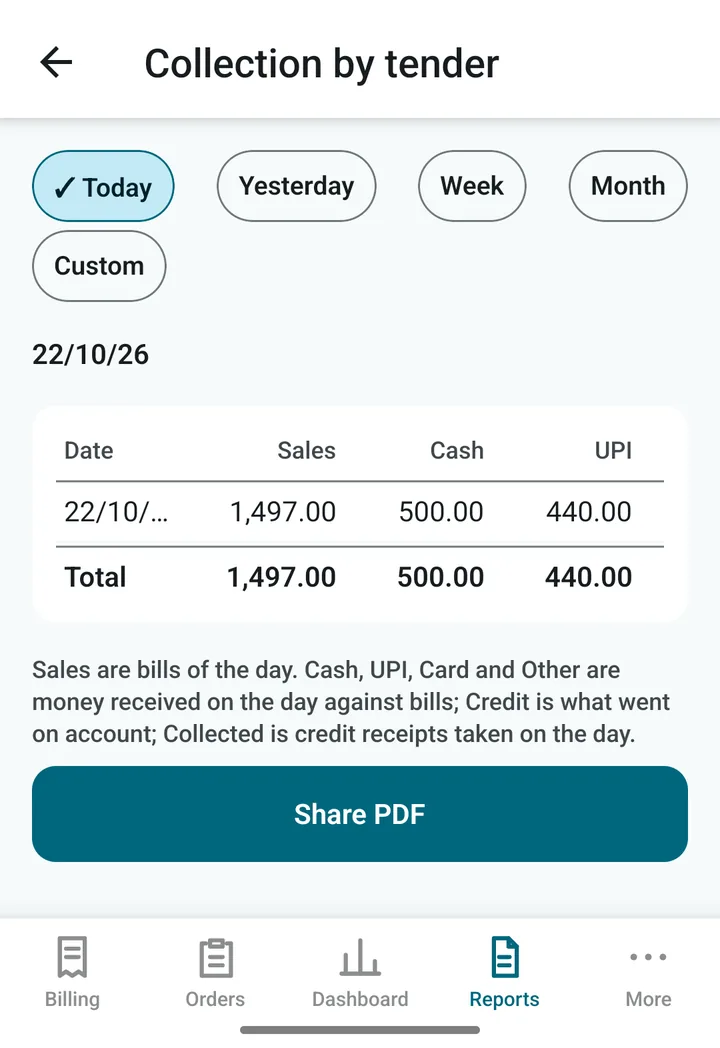
Collection by tender splits each day’s money into cash, UPI and card. Use it to match the drawer and your bank account. The GST summary is what your accountant needs for your GST return.
Tip. By default the Dashboard and Reports ask for the PIN. The owner can switch this off in Settings › Owner PIN, but we suggest leaving it on.