3. Connect the printer
dsResto prints on small Bluetooth receipt printers (58 mm or 80 mm paper). No printer yet? Skip this lesson. The app still saves every bill, and you can share it as a PDF.
Connect it
- Switch the printer on. Open the phone’s own Bluetooth settings and pair the printer there first (the code is usually 0000 or 1234).
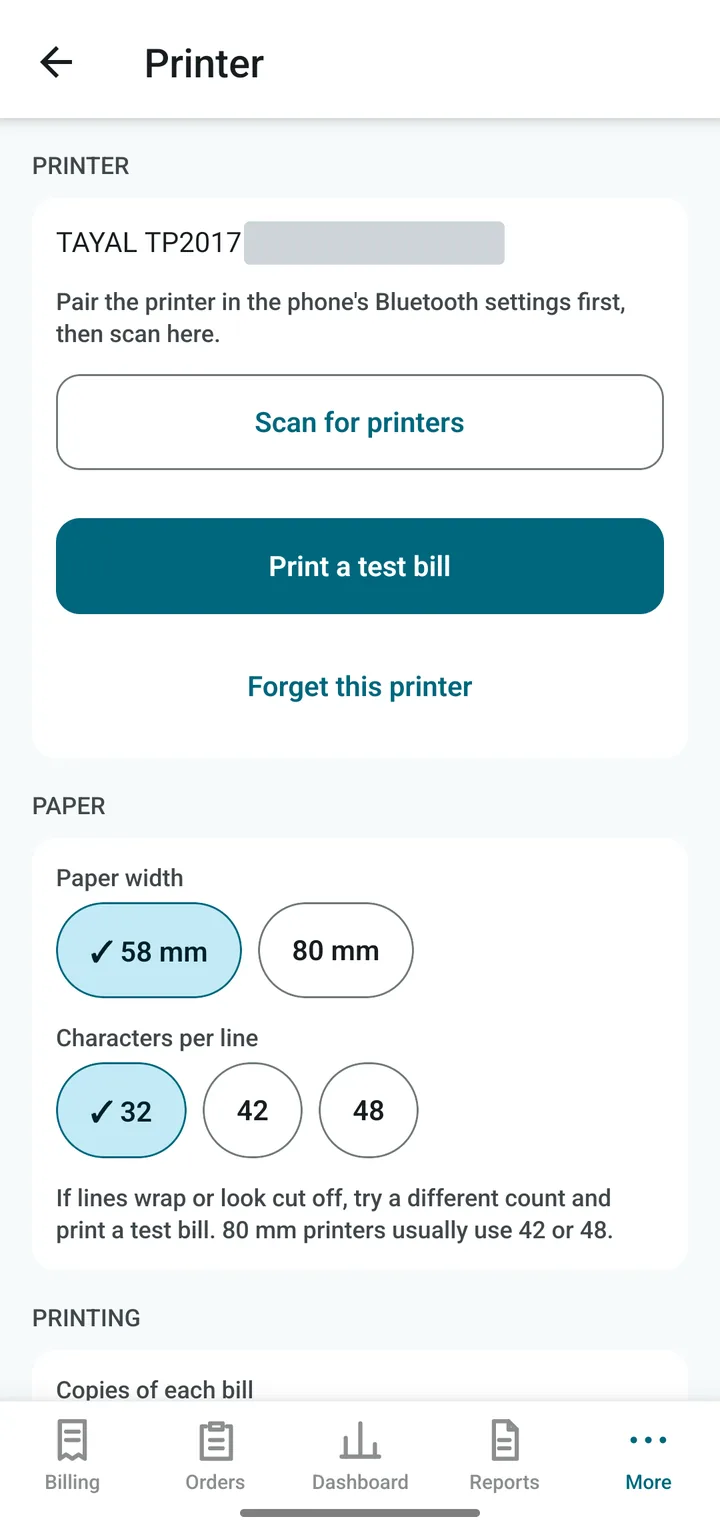
- In dsResto open More › Settings › Printer.
- Tap Scan for printers. Your printer appears in the list. Tap its name.
- Under Paper, choose the paper width: 58 mm or 80 mm.
- Tap Print a test slip.
If the words wrap onto the next line or look cut off, try another Characters per line (32, 42 or 48). Print the test slip again until it looks neat.
Other choices on this screen
- Copies of each bill: print two copies, one for the kitchen or the customer.
- Print a token slip for Counter orders: a small second slip with a token number and the items.
- Open cash drawer on Cash payments: if your drawer is connected to the printer.
- Cut paper after printing and Blank lines after the bill: for printers with a cutter.
Tip. If the printer is off or out of range when you print, the bill is not lost. It is already saved. Switch the printer on and print it again from Orders.
The app connects to the printer only when you print, and lets go afterwards. This saves the phone’s battery. If it cannot find the printer, it shows a box to pick one again.