6. Taking payment
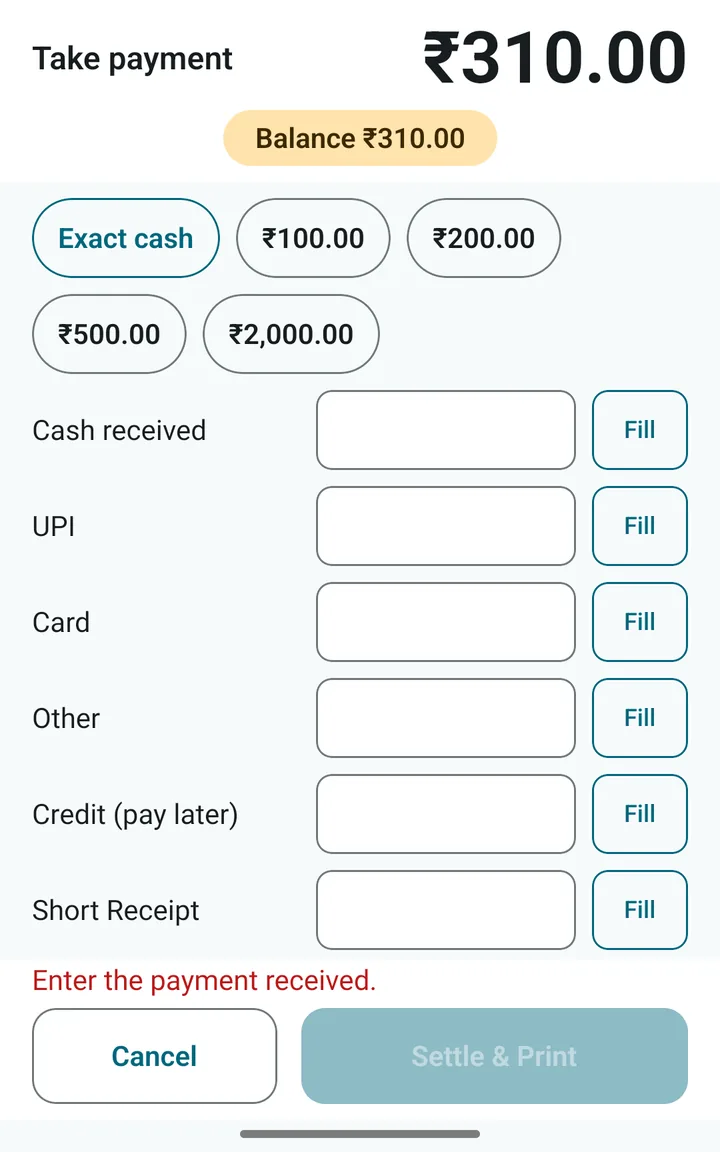
Tap Settle. A sheet opens with the total at the top and a Balance chip that tells you how much is still to be paid.
Cash
The rows are the ways a customer can pay: Cash received, UPI, Card, Other, Credit (pay later) and Short Receipt.
- Tap a quick button such as Exact cash or ₹500 to fill the cash row in one tap.
- Or type the amount. The Fill button puts the whole remaining balance into that row.
- When the balance reaches zero the chip turns green: ✓ Settled.
A customer can split a bill: some cash, the rest by UPI. Fill two rows.
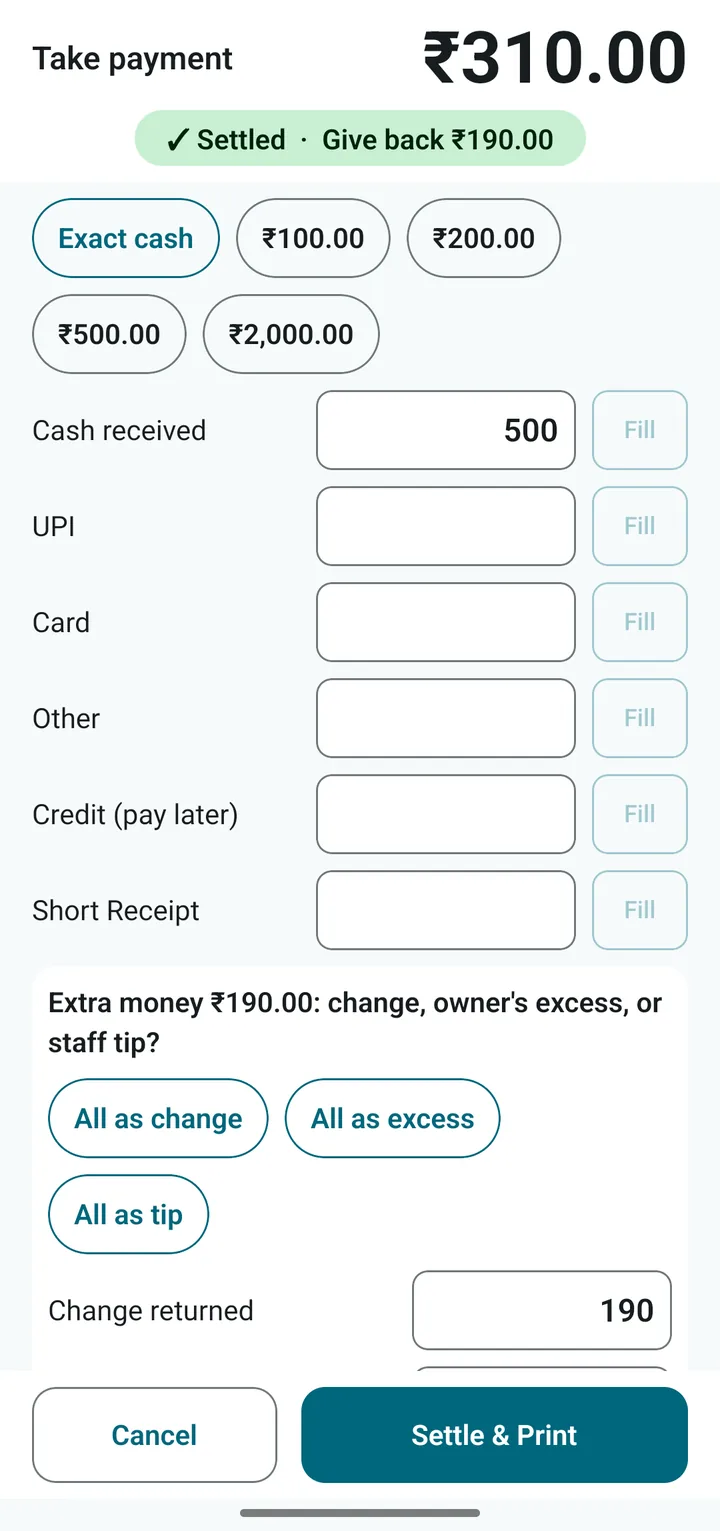
The customer gave more than the bill
The app will not let you finish until you say what the extra money is:
- Change: you give it back. Type how much change you returned.
- Excess: the customer left it and you keep it. It is recorded separately and is not counted as sales.
- Tip: it belongs to the staff. Recorded, not counted as sales.
The buttons All as change, All as excess and All as tip do it in one tap.
UPI: show a QR code
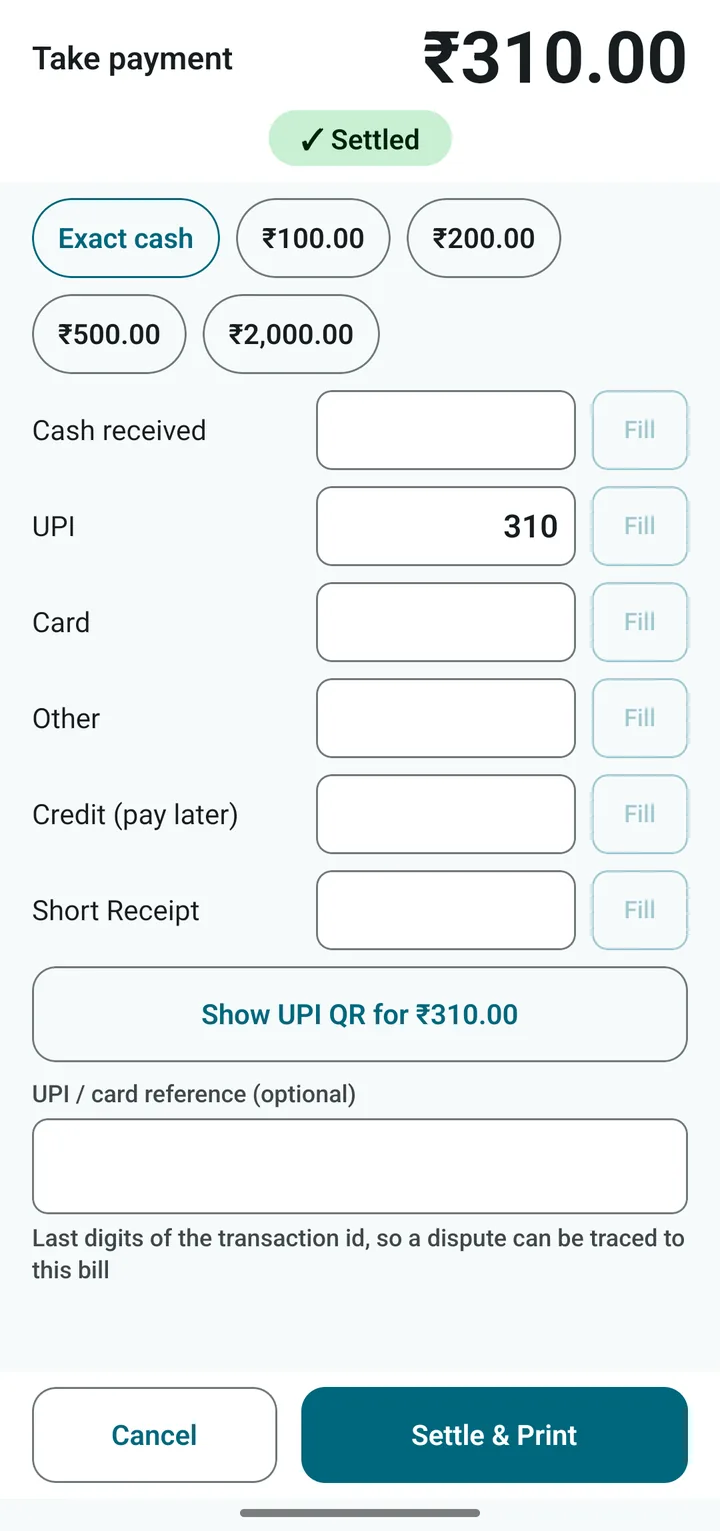
- Type the amount in the UPI row (or tap Fill).
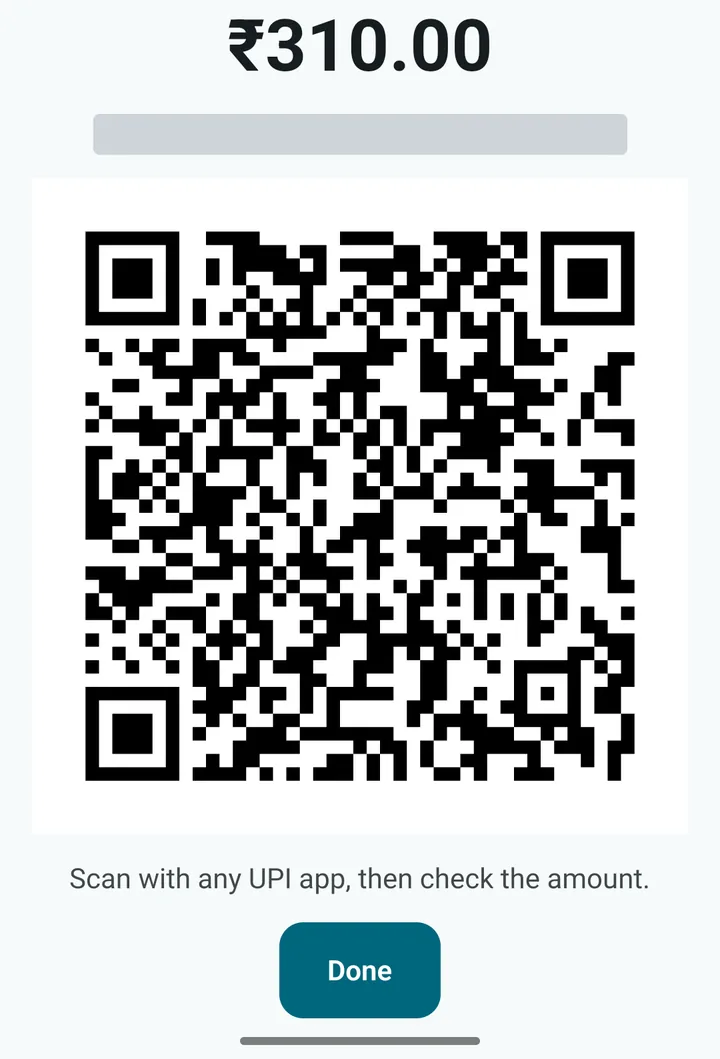
- Tap Show UPI QR for ₹…. A big QR code fills the screen.
- The customer scans it with any UPI app (PhonePe, Google Pay, Paytm and others).
- When your phone or bank app shows the money has arrived, tap Done.
The box UPI / card reference is for the last digits of the transaction id. If a customer argues later, you can trace the payment.
The customer paid less, or will pay later
- Short Receipt: a small amount you decide to forgive, for example ₹3 of a ₹310 bill. Above a limit (₹50 to begin with) it needs the owner PIN.
- Credit (pay later): a regular customer takes food now and pays another day. You must give the customer’s name and mobile number. See Credit and customers.
The last step
Tap Settle & Print. The bill number is given, the bill prints, and the screen is ready for the next customer. The cash drawer opens too, if it is connected.
Next: Dine-in and tables