5. Making a bill
This is what you will do all day. The fastest way: tap the dishes, then tap Settle.
Step 1. Choose the type of order
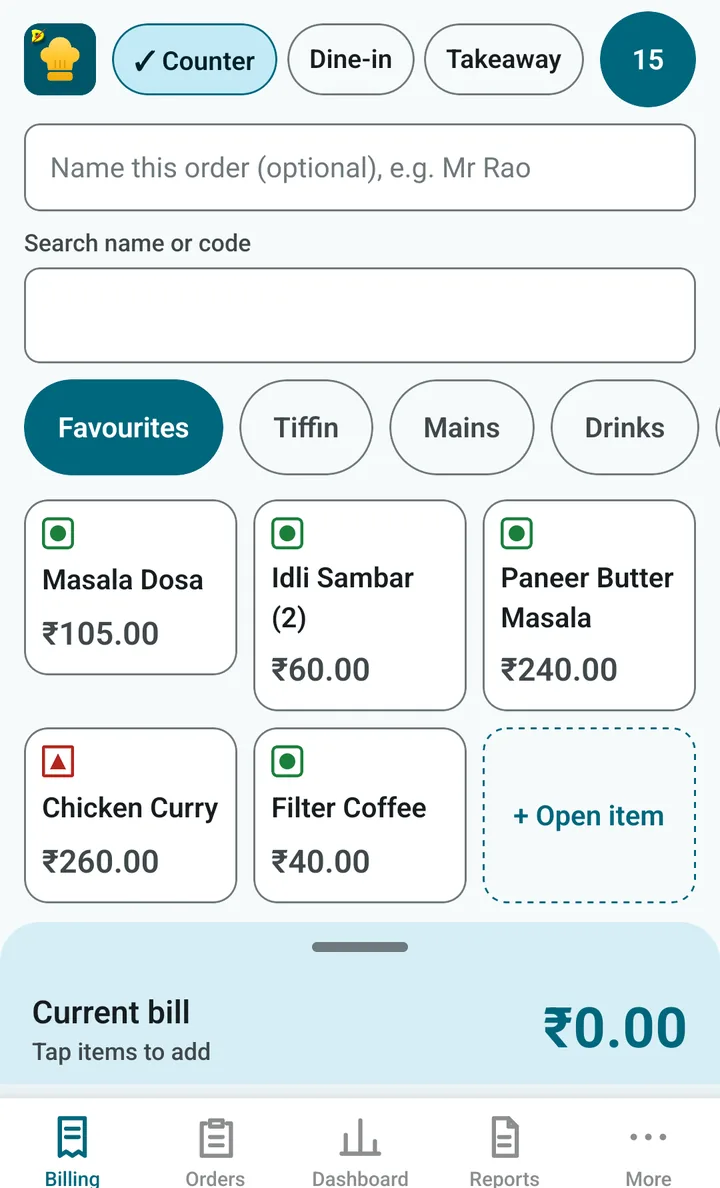
At the top of Billing are three buttons:
- Counter: the customer orders at the counter and pays now.
- Dine-in: the customer sits at a table. See the tables lesson.
- Takeaway: the customer takes the food away.
The one you use most is already selected for you (you can change this in Settings). You can also type a name, like “Mr Rao”, to find the order later.
In the same row you will also see:
- the dsResto logo on the left (tap it to open the dsResto web page), and
- a round number on the right. It counts the orders that are still open plus the bills waiting for payment. Tap it to go to Orders.
Step 2. Tap the dishes
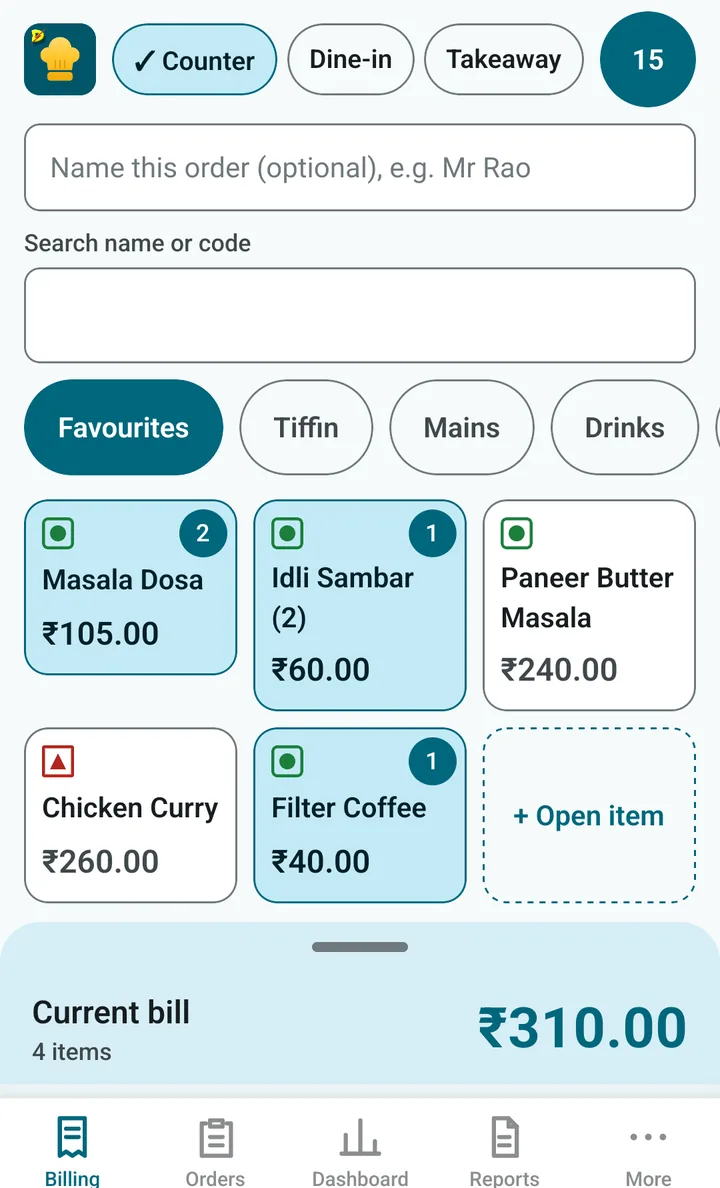
- Tap a dish once to add it. Tap again to add one more. A number on the tile shows how many.
- A green square means vegetarian. A red triangle means non-vegetarian.
- Favourites shows your best sellers. The other tabs are your categories.
- Type in the search box to find a dish by name or code.
- Added by mistake? Press and hold the tile for a moment to remove that dish from the bill.
Step 3. Check the cart
The panel at the bottom says Current bill and shows the total. Drag it up, or tap it, to see every line.
- − and + change the quantity.
- Swipe a line sideways to remove it. A bar appears for a few seconds with Undo.
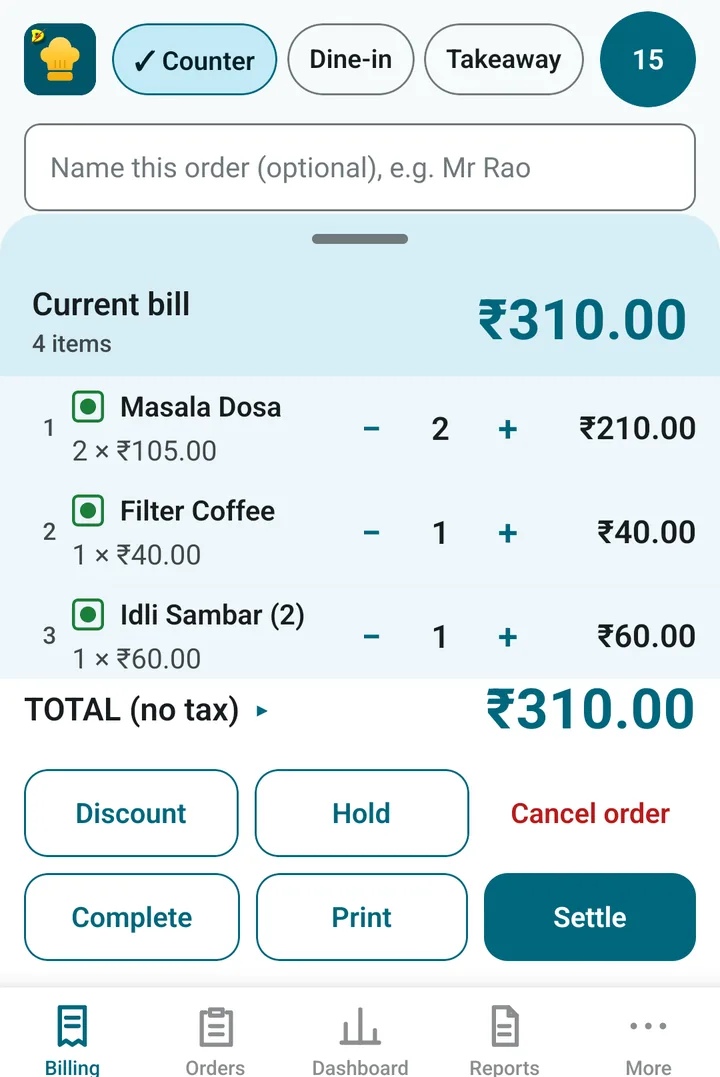
- Tap TOTAL to see the breakup: sub-total, discount, tax and round-off.
Step 4. Choose what to do
| Button | What it does |
|---|---|
| Settle | Take the money, finish the bill and print it. Best for Counter and Takeaway. |
| Print the bill now and take the money later. It shows in Orders as unpaid. Best for Dine-in: the guest asks for the bill, then pays. | |
| Complete | Finish the bill without printing it. |
| Hold | Keep the order open and come back to it (for example, a table still eating). |
| Discount | Give a discount (see below). |
| Cancel order | Throw the whole order away. The app asks for a reason. |
If a button is grey, a short red line above the buttons tells you why (for example, “Select a table first”).
A dish that is not on the menu
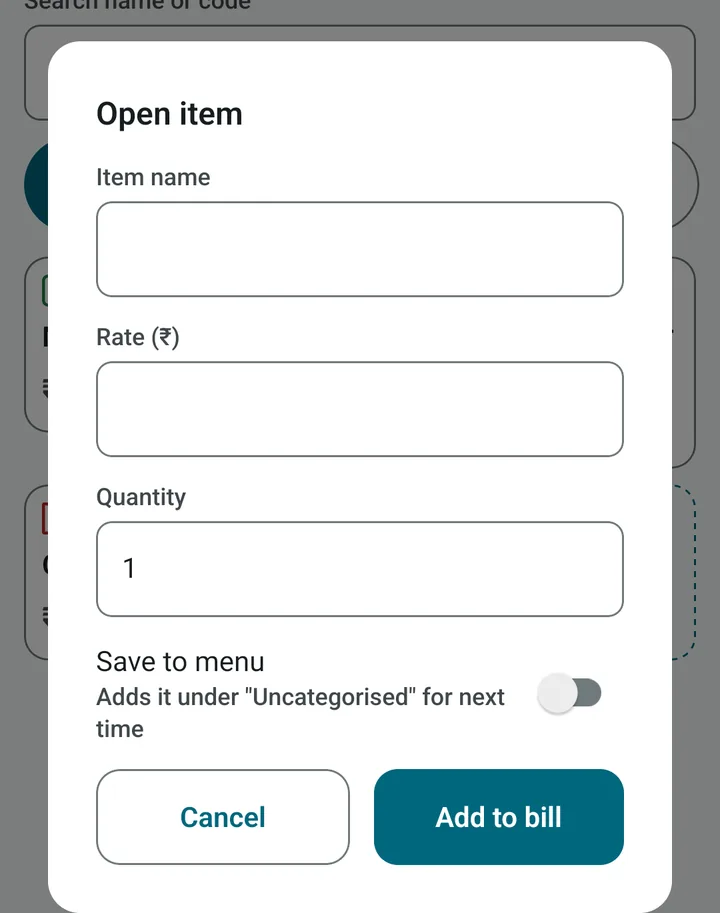
Tap the dotted + Open item tile. Type the name, the rate and the quantity, then tap Add to bill. Switch on Save to menu if you want to keep it for next time.
Discount
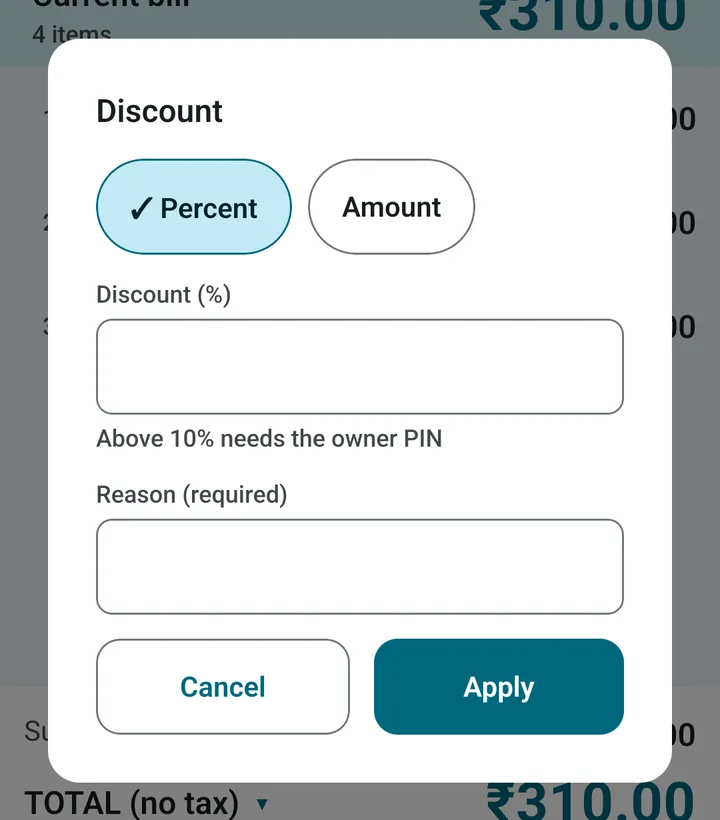
Tap Discount. Choose Percent or Amount, type the number and a reason, then tap Apply.
- The discount comes off before tax.
- Above the limit you set in Settings (10% to begin with), the owner PIN is needed. So staff cannot give big discounts alone.
- Every discount is recorded with its reason.
Cancelling an order
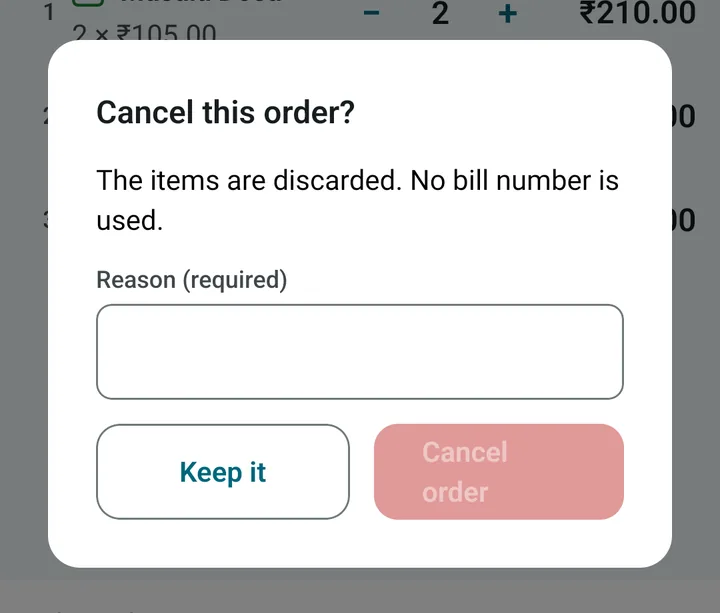
Tap Cancel order. The app asks why. Type a reason and confirm. No bill number is used up. The cancellation is written in the audit log.
Next: Taking payment