1. Know the app
Five minutes here will make every other lesson easier.
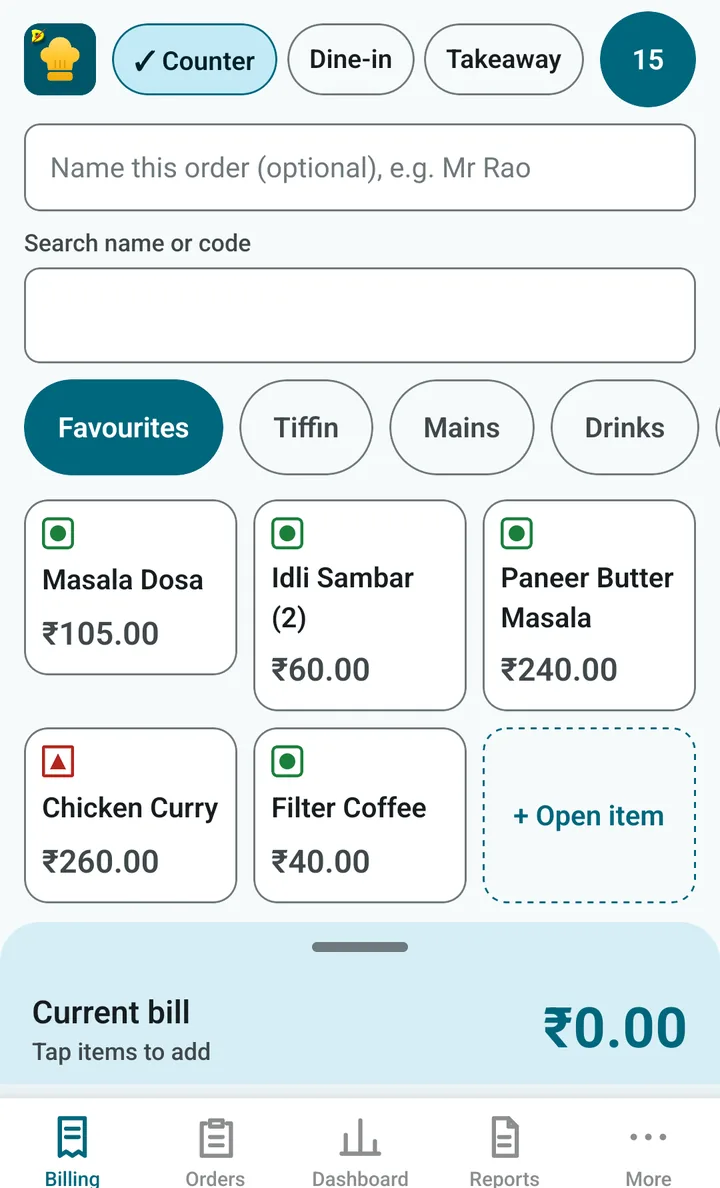
The five tabs at the bottom
The bar at the bottom of the screen is your map. Tap a name to go there.
| Tab | What it is for |
|---|---|
| Billing | Take an order and make the bill. This is the home screen. |
| Orders | Look up today’s bills, orders still open, and bills not yet paid. |
| Dashboard | Today at a glance: sales, cash in the drawer, how people paid. Owner PIN |
| Reports | Sales reports you can send to your accountant as a PDF. Owner PIN |
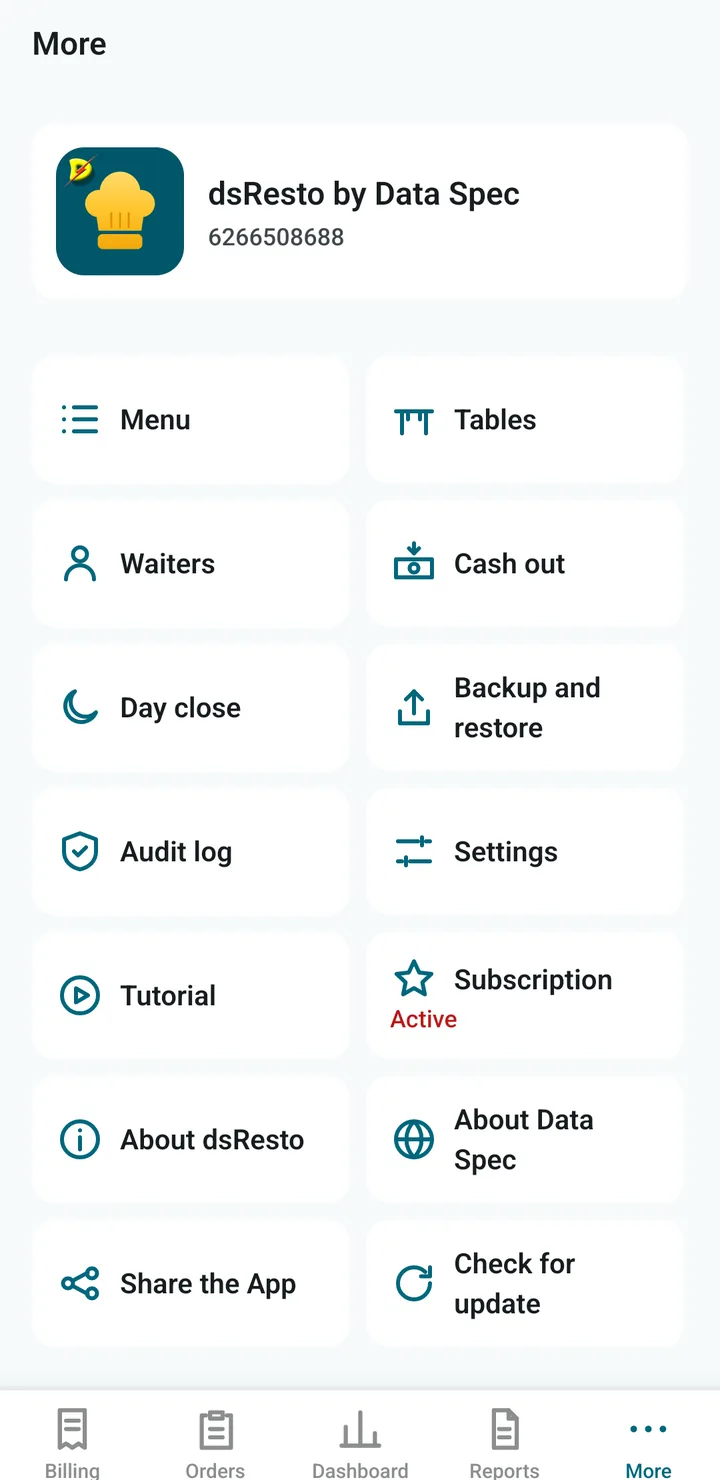
| More | Menu, tables, waiters, cash out, day close, backup, settings, this tutorial and more. |
The owner PIN
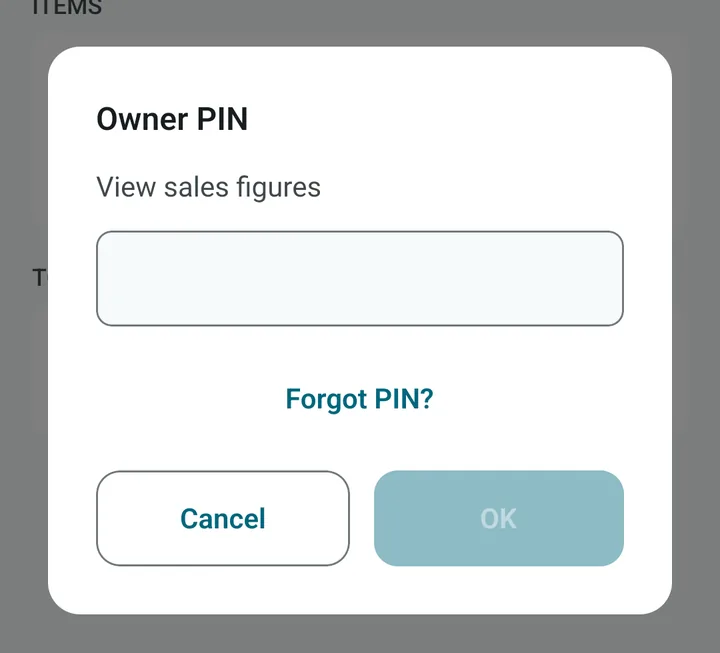
The owner PIN is a secret number (4 to 6 digits) that only the owner knows. It protects the things your staff should not see or change: sales figures, settings, prices, voiding a bill.
- Staff can take orders and make bills all day without the PIN.
- When you open a protected screen, the app asks for the PIN. Type it and tap OK. Sales screens then stay open for 5 minutes and lock again by themselves.
- Forgot it? Tap Forgot PIN? and type your recovery code. The security lesson explains the recovery code.
Does it need the internet?
Billing, printing, reports and backups all work without the internet. Nothing you enter is sent anywhere. The only time the phone talks to Google Play is for your subscription (after the free trial): Google Play needs to be reachable now and then to confirm it. More about this.
Open this tutorial from the app
You can open this tutorial any time without leaving the app:
- More › Tutorial, or
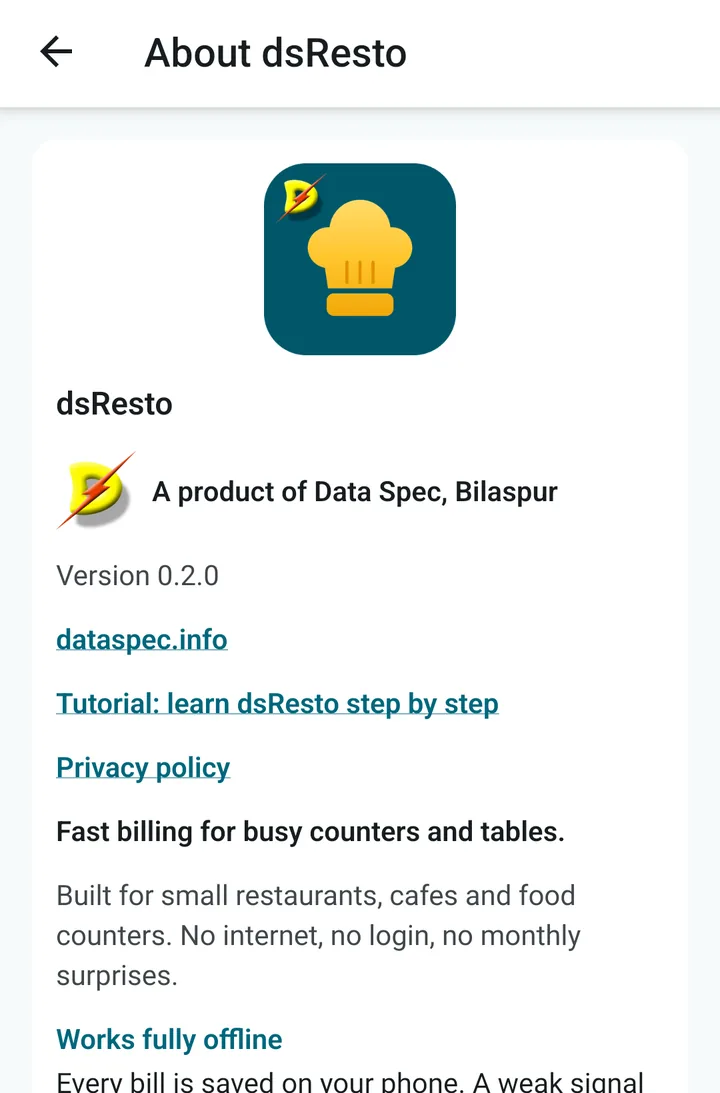
- More › About dsResto › Tutorial: learn dsResto step by step.
It opens in your phone’s web browser, so it needs the internet. Tip: tap any screenshot in this tutorial to see it bigger.
Is there a newer version?
Tap More › Check for update (or the same button on the About screen). It opens dsResto in the Play Store. If a newer version is there, you see an Update button.