
7. Dine-in and tables
At a table, guests order a little at a time and pay at the end. dsResto lets you keep each table’s order open.
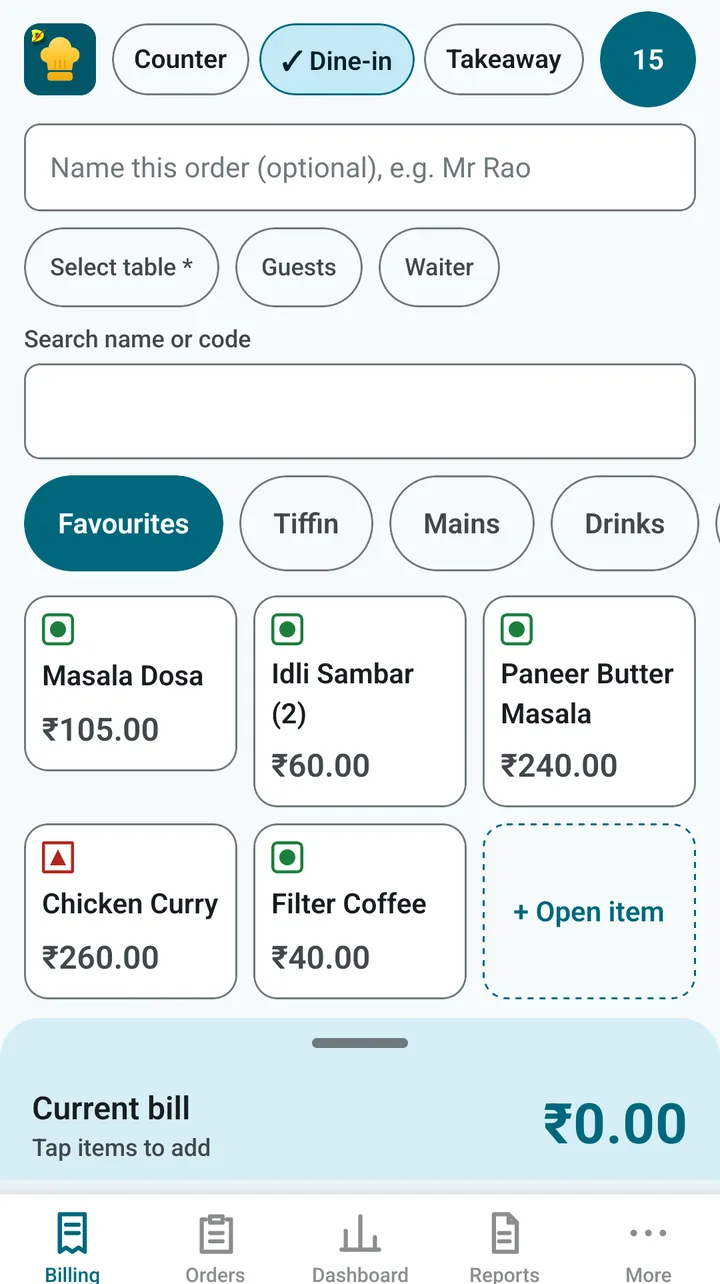
- Tap Dine-in. Three small chips appear: Select table, Guests and Waiter.
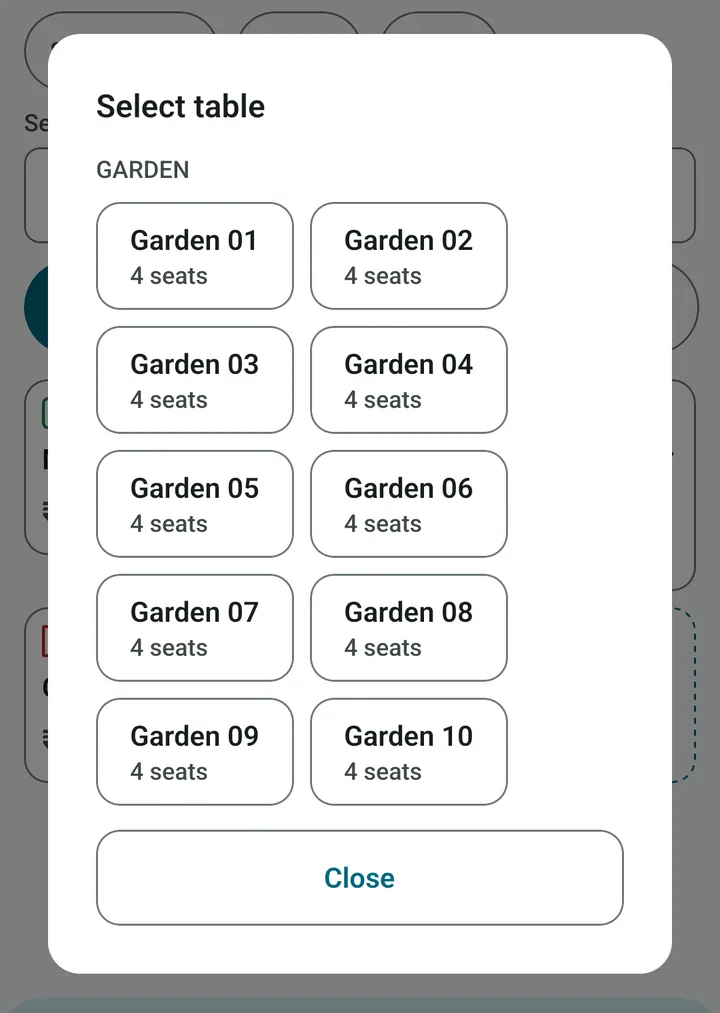
- Tap Select table and choose the table.
- Tap the dishes the guests ordered.
- Tap Hold to table. The order stays open on that table.
When the guests want to add more
- Go to Orders and open the Open tab. You see every table that is still eating.
- Tap the table, add more dishes, and hold it again.
When the guests ask for the bill
- Open the table from Orders › Open.
- Tap Print. The bill is printed and the guest looks at it.
- When the guest pays, open the bill from Orders and tap Take payment. See Taking payment.
Tip. If you switch on Waiter required for Dine-in in Settings, the app asks for a waiter before holding or billing a table.
A bill that is already printed cannot be changed by mistake. To correct it you use Revise or Void, which need the PIN. See Orders and bills.
Next: Orders and bills